Beyond the Default Shader: A Guide to Photorealistic Plastic Rendering
By Max Calder | 21 January 2026 | 13 mins read
Table of contents
Table of Contents
Plastic is one of those materials that should be easy, but rarely is. You can spend hours tweaking a shader, only for it to look cheap and fake under different lighting, a perfect render killer, especially when a client is watching. This guide breaks it all down. We're going to unpack the essential PBR properties, from albedo and roughness to subsurface scattering, and then build a flexible, universal plastic shader you can adapt for any surface, whether it's hard and glossy, soft-touch, or textured. This isn't about finding a magic preset; it’s about mastering the physics of how light interacts with a surface. Once you get that, you’ll stop fighting your materials and start telling them exactly what to do, delivering physically accurate results that hold up under any scrutiny.
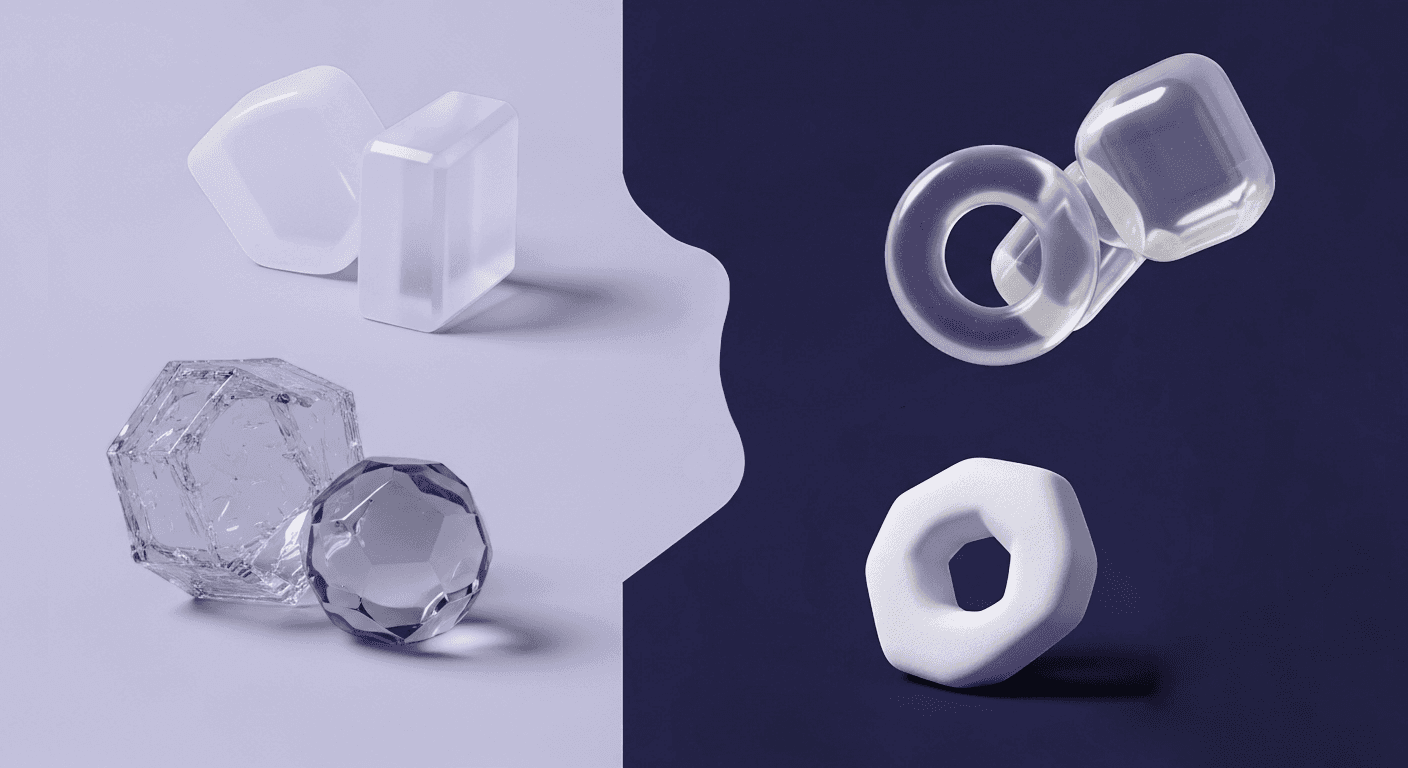
Unpack the core properties of digital plastic
Getting plastic to look right isn't about finding a magic preset. It’s about understanding what makes it tick, how it plays with light. Once you get the fundamentals, you can build any plastic you can imagine. Let's break down the essential building blocks you'll find in any modern PBR (Physically Based Rendering) shader.
Define the diffuse and albedo values for the base color
This is your starting point, the raw, underlying color of the plastic, stripped of all reflections. Think of it as the pigment in the material. When you’re trying to match a real-world plastic like a specific ABS or PVC, don't just eyeball it. Use a color picker on a reference photo taken in flat, neutral lighting.
Here’s a critical rule most artists learn the hard way: never use pure black or pure white. A value of 0 (pure black) tells the render engine that the surface absorbs 100% of light, which is physically impossible, even though Vantablack absorbs only 99.965%. Likewise, a value of 1 (pure white) means it reflects 100% of light. Both scenarios break the law of energy conservation, leading to blown-out highlights, dark voids, and renders that just feel off. For a black plastic, start with a dark gray (around 5% brightness). For a white plastic, pull it back to a light gray (no more than 90% brightness).
This simple discipline ensures your material behaves predictably when you drop it into different lighting scenarios, forming the foundation for believable results.
Control shininess with roughness and specularity
This is where the character of your plastic comes to life. Roughness controls how light scatters across the surface. A low roughness value (near 0) creates sharp, mirror-like reflections, perfect for polished acrylic or a brand-new car interior trim. A high roughness value (near 1) scatters light widely, creating a diffuse, matte finish as you’d find on a soft-touch dashboard.
But here’s the key: no real-world surface has perfectly uniform roughness. It’s always broken up by microscopic scratches, smudges, and wear. To replicate this, you must use a PBR roughness map, a grayscale texture where white represents a rougher surface and black a smoother one. Even a subtle, large-scale noise map plugged into the roughness slot can instantly make your material more believable by breaking up those unnaturally perfect reflections.
It's also essential to distinguish between reflection models. Plastics are dielectrics (non-metals), meaning their reflections are colorless. The light bouncing off is the same color as the light source. Metals, on the other hand, tint their reflections. Your PBR shader will have a (non-metals), meaning their reflections are colorless. The light bouncing off is the same color as the light source. Your PBR shader will have a metallic toggle or value for plastic; this should always be set to 0.
Add depth with Subsurface Scattering (SSS)
Not all plastics are completely opaque. Some, like the HDPE used in milk jugs or the nylon in machine parts, are slightly translucent. Light doesn't just bounce off the surface; it penetrates, bounces around inside, and exits at a different point. This effect is called Subsurface Scattering (SSS), and it’s what gives these materials their signature soft, waxy appearance.
When should you use it? Use SSS when you need to convey a material’s softness and thickness. It’s often a subtle effect, but it’s the difference between a hard, sterile-looking plastic and one that feels tangible.
The key parameters you'll need to tweak are:
- Scale: This controls how deep the light travels into the object. A larger scale makes the plastic appear more translucent.
- Radius: This defines the color shift as light scatters inside. For a white plastic, you might use a slightly reddish or bluish radius to give it a cool or warm feel.
- Color: This is the color of the material's interior, which influences the scattered light.
Mastering SSS is a surefire way to elevate your renders from good to photorealistic, especially for product and industrial designs where material nuance is everything.
Build a universal plastic shader in your 3D software
Now that we've unpacked the core properties, let's build a robust, all-purpose plastic material. This isn't about a single preset; it's about a flexible foundation you can adapt for almost any scenario, from a simple prop to a hero asset in an automotive shot.
Start with a PBR-compliant material
Think of a Physically Based Rendering (PBR) workflow as a contract between you and your render engine. You agree to provide physically plausible values, and the engine agrees to render your material accurately and consistently across any lighting environment. It’s the only way to work if you need predictable, photorealistic results.
Whether you’re in VRED, 3ds Max, Blender, or another package, your starting point should be a modern, PBR-compliant shader. In VRED, this is the Truelight Material. In 3ds Max with Arnold, it's the Standard Surface. In Blender, it’s the Principled BSDF. These shaders are all built on the same principles, containing slots for Albedo, Roughness, and Normals. Sticking to this workflow is non-negotiable for professional-grade work.
Add subtle surface imperfections with Normal Maps
Perfectly smooth surfaces don't exist in the real world. They scream CG. The fastest way to add that essential layer of realism is with a normal map. A normal map is a special texture that fakes fine surface detail, like grain, pitting, or scratches, without adding any extra geometry. It tells the render engine how light should bounce off the surface as if those details were really there.
For plastics, you'll want to use micro-textures. A subtle leather grain for an interior panel, a stippled texture for a tool handle, or a faint brushed pattern can make all the difference. Where do you get them? Services like Poliigon, Quixel Megascans, and Textures.com are excellent sources for high-quality, seamless maps. You can also create or tile your own texture from photos using software like Texturly. The key is subtlety; often, a normal map's strength should be dialed down until you can barely see it. That’s usually the sweet spot.
Set up your Index of Refraction (IOR)
The Index of Refraction is a value that determines how much light bends when entering a material and, crucially for us, how much it reflects off the surface at different angles. While it might sound technical, it's actually quite simple for plastics. Most common plastics, like acrylic, PET, and PVC, have an IOR between 1.4 and 1.6. For 95% of your work, setting the IOR to 1.5 is a reliable starting point.
Getting this value right governs the Fresnel effect, the phenomenon where surfaces become more reflective at grazing angles. You see it every day when you look at a wooden table from a low angle, and it appears almost mirror-like. A correct IOR ensures your plastic reflects light realistically, grounding it in the scene and adding that final layer of physical accuracy.
Master techniques for specific plastic types
With a solid base shader built, you can now pivot to creating specific types of plastic. The difference between a glossy dashboard and a soft-touch handle is just a few targeted tweaks. This is where your artistry comes in, translating physical properties into shader values.
How to create realistic plastic textures in 3D for hard, glossy surfaces
Think of the polished black trim in a luxury car or the clear case of an electronic device. These materials, often ABS or acrylic, are defined by their sharp, clear reflections. To achieve this, you’ll work with very low roughness values, typically in the 0.05 to 0.2 range. Use a subtle, large-scale noise map for your roughness texture to introduce slight variations in shininess, mimicking the effect of polishing or light wear.
A pro-level technique for automotive visualization is adding a clear coat layer. Most PBR shaders have a dedicated section for this. It simulates a thin layer of varnish on top of the base material, adding a second, sharper set of reflections. This is perfect for high-end car interior plastics, piano black finishes, or any material that needs that extra sense of depth and polish. Simply enable the clear coat and control its roughness independently from the base layer.
Create matte and soft-touch plastics
Now for the opposite: materials designed to absorb light and reduce glare, like a modern car’s dashboard or the rubberized grip on a camera. The primary control here is roughness. You’ll be pushing the roughness value much higher, into the 0.6 to 0.9 range. This scatters reflections so widely that the surface appears non-reflective and soft.
To simulate a velvety or rubberized coating, a high roughness value is your main tool. You can enhance the effect by using a Sheen parameter if your shader supports it. Sheen adds a faint, soft highlight at grazing angles, mimicking the look of microscopic fibers or a fine powder coating. This small touch is incredibly effective for communicating that soft-touch feel to the viewer.
Render textured and injection-molded plastics
This is where you can truly show off your attention to detail by replicating the subtle artifacts of the manufacturing process. Many plastic parts are injection-molded, leaving behind characteristic textures and imperfections. To recreate this, you’ll rely heavily on detailed normal and even displacement maps.
Use a high-frequency grain or stipple pattern in your normal map to define the primary surface texture. But don't stop there. For ultimate realism, add the tell-tale signs of injection molding:
- Parting lines: A faint, hairline seam where the two halves of the mold met.
- Ejector pin marks: Faint circular marks where the part was pushed out of the mold.
- Subtle warping: Use a very large-scale, low-intensity noise map plugged into your normal slot to simulate the slight warping or “sinking that occurs as the plastic cools.
These details are often subconscious, but they’re what separate a good render from a photograph. They tell the story of how the object was made, grounding it in reality.
Finalize your scene with advanced lighting and reflection
Your material is only half the equation. A perfect shader will look terrible in bad lighting. The final step is to ensure your plastic holds up in a realistic environment and to add those last few advanced touches that sell the shot.
Use High-Dynamic Range Imaging (HDRI) for realistic lighting
Never judge a material in an empty scene with a single light source. The best and only way to properly test your work is with a high-quality HDRI. An HDRI provides both complex, real-world lighting and detailed reflections that will reveal the true quality of your shader. The reflections of a studio, an overcast sky, or a forest canopy will immediately expose any flaws in your roughness maps or IOR settings.
Your mantra should be: test under multiple lighting conditions. A material that looks great in a soft studio HDRI might fall apart in direct sunlight. Before you call a material finished, drop it into at least three distinct environments: a neutral studio, an overcast outdoor scene, and a scene with a strong, direct key light like the sun. If it looks convincing in all three, you’ve got a robust, production-ready shader.
Advanced techniques for rendering plastic materials: Anisotropy and Sheen
Once you’re comfortable with the basics, you can start using more advanced shader properties. These are the tools that create highly specific and realistic effects:
- Anisotropy: This property creates stretched, directional reflections. Think of the back of a stainless steel pan or a brushed plastic knob. The microscopic grooves in the surface stretch the reflections perpendicular to their direction. To use it, you'll need an anisotropy value and often a rotation map to control the direction of the brushing. It's a specific effect, but when you need it, nothing else will do.
- Sheen: We mentioned this for soft-touch plastics, but it’s also fantastic for simulating a fine layer of dust or microfiber wear on a surface. It adds a soft, luminous quality to the edges of an object, catching the light at grazing angles. Used subtly, sheen can kill any remaining CG sterility and add a tangible sense of history to your asset.
Check for energy conservation and plausibility
This is your final sanity check. Modern PBR shaders are built to be energy-conserving, meaning they won’t reflect more light than they receive. However, you can still break this with improper values. Double-check that your albedo colors aren't too bright and that you haven't combined emissive properties with your base shader by accident.
A simple way to gut-check your material is to place a chrome sphere next to it in the scene. The chrome ball will show you the brightest possible reflection of the environment. Nothing on your plastic, besides a direct reflection of a light source, should be brighter than the highlights on that chrome sphere.
Finally, ask yourself: Does the plastic sit correctly in the final composition? Does it feel grounded and integrated with the other elements, or does it look pasted on? This holistic view is the ultimate test. If it feels right, you’ve successfully moved beyond just making a shader and have created a believable material.
Stop fighting your materials, make them work for you
We've unpacked a lot, but it all comes down to a simple shift in thinking. The gap between a plastic render that looks off and one that feels photographic isn’t about a secret plugin or a magic preset; it’s about learning to see. It’s about looking at a real-world object and knowing why it looks the way it does. Why a dashboard scatters light, why a polished trim has a second layer of reflections, and why a tool handle shows the faint parting line from the mold it was born in.
That’s the framework you have now. It’s a method for deconstructing any material and rebuilding it with confidence. The next time you get a new brief, you won't be hunting for a starting point; you'll know exactly which physical properties to build, from the ground up. This is how you move faster, iterate less, and create visuals that are not just accurate, but authentic.
You’ve got the tools. You’ve got the techniques. Now go build something that feels real.

Max Calder
Max Calder is a creative technologist at Texturly. He specializes in material workflows, lighting, and rendering, but what drives him is enhancing creative workflows using technology. Whether he's writing about shader logic or exploring the art behind great textures, Max brings a thoughtful, hands-on perspective shaped by years in the industry. His favorite kind of learning? Collaborative, curious, and always rooted in real-world projects.
Latest Blogs
The Indie Dev Guide to CC0 PBR Textures: Stop Searching, Start Cr...
PBR textures
AI in 3D design

Mira Kapoor
Jul 10, 2026
Sourcing Free Game Textures: Navigating PBR Pipelines and Stylize...
PBR textures
Game textures
Mira Kapoor
Jul 6, 2026
Sculpting with Sunlight: The Architectural Physics of Facade Text...
Texture creation
AI in 3D design

Max Calder
Jul 1, 2026

Accelerate you workflow
with automated PBR texture generation
Enjoy creative freedom with AI powered texture creation
 Texturly
Copyright © 2026 Texturly, Asha Technology Labs Pvt. Ltd. All rights reserved