Metallic vs Specular Workflow: Choosing the Right PBR Textures for Realistic Renders
By Max Calder | 17 April 2026 | 14 mins read
Table of contents
Table of Contents
Metal surfaces are at the core of realistic 3D rendering, especially in industries like automotive, product visualization, and gaming. The way metal reflects light, shows imperfections, and interacts with its environment can make or break the realism of a scene.
This is where PBR (Physically Based Rendering) textures come in. High-quality metal PBR textures allow designers to simulate real-world materials accurately, without relying on guesswork. But in practice, many designers struggle with inconsistent texture quality, missing maps, and confusion between different workflows, particularly metallic vs specular.
At the same time, while there are many free texture resources available, not all of them are production-ready. Poorly created textures can lead to unrealistic reflections, visible tiling, and inefficient rendering.
In this guide, we’ll break down:
- What makes a metal PBR texture truly usable
- Where to find high-quality free resources
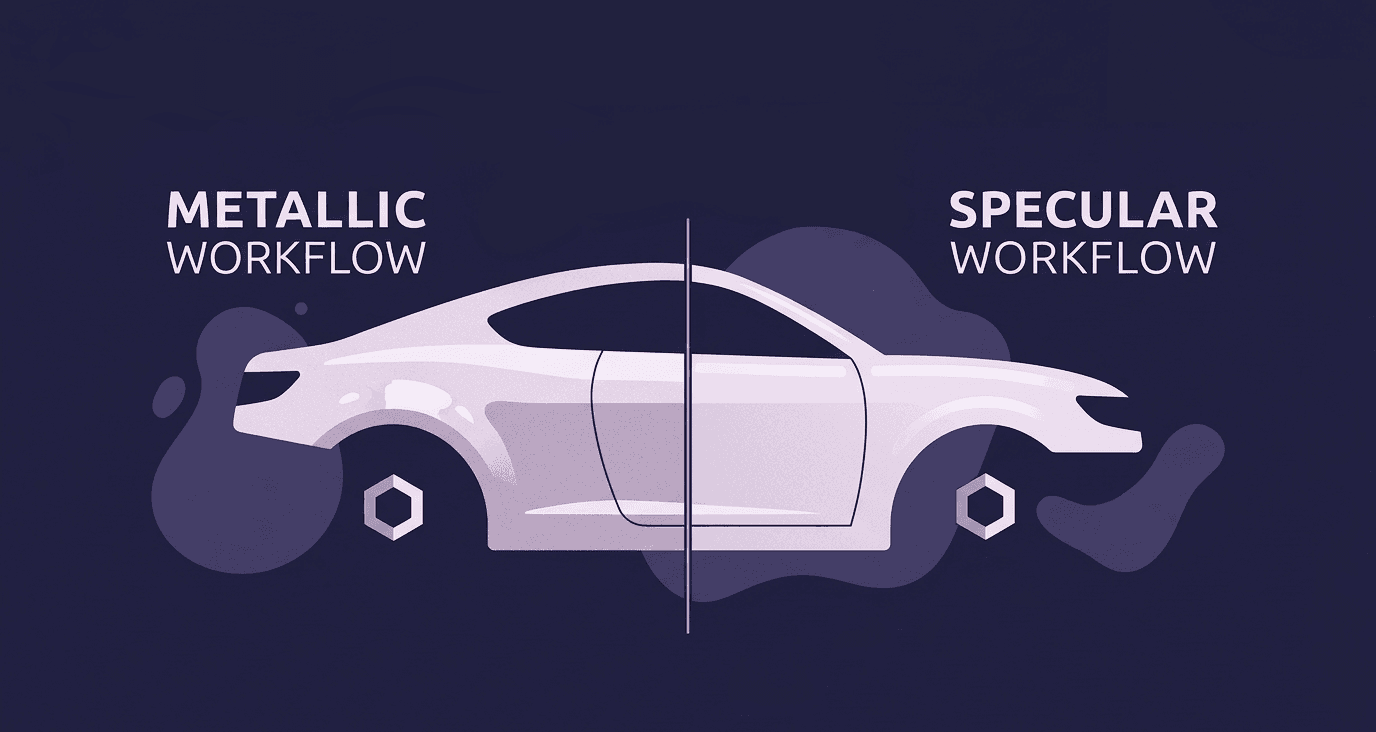
- The difference between metallic and specular workflows
- How to choose the right approach for your projects
The goal is simple: help you build a clean, reliable, and efficient material workflow that delivers consistent, realistic results.
What are metal PBR textures?
Understanding PBR in simple terms
Physically Based Rendering (PBR) is a workflow designed to simulate how materials interact with light in the real world. Instead of relying on artistic approximation, PBR uses physically accurate values to ensure materials behave consistently across different lighting environments.
For metals, this is especially important. Unlike other materials, metals rely almost entirely on reflection for their appearance. This means any inaccuracy in texture maps or values immediately impacts realism.
Key maps used in metal textures
A metal PBR material is built using multiple maps that work together to define surface behavior:
- Albedo (Base Color):
For metals, this is typically darker and contains minimal lighting information. It represents the inherent color of the material without reflections. - Metallic Map:
Defines whether a surface behaves like a metal. In most cases, metals are set to full value (1), while non-metals are 0. - Roughness Map:
Controls how sharp or blurry reflections appear. This is the most critical map for metals, as it defines surface variation and realism. - Normal Map:
Adds fine surface details such as scratches, brushed patterns, and micro-texture without increasing geometry.
These maps must be consistent with each other. A mismatch, like a clean albedo with a noisy roughness, can result in unrealistic materials.
Why metals require special treatment
Metals behave differently from materials like plastic or fabric. They do not have a strong diffuse component; instead, their color and appearance come primarily from reflected light.
This leads to a few important implications:
- Lighting has a stronger influence on the final appearance
- Roughness variation is critical for realism
- Surface imperfections are essential to avoid a “CG look.”
For example, a perfectly smooth metal surface with uniform roughness will look artificial, even if all maps are technically correct. Realism comes from subtle variation, tiny scratches, uneven roughness, and micro-details that break uniformity.
Understanding these fundamentals is key before selecting or applying any metal PBR texture.
What makes a good free texture
Not all free PBR textures are suitable for production use, especially for metal surfaces where realism depends heavily on precision. Before adding any texture to your library, it’s important to evaluate it against a few core criteria:
- High resolution (at least 2K–4K):
Metal surfaces often appear in close-up shots, so low-resolution textures will quickly break down. - Seamless tiling:
The texture should repeat without visible edges or patterns. This is critical for large surfaces like panels or industrial components. - Complete PBR maps:
A usable set should include at least albedo, roughness, normal, and metallic maps. Missing maps often require manual recreation. - Physically accurate values:
Roughness and metallic maps should behave realistically, not overly glossy or artificially exaggerated.
A texture that meets these criteria will integrate smoothly into your workflow and perform reliably under different lighting conditions.
Common issues in free resources
Many free textures look good at first glance but fail under real production scenarios. Common problems include:
- Lighting baked into albedo maps:
This creates unrealistic shading when used in a PBR workflow. - Overprocessed textures:
Excessive contrast or sharpening can make surfaces look unnatural. - Incorrect roughness maps:
Either too flat or too noisy, leading to unrealistic reflections. - Visible seams and repetition:
Especially noticeable on large or reflective surfaces. - Mismatched maps:
Normal, roughness, and albedo maps that don’t align properly.
These issues are particularly problematic in metal materials because reflections amplify every flaw.
Tips to optimize downloaded textures
Even high-quality textures often need refinement before use. A few simple adjustments can significantly improve results:
- Normalize roughness values to match your scene lighting
- Reduce excessive contrast in albedo maps
- Fix tiling issues to ensure seamless repetition
- Adjust normal intensity to avoid exaggerated surface depth
If you’re working with large libraries, doing this manually for every texture becomes time-consuming. This is where automated workflows or AI tools can help, by generating seamless textures and consistent PBR maps from a single source.
The key is to treat free textures as starting points, not final assets. With proper validation and optimization, they can become reliable components in a production-ready material library.
Metallic vs Specular workflow explained
What is a metallic workflow?
The metallic workflow is the most widely used PBR approach in modern rendering pipelines. It simplifies material definition by categorizing surfaces as either metal or non-metal, using a metallic map that typically contains values of 0 or 1.
In this setup, metals derive their appearance almost entirely from reflections. The base color carries minimal information, while the roughness map becomes the primary driver of visual variation. This makes the workflow both efficient and predictable, especially when working across multiple assets or scenes.
Because of its simplicity and physical accuracy, the metallic workflow integrates seamlessly with most modern tools and engines. It reduces the chances of incorrect material setups and makes it easier to maintain consistency across large projects.
What is the specular workflow?
The specular workflow takes a different approach by giving the artist more direct control over how light reflects from a surface. Instead of relying on a binary metallic map, it uses a specular map, often in RGB, to define reflectivity.
This allows for finer adjustments, particularly when dealing with complex or layered materials. However, this added control also introduces complexity. Artists need to carefully balance values to avoid non-physical results, which can make the workflow harder to manage at scale.
In practice, a specular workflow is more common in older pipelines or specialized rendering setups where precise control is required.
Core differences between the metallic and specular
The difference between metallic and specular workflows comes down to a trade-off between simplicity and control.
The metallic workflow is structured and constrained. It enforces physically correct behavior, making it easier to achieve consistent results without extensive tweaking. This is particularly useful in production environments where multiple materials and assets need to align.
The specular workflow, on the other hand, offers flexibility. It allows artists to fine-tune reflectivity in ways that the metallic workflow does not. However, this flexibility comes at the cost of increased complexity and a higher risk of inconsistencies.
For most modern use cases, especially where efficiency and scalability are priorities, the metallic workflow is the preferred choice. The specular workflow remains relevant, but primarily in scenarios where its additional control is necessary.
How to choose between metallic and specular
Choosing between metallic and specular workflows isn’t just a technical preference; it directly affects how efficiently you can build, manage, and render your materials.
When to use the metallic workflow
For most modern pipelines, the metallic workflow is the practical default. It’s designed to be simple, predictable, and physically accurate, which makes it ideal for projects where consistency matters.
If you're working in real-time engines or standard PBR renderers, the metallic workflow fits naturally into the system. It reduces setup time, minimizes errors, and makes it easier to scale across multiple assets. This is especially useful when handling large scenes or maintaining a structured material library.
Because it enforces clear rules, metal or non-metal, it also prevents many of the common mistakes that occur when materials are manually tuned.
When to use the specular workflow
The specular workflow becomes relevant when you need more control than the metallic system allows. This can happen in specific cases where materials don’t behave in a strictly binary way, or when you're working with legacy assets that already use specular maps.
It’s also useful in high-end rendering scenarios where subtle control over reflection intensity or color is required. However, this level of control demands precision. Without careful calibration, it’s easy to create materials that look visually appealing but behave incorrectly under different lighting conditions.
Best choice for modern workflows
In most cases, the decision is straightforward: use metallic workflow as your standard, and only rely on specular when there’s a clear technical reason.
This approach keeps your pipeline efficient and consistent while still allowing flexibility when needed. It also makes it easier to collaborate, since metallic workflows are widely understood and supported across tools.
For designers managing multiple assets or working under tight timelines, the priority should be reliability. A workflow that produces consistent results with minimal adjustment will always outperform one that requires constant fine-tuning.
Ultimately, the goal is not to choose the more advanced workflow, but the one that best supports speed, accuracy, and scalability in your projects.
Best practices for using metal PBR textures
Achieving realistic metal materials is less about complexity and more about control. Even high-quality textures can fail if they’re not applied correctly. These principles help maintain realism and efficiency in your workflow:
1. Avoid overly clean surfaces
Perfect metals look artificial. Real-world surfaces always have micro-imperfections. Introduce subtle variation using roughness and normal maps, fine scratches, brushed patterns, and surface noise to make a significant difference.
2. Control roughness carefully
Roughness defines how reflections behave.
- Too glossy → unrealistic, mirror-like surfaces
- Too rough → flat, lifeless materials
Small adjustments can drastically change the final render, so always fine-tune based on lighting conditions.
3. Maintain correct texture scale
A texture that looks right in isolation may fail on a full model.
Always check the scale relative to the object, especially for large surfaces like panels or industrial parts.
4. Ensure seamless tiling
Visible repetition breaks realism instantly, especially on reflective metals.
Use tileable textures properly and validate them on large surfaces before final use.
5. Optimize texture resolution
Higher resolution isn’t always better. Use high resolution only where necessary (close-up shots), and optimize elsewhere to reduce memory usage and render times.
6. Keep material consistency across scenes
Inconsistent roughness, normal intensity, or texture quality can create a visual imbalance. Standardize your materials to ensure everything behaves cohesively under the same lighting setup. Strong metal rendering comes from disciplined execution, subtle variation, correct scaling, seamless application, and consistent calibration.
Improving workflow with AI tools
Working with metal PBR textures at scale often exposes a recurring problem: the gap between available resources and production-ready assets. Even when you find good textures, they usually need cleanup, fixing seams, adjusting roughness, or generating missing maps. Doing this manually for every asset slows down the entire pipeline.
This is where AI-driven tools start to make a meaningful difference.
Fixing non-seamless textures
One of the most common issues with free textures is poor tiling. What looks fine on a small preview often breaks when applied to larger surfaces, creating visible repetition. AI tools can automatically convert standard images into seamless, tileable textures, removing edges and blending patterns intelligently. This eliminates the need for manual editing and ensures textures scale properly across different models.
Generating missing PBR maps
Another bottleneck is incomplete texture sets. Many free resources provide only a base image, leaving you to manually create roughness, normal, or metallic maps. AI can generate these maps from a single input image, aligning them consistently with the base texture. This not only saves time but also ensures that all maps work together correctly, reducing the risk of mismatched materials.
Faster iteration and refinement
Instead of spending time manually tweaking each texture, AI allows you to iterate quickly. You can adjust brightness, contrast, saturation, or sharpness and immediately see how those changes affect the final material.
This is particularly useful during look development, where speed and experimentation are critical. Faster iteration leads to better decisions without increasing production time.
Streamlining the entire texture pipeline
Tools like Texturly bring these capabilities into a single workflow, combining:
- Image-to-seamless texture generation
- Automatic PBR map creation
- Real-time texture adjustments
This reduces the friction between sourcing textures and using them in production. Instead of treating textures as raw assets that require heavy preparation, they become ready-to-use materials. For designers working with complex scenes or large material libraries, the benefit is clear: less time spent fixing assets, and more time focused on achieving the final visual result.
Building a scalable metal PBR workflow for realistic rendering
Metal PBR textures play a critical role in achieving realistic and production-ready renders. From accurate reflections to subtle surface imperfections, the quality of your metal materials directly impacts the final output.
Throughout this guide, the key takeaway is not just where to find textures, but how to evaluate, choose, and apply them effectively. Free resources can be valuable, but only when they meet the standards required for seamless tiling, correct map structure, and physical accuracy.
Equally important is understanding the difference between metallic and specular workflows. While both have their place, the metallic workflow remains the most practical and scalable choice for modern pipelines, offering consistency and efficiency across projects.
As projects grow in complexity, workflow optimization becomes essential. Managing texture libraries, reducing render times, and maintaining consistency are all part of building a reliable system, not just individual materials.
This is where newer approaches, including AI-driven tools, begin to reshape the process. By automating tasks like seamless texture generation and PBR map creation, they reduce manual effort and make high-quality materials more accessible.
In the end, the goal is simple: create a workflow where textures are no longer a bottleneck, but a reliable asset that supports both speed and realism.

Max Calder
Max Calder is a creative technologist at Texturly. He specializes in material workflows, lighting, and rendering, but what drives him is enhancing creative workflows using technology. Whether he's writing about shader logic or exploring the art behind great textures, Max brings a thoughtful, hands-on perspective shaped by years in the industry. His favorite kind of learning? Collaborative, curious, and always rooted in real-world projects.
Latest Blogs
The Indie Dev Guide to CC0 PBR Textures: Stop Searching, Start Cr...
PBR textures
AI in 3D design

Mira Kapoor
Jul 10, 2026
Sourcing Free Game Textures: Navigating PBR Pipelines and Stylize...
PBR textures
Game textures
Mira Kapoor
Jul 6, 2026
Sculpting with Sunlight: The Architectural Physics of Facade Text...
Texture creation
AI in 3D design

Max Calder
Jul 1, 2026

Accelerate you workflow
with automated PBR texture generation
Enjoy creative freedom with AI powered texture creation
 Texturly
Copyright © 2026 Texturly, Asha Technology Labs Pvt. Ltd. All rights reserved