From Nodes to Renders: The Definitive Guide to PBR Textures in Blender
By Mira Kapoor | 2 February 2026 | 13 mins read
Table of contents
Table of Contents
You’ve seen it a dozen times: a character looks perfect in one tool, gets imported into the engine, and suddenly the materials feel… off. The metal isn’t quite right, and the leather looks plastic. It’s the subtle inconsistency that kills a pipeline. This guide unpacks the entire PBR workflow in Blender, not just the theory, but the practical, production-focused steps you need to build a rock-solid material pipeline for your team. It’s about turning artistic intention into predictable data so you can eliminate that cross-engine guesswork and build materials that just work, every time, in any lighting.
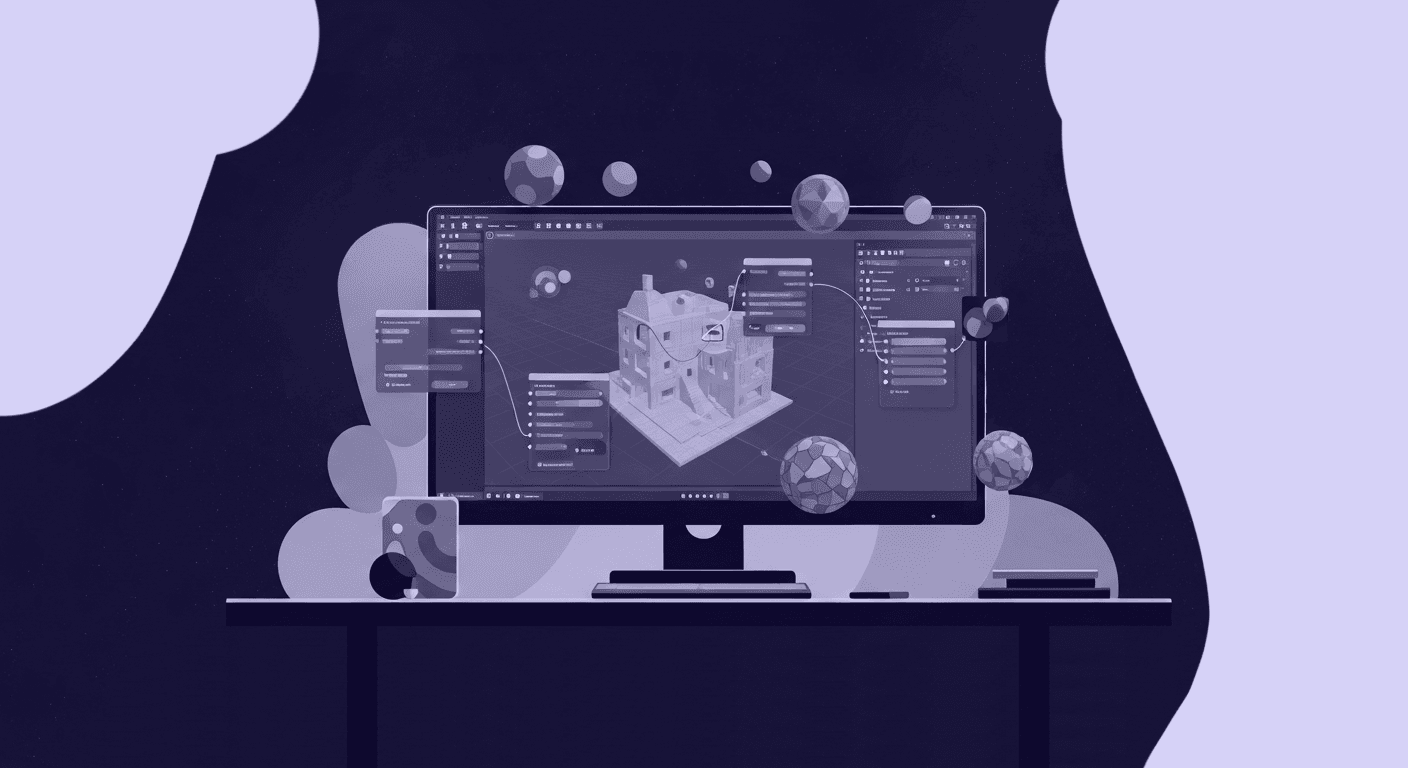
PBR principles for technical artists
Most teams think their textures are slowing them down. They’re right, just not in the way they think. The real bottleneck isn’t resolution; it’s inconsistency. A standardized Physically Based Rendering (PBR) workflow solves this by creating a predictable system for how materials react to light. It’s less about artistic guesswork and more about grounded physics, which is exactly what a scalable pipeline needs.
Unpack the core PBR concepts: Metallic/Roughness vs. Specular/Glossiness
At the pipeline level, you only need to care about two major PBR workflows: Metallic/Roughness and Specular/Glossiness. While they can achieve similar visual results, they define materials differently, which has major implications for cross-engine compatibility.
- Metallic/Roughness: This is the standard for real-time engines like Unreal and Unity, and it’s what Blender’s Principled BSDF shader is built for. It uses a Metallic map to define which parts of a surface are raw metal (1 for metal, 0 for non-metal). A separate Roughness map controls how scattered light reflections are. It’s intuitive and uses less texture memory.
- Specular/Glossiness: This older workflow uses a Specular map to define the reflection color for both metals and non-metals (dielectrics), and a Glossiness map (the inverse of roughness) to control sharpness. It can offer finer control over dielectric reflections, but it is less common today and can cause friction when moving assets between tools.
The takeaway: Standardize on the Metallic/Roughness workflow. It’s what Blender is optimized for, it aligns with dominant real-time engines, and it simplifies the texturing process for your artists. Every principle we discuss from here on assumes this workflow.
How Blender handles light interaction rendering
Why does PBR look so convincing? It’s because shaders like Blender’s Principled BSDF are built on principles of energy conservation. In simple terms, a surface cannot reflect more light than it receives. The shader automatically handles the balance between diffuse reflection (light scattering beneath the surface) and specular reflection (light bouncing off the surface).
This is governed by the concept of microfacets, microscopic bumps and grooves on a surface. A smooth surface (low roughness) has aligned microfacets, creating a sharp, mirror-like reflection. A rough surface has chaotic microfacets that scatter light in many directions, resulting in a blurry, matte reflection. The Roughness map is your direct control over this phenomenon.
This physical grounding is what makes PBR so powerful in a production pipeline. A material will look correct in a brightly lit noon scene, a dark interior, or a moody sunset, without needing specific tweaks for each lighting condition. You define the material once, and it just works. That’s predictability you can build a studio on.
Anatomy of PBR texture maps: Beyond the basics
Let's move past basic definitions. A technical artist needs to know the technical function of each map in the shader equation. Think of these maps as data inputs that instruct the render engine how light should behave.
- Albedo (base color): This is the pure, lighting-agnostic color of a surface. A common mistake is including ambient occlusion or light information in this map. The Albedo should be a flat color, as if you photographed the object in a perfectly neutral, shadowless environment. This ensures the shader, not the texture, is responsible for lighting.
- Normal: The Normal map is a performance workhorse. It fakes high-resolution surface detail on a low-poly model by manipulating the direction of the surface normals at a per-pixel level. It doesn’t add geometry; it just tells light how to bounce off the surface as if there were more detail. This map is what makes a simple plane look like a complex, bumpy surface.
- Roughness: This is one of the most critical maps for realism. It’s a grayscale map that dictates the microscopic texture of the surface. Pure black (0.0) is perfectly smooth, creating sharp reflections. Pure white (1.0) is maximum roughness, creating a diffuse, matte surface. Most realistic materials live in the subtle grays in between.
- Metallic: This map functions like a switch. It tells the shader if a surface is metal or not. Pure white (1.0) means the surface is 100% raw metal and should use its Albedo color for reflections. Pure black (0.0) means it's a non-metal (dielectric) and will use a standard, non-colored reflection. Avoid gray values here unless you’re texturing dusty metal or other blended surfaces.
- Ambient Occlusion (AO): The AO map adds micro-shadows in crevices and contact points where ambient light would have trouble reaching. While modern render engines can calculate this dynamically, a baked AO map is often multiplied over the Albedo to add depth, especially for real-time applications where performance is key.
Understanding these maps as data inputs is the first step to mastering the workflow. Now, let’s plug them in.
Build the core Blender texture workflow
Theory is great, but a pipeline lives or dies on execution speed. Getting PBR textures into Blender and setting them up correctly should be a fast, repeatable process. Once you nail this down, you can automate and scale it across your team.
How to apply PBR textures in Blender: The fast way
Stop setting up nodes one by one. The fastest, most efficient way to apply a full PBR texture set is with the built-in Node Wrangler addon. If you don't have it enabled, go to the addon. If you don't have it enabled, go to Edit > Preferences > Add-ons, search for “Node Wrangler,” and check the box. You’ll never go back.
Here’s the workflow:
- Select the Principled BSDF node in the Shader Editor.
- Press Ctrl + Shift + T.
- This opens a file browser. Navigate to your texture set and select all the maps (Albedo, Roughness, Normal, etc.).
- Click Principled Texture Setup.
Blender automatically creates all the necessary Image Texture nodes, correctly connects them to the BSDF, and even adds a Mapping and Texture Coordinate node. It correctly identifies maps based on common naming conventions (e.g., _normal, _rough, _metallic)._normal, _rough, _metallic).
The standard node setup it creates is The standard node setup it creates is Texture Coordinate > Mapping > Image Texture. This chain gives you control over how the texture is projected onto your model. For most UV-unwrapped assets, the UV output from the Texture Coordinate node is what you’ll use.
Configure your nodes for accurate rendering
Node Wrangler does a great job, but you still need to verify one critical setting: Color Space. Getting this wrong is the most common source of rendering errors. It breaks the math because the renderer receives data in a format it doesn’t expect.
Here's the rule:
- Use sRGB for any map that represents colors your eyes see. This includes your Albedo (Base Color) and Emission maps. These textures have a gamma curve applied.
- Use Non-Color for any map that represents linear data. This includes your Normal, Roughness, Metallic, and Ambient Occlusion maps. These maps are not colors; they are mathematical inputs for the shader. Using sRGB on them will feed incorrect values into the renderer, resulting in bad reflections and incorrect bump mapping.
Additionally, pay close attention to the Normal Map node. The Image Texture for your normal map should be set to Non-Color and plugged into the Color input of a Normal Map node. That node then plugs into the Normal input of the Principled BSDF. This intermediate node correctly translates the RGB color data of the texture into the vector data that the shader needs to manipulate surface normals.
Making this a checklist item for your artists will save countless hours of debugging.
Advanced PBR texture mapping tutorial
Once the core workflow is solid, you can start building scalable systems. The goal is to create standardized, reusable assets that give artists creative control without letting them break the pipeline. This is where node groups and procedural tweaks come in.
Create reusable PBR node groups for a scalable pipeline
A complex node tree is powerful but also fragile. An artist might accidentally delete a connection or set a value incorrectly. A Node Group solves this by bundling your entire PBR setup into a single, custom node with only the essential parameters exposed.
Think of it as creating a custom, production-ready shader for your team.
- Build your ideal setup: Create a full PBR material with all textures, correct color spaces, and the Normal Map node correctly configured.
- Select all nodes: Select every node except the final Material Output node.
- Group them: Press Ctrl + G to create a node group. The nodes will collapse into a single green node, and you’ll be taken inside the group for editing.
- Expose parameters: Inside the group, drag a connection from any input socket you want to control externally (like the Scale on the Mapping node or a multiplier for Roughness) to the empty Group Input node on the left. You can rename these inputs in the sidebar (N key) for clarity.
Now, when you exit the group (Tab key), you have a single node with custom inputs like Texture Scale, Roughness Amount, or Normal Strength. You can save this in a master Blender file and append it to any project. This ensures every artist on your team builds materials the exact same way, creating ultimate consistency.
Fine-tune materials with procedural adjustments
Sometimes, a texture map is almost right. Instead of round-tripping to Substance Painter or Photoshop to tweak it, you can make adjustments directly in Blender using Math and Color Ramp nodes. This is a non-destructive and faster way to iterate.
Here are a few production-proven examples:
- Clamping roughness: Is the material too shiny? Place a Color Ramp node between your Roughness texture and the BSDF. By moving the black and white sliders, you can remap the texture's value range. For example, lifting the black slider to a dark gray ensures no part of the material is ever perfectly smooth.
- Procedural grime: Use a Noise Texture to generate procedural grunge. To mix it in, use a MixRGB node. Plug your Albedo into the node Color1, your grime color into Color2, and the Noise Texture (often passed through a Color Ramp for control) into the Fac input. This acts as a mask, adding grime only in the white areas of the noise.
- Sharpening normals: You can increase the perceived intensity of a normal map by adjusting the Strength value on the Normal Map node. This is perfect for dialing in the last 10% of surface detail without re-baking the map.
These techniques empower artists to make targeted changes quickly, keeping them in the creative flow and reducing iteration loops.
Finalize and optimize for production
Creating a beautiful material is one thing; making sure it performs well in a real-time engine or renders efficiently in a complex scene is another. Optimization isn't an afterthought; it's a core part of the production pipeline.
Best practices for PBR texturing in a production environment
A successful PBR pipeline is built on a foundation of clean UVs and consistent texture density. Without these, even the best textures will fail.
- Master your UVs: Ensure your UV unwraps have minimal distortion and hide seams on less visible parts of the model. For hero assets, consider using the UDIM (U-Dimension) system to spread UVs across multiple texture sets for extremely high resolution without unwieldy 16K maps.
- Maintain consistent texel density: Texel density is the resolution of your texture relative to the size of the model on screen. All assets in a scene should have a similar texel density to look cohesive. An object right next to the camera shouldn’t have blurry textures while a distant object is razor-sharp. Use Blender addons or scripts to calculate and maintain this consistency across assets.
- Choose the right file format and resolution:
- For real-time (Eevee), performance is king. Use compressed formats like .PNG for most maps. Your Normal, Roughness, and Metallic maps can often be packed into the R, G, and B channels of a single texture to save memory (a common practice in game engines).
- For offline (Cycles), quality is the priority. Use lossless formats, where quality is the priority. Use lossless formats like.EXR or .TIFF for data-critical maps like Normals and Displacement to avoid compression artifacts. Start with 4K or 8K textures for hero assets and scale down as needed.
Troubleshoot common PBR rendering issues
When a material looks wrong, the fix is usually simple but not always obvious. Use this checklist to debug PBR materials quickly and reduce iteration time.
- Problem: Colors look washed out or too dark.
- Check: Is the Albedo map’s Color Space set to sRGB? Incorrectly setting it to Non-Color is a frequent culprit.sRGB?
- Check: Does your Albedo texture have lighting or shadows baked into it? It should be pure, flat color.
- Problem: Reflections look uniformly glossy or plasticky.
- Check: Is the Roughness map’s Color Space set to Non-Color? Setting it to sRGB will feed incorrect data to the shader, crushing the value range.
- Check: Is the Normal map plugged in correctly? A missing or improperly connected normal map can make a surface look unnaturally smooth.
- Problem: Surface details or bumps look incorrect or inverted.
- Check: Is the Normal map Image Texture node set to Non-Color?
- Check: Is it plugged into a Normal Map node before connecting to the BSDF? Directly connecting the texture will not work.
- Check: Ensure the normal map format (DirectX vs. OpenGL) matches what Blender expects. If bumps look inverted, you may need to invert the green channel of the Normal Map node.
- Problem: Visible seams appear on the model.
- Check: Do your UV islands have enough padding in the unwrap? Textures can bleed into adjacent islands if they are too close.
- Check: Is the Image Texture node’s Is the Image Texture node’s Extension setting set to Repeat? Sometimes, Clip or Extend is needed to depend on the UV layout.
Beyond the nodes: Building your material pipeline
So, let's zoom out. We've gone deep on color spaces, node groups, and troubleshooting checklists. But mastering PBR in Blender isn't just about connecting the right texture maps; it’s about establishing a system.
Think of it this way: PBR is the common language that allows your tools to speak to each other coherently. It’s what ensures the material you build in Blender looks predictable in Unreal, Unity, or any other engine. You're no longer just texturing an asset; you're encoding its physical properties into a universal format. That’s the shift from a creative task to an engineering discipline.
And now you have the blueprint. The node groups you build become the foundation for your studio's master shader library. The procedural adjustments become the first step toward scalable, semi-automated content. You’re perfectly positioned to stop fixing broken materials and start architecting a pipeline that prevents them from breaking in the first place.
You’ve got the technical principles. Go build the system.

Mira Kapoor
Mira leads marketing at Texturly, combining creative intuition with data-savvy strategy. With a background in design and a decade of experience shaping stories for creative tech brands, Mira brings the perfect blend of strategy and soul to every campaign. She believes great marketing isn’t about selling—it’s about sparking curiosity and building community.
Latest Blogs
The Indie Dev Guide to CC0 PBR Textures: Stop Searching, Start Cr...
PBR textures
AI in 3D design

Mira Kapoor
Jul 10, 2026
Sourcing Free Game Textures: Navigating PBR Pipelines and Stylize...
PBR textures
Game textures
Mira Kapoor
Jul 6, 2026
Sculpting with Sunlight: The Architectural Physics of Facade Text...
Texture creation
AI in 3D design

Max Calder
Jul 1, 2026

Accelerate you workflow
with automated PBR texture generation
Enjoy creative freedom with AI powered texture creation
 Texturly
Copyright © 2026 Texturly, Asha Technology Labs Pvt. Ltd. All rights reserved