A Complete Guide : Mastering Seamless Fabric Textures in SketchUp
By Max Calder | 11 May 2026 | 11 mins read
Table of contents
Table of Contents
A flat, gray texture on a 3D model doesn’t sell a vision. It’s just geometry. And when you’re trying to get stakeholders on board with a digital-first workflow, "just geometry" isn't good enough to get the buy-in you need. This guide is your complete playbook for mastering seamless fabric textures in SketchUp, walking you through the entire process from sourcing assets to dialing in the final, photorealistic render. Getting textiles right isn't just about making things look pretty; it’s about creating visuals that communicate the true feel and quality of your designs, helping you build a compelling case for a faster, more sustainable workflow, one perfect fabric at a time.
Understanding fabric textures in SketchUp
Why fabric textures matter for realism in your 3D designs
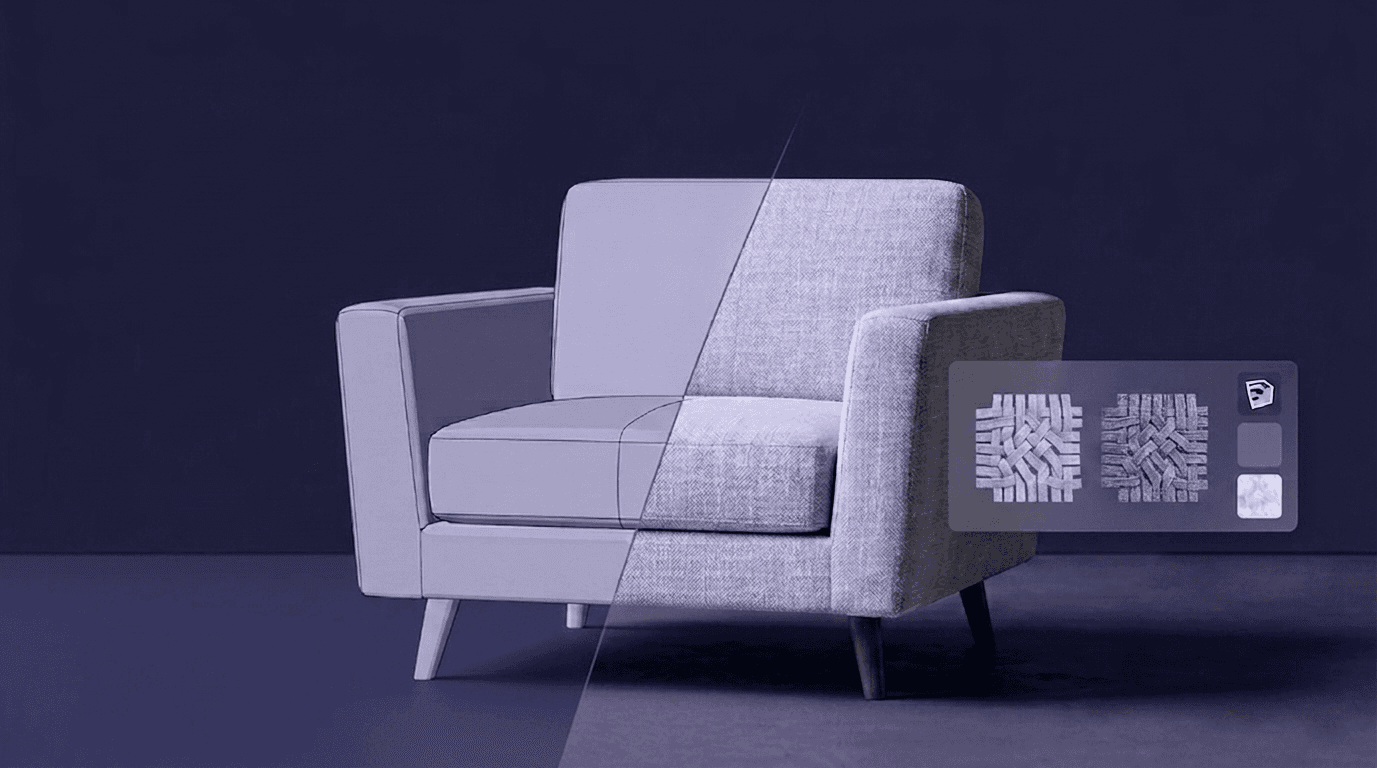
A flat, gray sofa in a 3D model doesn’t sell a vision. It’s just geometry. But when you wrap that sofa in a texture that shows the subtle weave of linen or the soft sheen of velvet, it stops being a block and starts feeling like furniture. This is where most designers miss a huge opportunity. Getting fabric textures in SketchUp right isn’t just about making things look pretty; it’s about communicating intent.
For a Fashion Lead, this is everything. You’re not just designing a garment or a retail space; you’re building a case for a digital-first workflow. Realistic textiles add a tactile quality that helps stakeholders feel the final product without a single physical sample being made. It’s the difference between a concept that needs explaining and a vision that speaks for itself. This clarity streamlines design iteration, accelerates approvals, and makes the whole process more agile and sustainable.
Grasping fabric texture fundamentals in SketchUp
Before we dive in, let’s clear up a common point of confusion: the difference between a “material” and a “texture” in SketchUp. It’s simpler than it sounds.
- A Material is the bucket. It holds all the properties, color, opacity, and the texture image itself. Think of it as the paint.
- A Texture is the image file you put in the bucket. It’s the JPEG or PNG of that woven cotton or herringbone wool. It’s the pattern you apply with the paint.
Understanding this distinction is key because you’ll be tweaking both. You might apply a single seamless fabric texture, but then create multiple material variations from it, a light gray, a charcoal, a navy, all by adjusting the material’s color property. For textiles, the essential properties to start with are the texture image and the color. We’ll get to the more advanced stuff like bump and reflectivity later, which is where the real magic happens.
Sourcing seamless fabric textures
Where to find high-quality seamless fabric textures for SketchUp
Great designs start with great assets. You wouldn’t build with faulty materials in the real world, and the digital world is no different. You have two main routes for sourcing textures: free and paid. Neither is inherently better; it’s about finding the right tool for the job.
- Paid resources (The pro choice): Marketplaces like Poliigon, Textures.com, or Substance Source are the gold standard for a reason. They offer high-resolution, professionally prepared seamless textures, often with pre-made maps for bump and reflectivity. The investment pays for itself in time saved and quality gained.
- Free resources (great for starters): Sites like 3Dtextures.me or AmbientCG offer a wide range of free, high-quality textures under Creative Commons licenses. They’re perfect for experimentation and smaller projects. Just be sure to check the resolution and licensing terms.
So, what resolution and file format should you look for? For most projects, a 2K (2048x2048) or 4K (4096x4096) texture is ideal. It provides enough detail for close-up shots without bogging down your model. As for file formats, stick with high-quality JPEGs for most fabrics. Use PNGs only when you need transparency, for example, with lace or sheer textiles.
Prepping your fabric textures for SketchUp
Once you've downloaded your assets, a little prep work goes a long way. First, confirm your texture is truly seamless. A quick way to check is using Photoshop’s “Offset” filter (Filter > Other > Offset). If you see a hard line or a mismatched pattern, it’s not seamless and will cause visible tiling in your render. You can often fix those seams by using Texturly AI tool, which will make your texture seamless in min.
Next, get organized. Don’t just dump everything into one folder. Create a dedicated texture library on your computer or server, sorted by fabric type: Fabrics > Cotton > Twill, Fabrics > Wool > Herringbone, etc. This seems like a small step, but when you’re on a deadline, having a well-organized library is a lifesaver. It transforms your collection from a random pile of files into a powerful, efficient toolkit.
Importing & applying textures in SketchUp
How to import seamless fabric textures into SketchUp
Got your textures prepped and ready? It’s time to bring them into your model. Your command center for this is the SketchUp Material Editor. Seriously, get comfortable with this panel; it’s your new best friend.
Here’s the simple workflow:
- Open the Materials tray (Window > Materials).
- Click the Create Material icon (the box with a plus sign).
- Give your new material a descriptive name, like Fabric_Linen_Natural.
- Under the “Texture” section, check the box for Use texture image.
- Navigate to your saved texture file (JPG, PNG, TIFF, etc.) and open it. That’s it. The texture is now loaded into your material.
This process adds the material to your current model’s library. To use it in future projects, just save it to one of your local material collections.
Applying fabric textures to your 3D models
With your material created, applying it is as simple as using the Paint Bucket tool (B). The key is being strategic with your clicks. You can apply textures to individual faces or to entire groups and components.
For something like upholstered furniture, the best practice is to apply the seamless fabric texture to the whole component first. This ensures a consistent scale and orientation. Then, dive into the component to adjust specific faces where the pattern needs to flow differently, like making the weave on a cushion welt run perpendicular to the main cushion. To do this, right-click on a face and navigate to Texture > Position. This gives you granular control to rotate, scale, and move the texture on that specific surface without affecting the rest of the model.
Master the details: Scaling, mapping & realism for fabric
Best practices for fabric texture scaling in SketchUp
Here’s a mistake most people make: they apply a fabric texture and leave it at the default size. The result is a giant, stretched-out pattern that immediately screams, “I’m a 3D model!” The secret to realism is matching the texture scale to the real world.
When you import a texture, SketchUp assigns it a default dimension. You need to change this. In the Material editor, find the texture size input boxes. If you know the real-world repeat of your fabric pattern is 12 inches, type 12\ into the box. This simple adjustment is one of the most effective ways to make your textile textures for 3D models look natural and believable.
For more complex surfaces, you’ll need texture mapping tools. Right-click a face and choose Texture > Position. You’ll see four colored pins. Here’s what they do:
- Red pin (Move): Click and drag to move the texture’s origin.
- Green pin (Scale/Rotate): Drag to scale the texture; pivot to rotate it.
- Blue pin (Shear/Distort): Skews the texture. Use sparingly for fabrics.
- Yellow pin (Perspective distort): Not typically used for pattern mapping.
Mastering the red and green pins is all you need 99% of the time to align patterns perfectly across seams and around corners.
Creating realistic fabric material properties in SketchUp
Applying an image is just the first step. To achieve realistic fabric rendering in SketchUp, you need to add depth and surface detail. This is where bump maps come in.
How do you create bump maps for fabric textures to add depth? A bump map is a grayscale image that fakes the appearance of surface detail at render time. White areas appear raised, and black areas appear recessed. For a fabric texture, a bump map simulates the individual threads of the weave, giving it a tangible, physical quality.
You can create a bump map or other PBR maps in Texturly by using the PBR generation tool. In your rendering engine’s material editor (like V-Ray or Enscape), you’ll find a Bump or Displacement slot where you can load this grayscale image. The effect is subtle but transformative.
Beyond bump, consider adjusting reflectivity. Most fabrics aren’t shiny like plastic. They have a soft, diffuse reflection known as a sheen. In your render engine, keep the reflectivity low and increase the Roughness or Glossiness value to scatter the light, mimicking the way light catches on fine fibers.
Advanced fabric rendering & best practices
Rendering fabric textures for photorealistic visualization
All your hard work, sourcing, scaling, and mapping, pays off at render time. When you use a high-quality rendering engine like V-Ray, Enscape, or Twinmotion, it unlocks the advanced material properties you’ve set up. This is where the bump map creates authentic shadows in the weave, and the subtle sheen makes a velvet cushion look soft to the touch.
Good lighting is crucial. A single, harsh light will flatten your textures. Use a combination of light sources, including an HDRI (High Dynamic Range Image) for soft, ambient light, to bring out the woven details and natural folds you’ve modeled. The interplay between light and your carefully crafted material is what ultimately sells the realism.
Troubleshooting common fabric texture issues
Even with the best workflow, you’ll run into problems. Here are fixes for the most common ones.
- Problem: I can see seams or a repeating pattern.
- Fix: This is almost always one of two things. First, your texture image isn't truly seamless. Test it in Photoshop and fix it in Texturly, or find a better asset. Second, your texture scale might be too small, causing an obvious “checkerboard” effect. Try increasing the texture size in the Material Editor for a more natural look.
- Problem: My fabric looks blurry or low-resolution.
- Fix: There’s no easy fix for a bad source file. You need a higher-resolution texture. Aim for at least 2K (2048px) for general use and 4K (4096px) for hero assets or close-up shots.
Adopting digital-first workflows for fabric design
Mastering fabric textures in SketchUp is more than a technical skill; it’s a strategic shift. Every realistic digital prototype you create is one less physical sample you need to produce. This directly supports sustainability goals by reducing material waste and shipping.
More importantly, it accelerates your entire workflow. Clear, photorealistic visuals leave no room for misinterpretation, streamlining collaboration between designers, merchandisers, and executives. When stakeholders can see exactly how a fabric will look and feel in a finished product or space, approvals happen faster, and you can move from concept to market in a fraction of the time. It’s about using technology not just to design better, but to work smarter.
More than a material, it's a mindset
So, we’ve covered a lot of ground, from sourcing the right texture file to dialing in the perfect bump map. But here’s the most important takeaway: mastering fabric textures in SketchUp is less about the technical settings and more about what those settings unlock.
It’s about transforming a simple 3D model into a powerful communication tool. It’s the difference between telling a stakeholder how a garment will drape and showing them. Every realistic weave and subtle sheen you create helps close the gap between a digital concept and a physical reality, making a stronger case for a digital-first workflow with every render.
You now have the playbook to create visuals that don't just look good, but do real work, speeding up approvals, reducing physical prototypes, and helping you lead a more agile and sustainable design process. That’s not just a better render. That's a better way of working.

Max Calder
Max Calder is a creative technologist at Texturly. He specializes in material workflows, lighting, and rendering, but what drives him is enhancing creative workflows using technology. Whether he's writing about shader logic or exploring the art behind great textures, Max brings a thoughtful, hands-on perspective shaped by years in the industry. His favorite kind of learning? Collaborative, curious, and always rooted in real-world projects.
Latest Blogs
The Indie Dev Guide to CC0 PBR Textures: Stop Searching, Start Cr...
PBR textures
AI in 3D design

Mira Kapoor
Jul 10, 2026
Sourcing Free Game Textures: Navigating PBR Pipelines and Stylize...
PBR textures
Game textures
Mira Kapoor
Jul 6, 2026
Sculpting with Sunlight: The Architectural Physics of Facade Text...
Texture creation
AI in 3D design

Max Calder
Jul 1, 2026

Accelerate you workflow
with automated PBR texture generation
Enjoy creative freedom with AI powered texture creation
 Texturly
Copyright © 2026 Texturly, Asha Technology Labs Pvt. Ltd. All rights reserved