The PBR Troubleshooting : Solving Cross-Platform Texture & Rendering Challenges
By Max Calder | 6 February 2026 | 14 mins read
Table of contents
Table of Contents
You’ve spent hours in Mari dialing in a material, the albedo is perfect, the roughness map has beautiful, subtle variations, but in the final render, it just looks wrong. That flat, weirdly glossy, or washed-out look is a frustratingly common problem, and it rarely has anything to do with your artistic skill. This guide is your deep dive into fixing that. We’re skipping the 101-level theory to give you a pro-level toolkit for troubleshooting the specific technical gremlins that break even the most carefully crafted textures. We'll cover everything from the fundamental mix-ups everyone overlooks to the complex pipeline challenges that cause major headaches, ensuring your work not only looks great but is also resilient enough to handle the inevitable chaos of a real production.
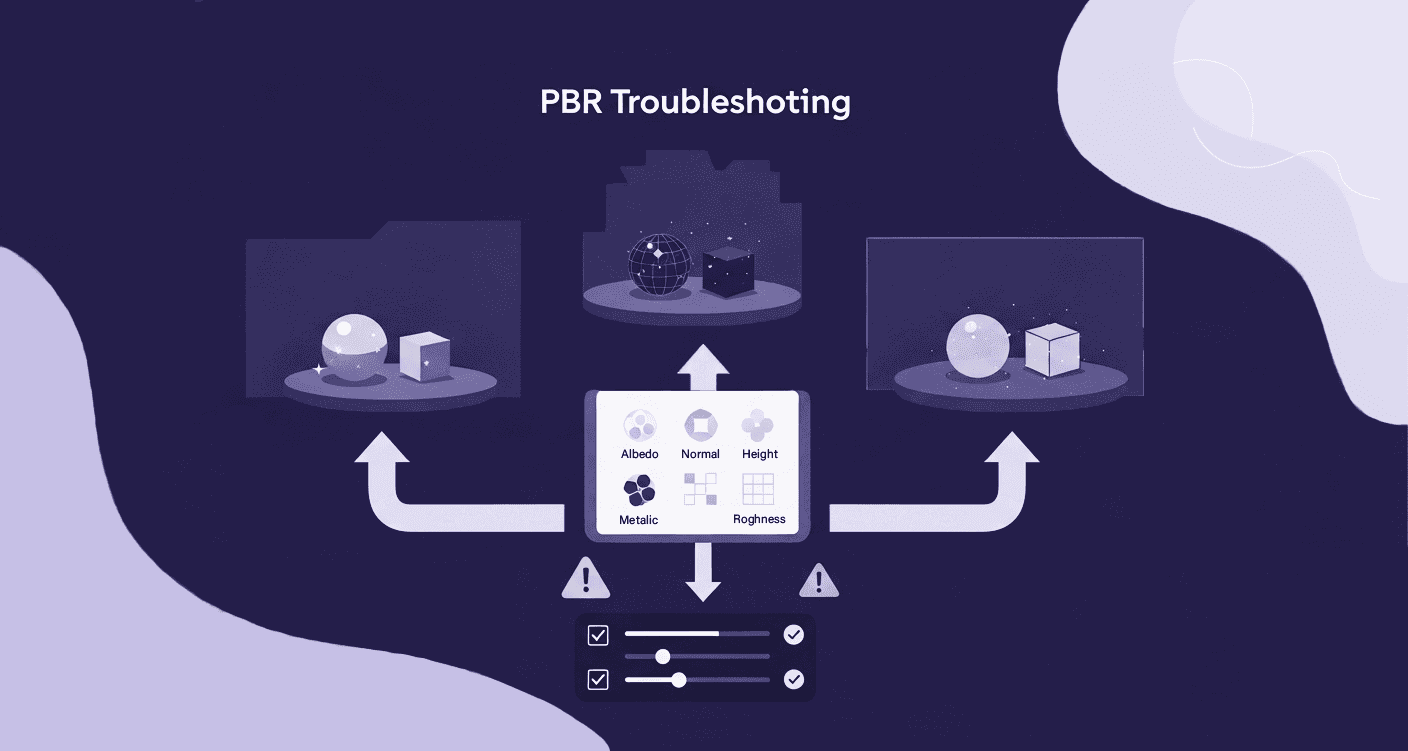
The basics: Why PBR setups can feel broken
Ever spend hours dialing in a material, only for it to look flat, weirdly glossy, or just wrong in the final render? We’ve all been there. Most of the time, the problem isn’t some complex shader bug. It’s a handful of fundamental principles that are easy to overlook, especially when you’re deep in the creative zone.
Getting your material property configuration right from the start
Think of your core PBR maps. albedo, metallic, roughness, as the foundation of a house. If they’re not right, everything you build on top will be unstable. Getting them right from the get-go saves countless hours of debugging.
- A quick check on albedo, metallic, and roughness values.
- Albedo: This is your color map, but with a critical rule: it should be pure color, completely free of lighting information like shadows or highlights. A good habit is to keep your albedo values between roughly 30-240 sRGB. Avoid pure black or white, and ensure no lighting/shadow info is baked in.
- Metallic: A surface is either a metal or it isn’t. Your metallic map should be treated like a mask: pure white (1.0) for raw metals, and pure black (0.0) for non-metals like plastic, wood, or paint. Avoid grays unless it’s for transitions like dust.
- Roughness: It defines how light scatters across a surface. A value of 0.0 is a perfect mirror, while 1.0 is completely matte or diffuse. Use subtle gradients for realism.
- Why your lighting environment is half the battle.
Your textures are only as good as the light that reveals them. A material designed to be reflective won’t reflect anything in a dark void. For look development, always use a neutral, high-quality HDRI. This isn’t for final-shot lighting; it’s for diagnostics. It gives your material something interesting and varied to reflect, so you can accurately judge your roughness and metallic values. Without a proper lighting setup, you’re texturing in the dark, literally.
The common mix-ups that trip up even seasoned artists
Sometimes your maps are perfect, but technical hiccups in the pipeline throw everything off. These two culprits are responsible for a surprising number of PBR texture challenges.
- Mismatched color spaces (sRGB vs. Linear).
This is probably the #1 cause of washed-out or overly dark renders. Here’s the simple breakdown: sRGB is a color space designed for viewing on monitors; it has a gamma curve applied. Linear is the color space render engines use for light calculations because the math works correctly. Your albedo/color maps are authored in sRGB and should be flagged as such. But your data-driven maps, Roughness, Metallic, Normal, and AO, are pure mathematical data. They should always be set to Linear (or Raw) in your renderer. If you don't, the renderer will apply a color correction to your data, skewing the results and breaking the material. - Export settings that can throw off your textures.
The way you save your files matters. For maps with fine gradients like normal or displacement maps, an 8-bit file (like a JPG or standard PNG) can cause visible banding or stair-stepping. Always export these maps as 16-bit (or even 32-bit for displacement) using formats like TIFF or EXR. This provides enough bit depth to create smooth, accurate surface details. It’s a small step in the export window that makes a world of difference in the final frame.
Tackling the big PBR texture challenges head-on
Once the fundamentals are locked in, you can start wrestling with the bigger, more complex issues that arise on film-quality assets. This is where good workflow habits separate the pros from the novices.
Untangling texture mapping complexity
Hero assets in animation are rarely simple. They’re often massive, complex models covered in dozens or even hundreds of UDIM tiles. Managing this level of texture mapping complexity is an art in itself.
- Tips for managing complex UVs in Mari and Maya for PBR.
Your UVs are the blueprint for your textures. Bad UVs will sabotage even the best paintwork. Before you even think about texturing in Mari, ensure your UVs in Maya are pristine. This means no overlapping faces, minimal distortion, and smart seam placement. Place seams where they won’t be visible on camera or along natural edges of the object. Mari is fantastic for painting across hundreds of UDIMs seamlessly, but it relies on that solid UV foundation you built in Maya. - How to handle texel density across multiple UDIMs.
Texel density is the resolution of your textures relative to the size of the model. For a character or prop to look consistently sharp, the texel density needs to be consistent across all its parts. A checker map is your best friend here. Before texturing, apply a checker to your entire model. If the squares are stretched or wildly different sizes on the hands versus the torso, your UVs need adjustment. A consistent texel density ensures that a brush stroke in Mari has the same visual weight on the finger as it does on the shoulder, preventing jarring resolution shifts.
How to solve common PBR texture implementation problems
Sometimes, everything looks right in your texture maps, but the render tells a different story. Learning to debug these issues is a critical skill for any surfacing artist.
- Troubleshooting seams and artifacts in your normal and displacement maps.
Seeing visible seams at your UV borders is a classic headache. For normal maps, this is often a tangent space issue. The software you used to bake the maps (like Substance Painter or Marmoset Toolbag) might calculate tangents differently than your renderer (like V-Ray or Unreal Engine). The fix is usually a checkbox, making sure both your baker and renderer are set to the same standard (e.g., OpenGL or DirectX). For displacement, artifacts often come from texture filtering at UV borders. The solution is to add padding or bleed to your textures, extending the pixels beyond the UV edge to give the renderer extra data to sample from. - Debugging textures that look correct but render incorrectly.
When a material just feels off, it’s time to isolate the problem. The most effective method is to build a simple debug shader. Start with a gray material and plug in only one map at a time. First, plug in the albedo. Does it look right? Good. Now, plug in only the roughness. Does the surface reflectivity match the map? If it looks inverted, you might have accidentally exported a gloss map instead of a roughness map. By checking each map in isolation, you can quickly pinpoint which component is breaking the shader instead of trying to guess what’s wrong with the fully combined material.
Making your textures look the same everywhere
In a professional pipeline, your asset will pass through many hands and different software, from Maya to Substance Painter to Unreal Engine or Katana. Ensuring your surfacing work looks consistent at every stage is a major challenge.
How to ensure consistent material rendering across different engines
The hard truth is that a 1:1 match between renderers is nearly impossible. Each engine has its own unique shading model and light transport calculations. The goal isn’t a perfect match; it’s a predictable and consistent translation.
- Strategies for matching looks between Maya, Substance, and your final renderer (like Unreal or V-Ray).
Establish a source of truth. This is typically your main look development environment, like Maya with V-Ray. This is where the final material is approved. Your work in other programs, like Substance Painter, should be calibrated to get as close as possible to that V-Ray result. Use the same HDRI for lighting in both applications and be aware of any differences in shader inputs (e.g., Unreal’s packed AO/Roughness/Metallic maps). - The role of Look Development (LookDev) in a consistent pipeline.
LookDev isn’t just about making pretty pictures; it’s a scientific process. A dedicated LookDev scene is a controlled environment where you can validate your materials under various calibrated lighting conditions. This scene should include reference objects like a Macbeth chart and a chrome ball to help you judge color and reflection values accurately. This process ensures that when you hand off the asset, you know with confidence how it will behave under any lighting scenario.
Calibrating your workflow for cross-platform results
To achieve that predictable translation, you need to build consistency directly into your workflow with tools and standards that remove guesswork.
- Using reference charts and standardized lighting rigs.
Every artist on the team should be using the same set of look-dev tools. This means a standardized lighting rig with a few approved HDRIs, one for neutral midday light, one for a warm interior, and one for a cool overcast day. Using these consistently allows you to evaluate your materials objectively. If a material looks good in all three standard lighting scenarios, it will likely hold up in the final shots. - Building a shader that translates predictably.
For maximum consistency, avoid overly complex, custom shader graphs that are specific to one renderer. Stick to the standard PBR inputs (Albedo, Metallic, Roughness, Normal) as much as possible, as these are the most likely to translate well between engines. If you need extra effects, build them as modular layers that can be easily re-created or omitted in a different renderer.
Moving into advanced PBR workflows for speed and quality
Once you’ve mastered the fundamentals and built a consistent workflow, you can start leveraging advanced techniques to work faster and smarter, pushing the quality of your work even further.
Optimizing performance without sacrificing the details
Film-quality assets often come with a heavy performance cost. Smart optimization means reducing memory usage and render times without the audience ever noticing a drop in quality.
- Smart ways to pack textures for better memory usage.
Channel packing is a pro-level technique for efficiency. Since grayscale maps like roughness, metallic, and ambient occlusion only need one channel of data, you can store them in the R, G, and B channels of a single RGB image. Instead of loading three separate textures into memory, the renderer only has to load one. This significantly reduces memory overhead and the number of texture lookups, which can speed up rendering. It’s a pure win for performance. - When to use 4K maps vs. procedural details.
Not everything needs a massive, unique 4K texture map. The key is to use resolution where it counts. Use high-resolution painted maps for unique hero details like decals, specific scratches, or character-driven weathering. For large, repetitive surfaces like brushed metal, concrete walls, or fabric weaves, use a smaller, tileable texture or a procedural shader. This hybrid approach gives you the best of both worlds: high-fidelity detail where you need it and excellent performance everywhere else.
Professional strategies for PBR texture workflow optimization
Efficiency isn’t about cutting corners; it’s about eliminating repetitive tasks and building a workflow that anticipates future changes.
- Integrating advanced techniques into your Foundry Mari and Maya workflow.
Create a seamless round-trip between your tools. In Mari, lean heavily on the non-destructive layer stack. Use procedurals for base materials and masks to control where they appear. In Maya, build a library of shader presets for common materials (chrome, glass, plastic). When you start a new asset, you’re not starting from scratch; you’re assembling pre-built, validated components. - Building template files and presets to speed up revisions.
Every minute you spend setting up a scene is a minute you’re not texturing. Create a template Mari project with all your standard channels (albedo, roughness, normal, etc.) and utility layers already created. Do the same in Maya: a template scene with your standard look-dev lighting rig, camera, and turntable set up. This standardizes your starting point and lets you dive straight into the creative work.
Keeping it polished under pressure
The reality of production is tight deadlines and last-minute notes from the director. A truly robust workflow isn’t just about creating beautiful textures; it’s about being able to change them quickly without breaking everything.
Building a workflow that handles last-minute changes
This is where non-destructive texturing becomes your superpower. It’s a mindset focused on flexibility, ensuring that no change, big or small, requires you to start over.
- Non-destructive texturing habits that save you time.
The core principle is to separate your base materials from your weathering details. Your base layer should be the factory-new version of the material, clean metal, smooth plastic, and fresh paint. Every piece of storytelling, dust, grime, scratches, and rust should be added on separate layers controlled by masks. This is the difference between painting dirt onto a texture and using a mask to reveal a dirt material on top of a clean material. The latter is infinitely more flexible. - How to quickly iterate on surfacing notes from the director without starting over.
Let’s say you’ve textured a robot with heavy wear and tear, and the director says, I need it to look like it just came off the assembly line. If you painted the damage directly into your base textures, you’re facing a complete repaint. But if you built your textures non-destructively, the fix is simple: you just turn off the layers containing your rust, scratches, and dust masks. The clean version was always there, underneath. A note like “make the scratches less deep” becomes a quick levels adjustment on your scratch mask, not hours of repainting. This approach lets you respond to feedback in minutes, not days, making you an invaluable artist in a high-pressure production environment.
Your textures are now bulletproof
So, let’s zoom out for a second. All of these technical details, color spaces, texel density, and non-destructive layers can feel like a long checklist of things that can go wrong. But they aren't just traps to avoid. Think of them as the foundation for a predictable, professional workflow. They’re what transform a beautiful texture into a resilient, production-ready asset.
Ultimately, mastering these challenges isn't just about fixing renders that look off. It’s about building a system so solid that you can stop fighting your tools and focus entirely on the art. It’s about having the confidence to know that when a last-minute note comes down, you’re ready. A complete change in weathering isn't a full-day repaint; it's a ten-minute mask adjustment.
That’s the real goal here. To build a workflow that protects your time, removes the guesswork, and liberates your creativity. You’ve already got the eye and the artistic skill. Now you have the technical toolkit to make sure nothing gets in its way.

Max Calder
Max Calder is a creative technologist at Texturly. He specializes in material workflows, lighting, and rendering, but what drives him is enhancing creative workflows using technology. Whether he's writing about shader logic or exploring the art behind great textures, Max brings a thoughtful, hands-on perspective shaped by years in the industry. His favorite kind of learning? Collaborative, curious, and always rooted in real-world projects.
Latest Blogs
The Indie Dev Guide to CC0 PBR Textures: Stop Searching, Start Cr...
PBR textures
AI in 3D design

Mira Kapoor
Jul 10, 2026
Sourcing Free Game Textures: Navigating PBR Pipelines and Stylize...
PBR textures
Game textures
Mira Kapoor
Jul 6, 2026
Sculpting with Sunlight: The Architectural Physics of Facade Text...
Texture creation
AI in 3D design

Max Calder
Jul 1, 2026

Accelerate you workflow
with automated PBR texture generation
Enjoy creative freedom with AI powered texture creation
 Texturly
Copyright © 2026 Texturly, Asha Technology Labs Pvt. Ltd. All rights reserved