Build Photorealistic Ceramic, Plastic, and Nylon That Sells Your Vision
By Max Calder | 20 March 2026 | 15 mins read
Table of contents
Table of Contents
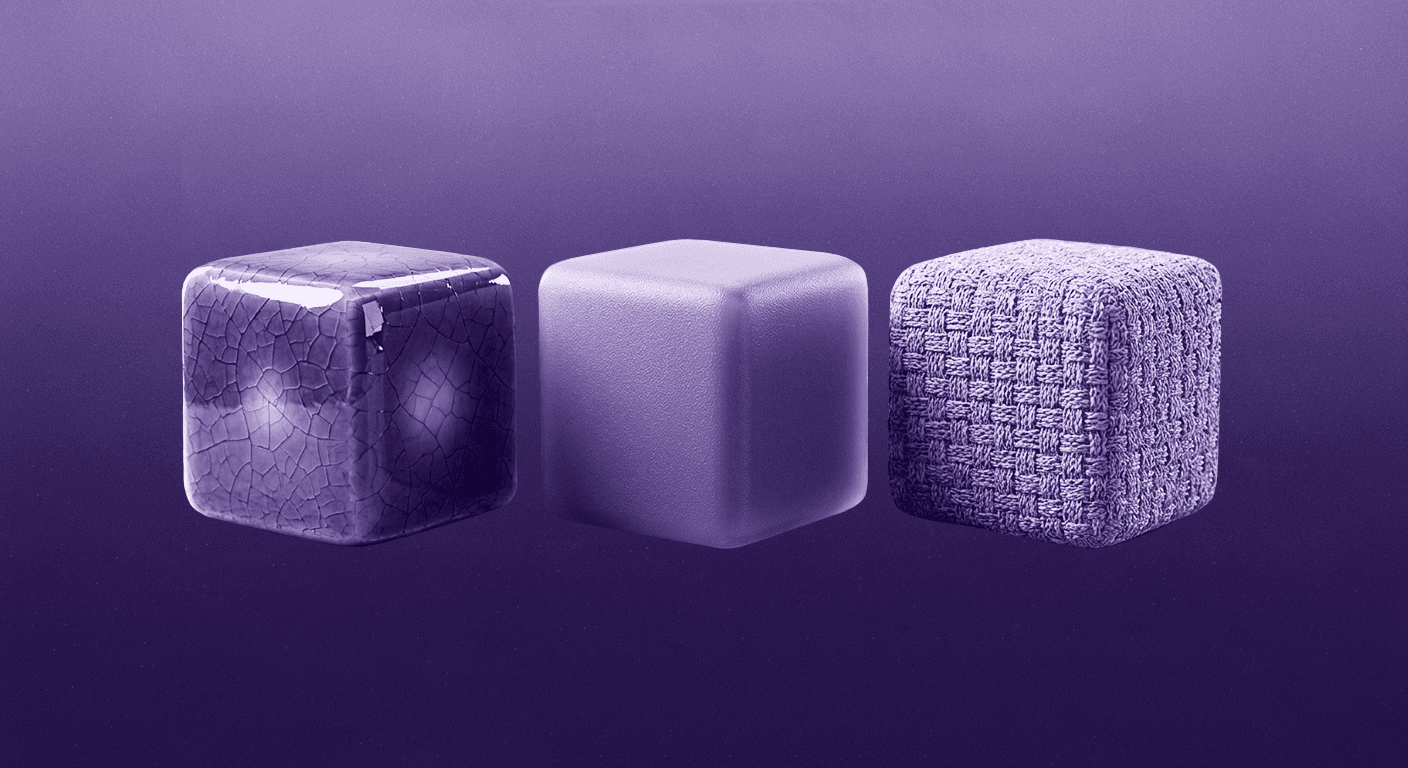
It’s easy to get lost in the world of PBR metals; they’re shiny, reflective, and most render engines handle them beautifully. But most of the products we design aren't made of chrome. They're built from textured plastics, glazed ceramics, and technical fabrics, and getting those surfaces to look right is where a good render becomes a great one. This guide is your practical deep dive into that non-metallic world. We're moving beyond the default shaders to unpack the specific techniques for texturing ceramic, plastic, and nylon, from capturing the subtle gloss of a glaze to the anisotropic sheen of a woven strap. This is about more than just pretty pictures. Nailing these materials in the digital stage means creating prototypes that feel tangible, communicating your vision more clearly, and saving countless hours on physical iterations.
Unpacking PBR Basics for non-metals
Moving beyond the default metal shaders
Most render engines love metals. They’re shiny, reflective, and their PBR (Physically Based Rendering) setup is straightforward. But the real world is full of plastics, ceramics, and fabrics. These materials, known as dielectrics or insulators, are trickier because they handle light in a more complex way. And if you’re an industrial designer, nailing these non-metallic surfaces is everything.
So, why is PBR so critical here? Because it’s a system built on emulating real-world physics. Instead of just faking reflections, PBR simulates how light rays actually interact with a surface. When light hits a metal, it bounces right off the surface. It’s a conductor. But when light hits a dielectric like plastic, some of it reflects, and some of it penetrates the surface, scatters around inside, and then exits. This subtle difference is why plastic can look soft, and a ceramic mug feels solid. Using a generic shader just won’t capture that nuance, leaving your prototypes looking flat and artificial. Getting this right is the first step toward creating digital prototypes that don’t just look real but feel real.
The core PBR maps to know
Think of PBR maps as ingredients in a recipe. Each one tells the render engine a specific piece of information about the material’s surface. For non-metals, we’re mostly focused on three, with a fourth one taking a backseat.
- Albedo (or base color): This is the easy one. It’s the pure color of the surface, as if you were looking at it in a perfectly white room with no shadows. It should be just color, no lighting information, no ambient occlusion, no highlights baked in. For a terracotta pot, this would be its earthy, reddish-brown hue.
- Roughness: This is where the magic happens. The roughness map controls how light scatters across the surface. A value of pure black (0) means the surface is perfectly smooth, like a mirror. A value of pure white (1) means it’s completely matte or diffuse, like chalk. A great roughness map is never just one solid color; it’s a grayscale image full of subtle smudges, fingerprints, and wear that create realistic, imperfect reflections.
- Normal: While your 3D model defines the big shapes, the normal map handles the tiny, high-frequency details. It’s a special RGB image that tells the engine how to fake bumps, cracks, pores, and textures without adding a single extra polygon. For a nylon strap, the normal map would define the intricate weave of the fabric. This is the key to efficient material surface simulation.
- Metallic: This one is simple for our purposes. It’s a binary map, black or white, 0 or 1. For dielectrics like ceramic, plastic, and nylon, this value should always be set to 0 (black). There are very few edge cases where this changes. Setting it to zero tells the engine to treat the material as an insulator, allowing light to penetrate the surface correctly.
With these maps working together, you have a powerful toolkit to build almost any non-metallic material imaginable. Let’s start with one of the oldest and most versatile ceramics.
Crafting realistic ceramic surfaces
How to create realistic ceramic textures in 3D
Ceramic isn't a single material; it’s a spectrum. On one end, you have porous, unglazed earthenware like a terracotta pot. On the other hand, you have smooth, high-fire porcelain with a thick, glassy glaze. Your PBR texturing approach needs to respect that difference. The secret is to stop thinking about "ceramic" and start thinking in layers.
- For unglazed ceramics (terracotta, earthenware): Your starting point is a high-quality albedo map that captures the subtle, earthy color variations. The roughness map will be quite high (brighter grayscale values), as these surfaces reflect matte and diffuse light broadly. The normal map is your chance to add detail: fine, gritty textures, subtle potter’s lines from the wheel, or small imperfections. Reference is your best friend here. Look at how the light catches the rough surface of a real pot.
- For glazed ceramics (porcelain, stoneware): Here, you’re essentially creating two materials in one. There's the underlying ceramic body and the glassy glaze on top. Modern PBR workflows often use a "Coat" or "Clear Coat" layer for this. You’d set your base ceramic material (with its own albedo, roughness, and normal map) and then add a clear coat layer on top with a very low roughness value to simulate the glaze. This approach automatically gives you the sharp reflections of the glaze while letting the underlying texture of the ceramic show through.
Nailing the gloss and imperfections with a roughness map
A perfect, uniform glaze looks fake. The real world is messy. This is where a detailed roughness map becomes your most powerful tool for realism. Instead of setting a single gloss value, build a grayscale texture map that tells a story.
Start with a base gray value that represents the overall glossiness of the glaze. Then, layer on top of it. Use subtle, low-opacity grunge maps to break up the uniformity. Add faint smudges where a hand might have held the object. Introduce tiny water spots or dust patterns. These details should be almost invisible head-on but will catch the light at grazing angles, instantly making your render more believable. A simple fingerprint texture, applied sparingly, can transform a CG-looking object into something tangible.
Using normal maps for subtle surface details
The silhouette of a ceramic piece might be simple, but its surface is rich with history. Normal maps let you add that history without bloating your scene with geometry. Think about the story of the object.
- Potter's lines: For handmade pieces, subtle concentric rings from the throwing process add a layer of authenticity.
- Cracks and crazing: A fine network of cracks in the glaze (crazing) can give a piece an antique feel. This is a perfect detail for a normal map.
- Surface bumps: No glaze is perfectly flat. A very subtle, large-scale noise pattern in your normal map can simulate the gentle undulations of a hand-applied glaze, preventing perfectly straight reflections.
These details tell the renderer to bend the light just a little, creating highlights and shadows that trick the eye into seeing physical depth. This is how you move from a good render to a photorealistic one.
Simulating the world of plastics
Defining the material: Hard vs. soft plastic
Plastic is about as specific as metal. You wouldn’t use the same PBR values for brushed aluminum and cast iron, and the same is true for plastics. The sheer variety, from the hard, glossy shell of an ABS electronic enclosure to the soft, matte feel of a silicone grip, requires a more nuanced approach. The key is to translate real-world surface finish characteristics into PBR values.
- Hard plastics (ABS, Polycarbonate): These are often used for casings and structural parts. They tend to have sharp reflections and very little, if any, subsurface scattering. The texture story here is often about manufacturing. Think fine mold lines, subtle draft angles, and patterned textures from the injection molding process.
- Soft plastics (Silicone, TPE): These materials are defined by how they diffuse light. They are more translucent, and their surfaces are often matte or satin. The roughness map will be higher, and another crucial parameter comes into play: subsurface scattering.
How subsurface scattering (SSS) brings plastic to life
Subsurface scattering is arguably the single most important parameter for making plastic look like plastic. In simple terms, it simulates light penetrating the surface, bouncing around inside, and exiting at a different point. It’s why a white plastic bottle seems to glow at the edges when you hold it up to the light.
Without SSS, plastic looks hard, opaque, and dead, more like painted metal. With it, the material gains a characteristic softness and depth. Here are a few tips for dialing it in:
- Start subtle: It’s easy to overdo SSS and make your plastic look like wax or marble. Begin with a small scattering distance and a color that’s closely related to your albedo.
- The thinner, the more SSS: The effect is most noticeable on thin parts of a model. Think about the ears on a vinyl toy; light passes through them easily, making them glow. Your SSS settings should reflect this.
- Use an SSS map: For advanced control, you can paint a map to define where the scattering happens. For instance, a thicker part of the model might have less SSS than a thinner edge.
Replicating manufacturing details for realism
Perfectly smooth plastic is rare. Most objects bear subtle traces of how they were made, and adding these details is a shortcut to believability. Use your normal and roughness maps to incorporate them:
- Injection points: A small, circular mark where the molten plastic was injected into the mold.
- Mold seams: A faint line where the two halves of the mold met. It’s often polished down but is rarely perfectly invisible.
- Surface textures: Many plastic parts have a fine, sand-like or leather-like texture applied to the mold itself to create a uniform, matte finish and hide imperfections. This is a perfect job for a tiled normal map.
These details ground your digital object in the real world of manufacturing, making it feel less like a render and more like a product.
Texturing nylon and technical fabrics
Capturing fabric sheen with anisotropic reflections
Nylon and many other synthetic fabrics have a unique sheen that standard PBR materials can’t quite capture. If you look at a nylon backpack strap, you’ll notice the highlights aren’t circular dots; they are streaks that stretch perpendicular to the direction of the weave. This effect is called anisotropy.
Anisotropy happens when surface micro-details are aligned in a specific direction. For nylon, it’s the tightly woven threads. To simulate this, you need two things:
- An anisotropic shader: Your render engine needs to support it. Most modern engines do.
- A direction map: This is a special texture map (often called an anisotropic rotation or direction map) that tells the renderer which way the grain of the fabric is flowing. The colors in this map correspond to an angle, guiding the direction of the stretched reflections.
Without anisotropy, nylon looks like dull plastic. With it, you get that signature silky sheen that instantly sells the material.
Using texture maps to simulate weave patterns
The weave is the heart of a fabric’s character. For something like nylon, you’re often dealing with a simple but dense pattern like a plain weave or a ripstop grid. The best way to replicate this is by using a combination of texture maps.
- Albedo map: This defines the color of the threads. For a solid color fabric, you can still add subtle color variations between threads to give it more depth.
- Normal map: This is the most important map for fabric. A high-quality normal map, generated from software like Substance Designer or scanned from a real fabric sample, will create the up-and-down undulation of the woven threads. This is what will catch the light and create the tactile look of the fabric.
- Roughness map: The roughness can vary slightly between the threads and the gaps, adding another layer of realism.
There are fantastic tools for generating seamless fabric patterns, but you can also create them from photo sources. The key is to ensure they are perfectly tileable to avoid obvious seams on your model, which is a core part of effective texture mapping techniques.
Balancing translucency and color for authenticity
Many technical fabrics, especially lighter-colored nylons, aren’t fully opaque. They have a degree of translucency or back-scattering that gives them a lighter, more delicate feel. In your shader, this can often be controlled with a translucency or thin-walled SSS setting.
Be careful not to overdo it. You’re not aiming for glass, just a subtle effect where strong light from behind the fabric might cause it to glow slightly. This helps it feel less like a solid chunk of geometry and more like a thin, woven material. Combine this with the right albedo color and anisotropic sheen, and you’ll have a nylon material that looks ready for the production line.
A practical PBR workflow for different material types
Step 1: Gather and analyze your reference material
This is the most important step, and it’s the one most often rushed. You cannot create what you haven’t observed. Before you touch a single slider, find high-quality photos of your target material. Don’t just find one, find a dozen, in different lighting conditions.
Look for answers to these questions:
- How sharp are the reflections? Are they mirror-like or blurry?
- Are there imperfections? Scratches, dust, smudges, wear and tear?
- How does it look at a sharp angle versus head-on? (This is called the Fresnel effect).
- If it’s translucent, how does light scatter through it?
Your reference is your ground truth. The entire texturing process is just an attempt to match what you see in those photos.
Step 2: Build the base material layer by layer
Don’t try to do everything at once. Start simple and build up the complexity. This is a logical, non-destructive way to work.
- Set the core values: Start with the Albedo color and a uniform Roughness value that best matches your reference. Set the Metallic value to 0.
- Add surface detail: Plug in your Normal map to add the fine surface texture, the weave of fabric, the grain of plastic, or the bumps on ceramic.
- Introduce imperfections: Now, start breaking up the uniformity. Use a grayscale texture to control the Roughness, adding smudges and wear. If needed, layer in scratches or dirt in both the Albedo and Roughness channels.
- Dial in advanced properties: Finally, adjust the more complex parameters like Subsurface Scattering for plastics or Anisotropy for nylon.
By layering your details, you can easily go back and tweak one aspect of the material without destroying the rest of your work.
Step 3: Test your material under various lighting conditions
A material isn’t finished until it’s been battle-tested. A texture that looks perfect in a soft, overcast studio light might completely fall apart in direct sunlight or a dark interior. This is the final and most crucial step for robust material surface rendering.
Use a variety of High Dynamic Range Images (HDRIs) to light your scene. Check your material under:
- Soft studio lighting: This helps you judge the core colors and roughness.
- Hard, direct sunlight: This will reveal how your reflections and normal map behave under stress.
- An interior scene: This tests how the material reacts to smaller, artificial light sources.
Look for issues. Are the reflections too strong? Does the SSS look weird? Does the normal map look too aggressive? Making small adjustments and testing again is how you create a truly versatile and photorealistic material that will hold up in any final render, saving you countless hours in revisions down the line.
Your material library just got an upgrade
So, we’ve moved way beyond the default metal shader. We’ve unpacked the maps, tweaked subsurface scattering for soft plastics, and dialed in the anisotropic sheen that makes nylon look just right. But the real takeaway here isn’t a list of settings, it’s a shift in mindset.
A great PBR texture doesn't just replicate a material; it tells its story. A fingerprint on a roughness map tells us how an object is held. A subtle mold seam on a normal map hints at how it was made. These details are the bridge between a technically correct render and a digital prototype that feels truly tangible.
This is where you save time and money. By building materials with this level of intention, you create visuals that get faster buy-in, communicate your vision more clearly, and reduce the need for costly physical iterations. You’re no longer just showing what a product looks like, you’re showing how it will feel and function in the real world.
So go get your hands dirty. Grab your reference photos, experiment with these techniques, and start building your materials layer by layer. You've got the toolkit. Now go tell some incredible material stories.

Max Calder
Max Calder is a creative technologist at Texturly. He specializes in material workflows, lighting, and rendering, but what drives him is enhancing creative workflows using technology. Whether he's writing about shader logic or exploring the art behind great textures, Max brings a thoughtful, hands-on perspective shaped by years in the industry. His favorite kind of learning? Collaborative, curious, and always rooted in real-world projects.
Latest Blogs
The Indie Dev Guide to CC0 PBR Textures: Stop Searching, Start Cr...
PBR textures
AI in 3D design

Mira Kapoor
Jul 10, 2026
Sourcing Free Game Textures: Navigating PBR Pipelines and Stylize...
PBR textures
Game textures
Mira Kapoor
Jul 6, 2026
Sculpting with Sunlight: The Architectural Physics of Facade Text...
Texture creation
AI in 3D design

Max Calder
Jul 1, 2026

Accelerate you workflow
with automated PBR texture generation
Enjoy creative freedom with AI powered texture creation
 Texturly
Copyright © 2026 Texturly, Asha Technology Labs Pvt. Ltd. All rights reserved