Behind the Scenes of Building Seamless VR Worlds With 360 Textures
By Max Calder | 31 December 2025 | 16 mins read
Table of contents
Table of Contents
You drop a gorgeous 360-degree photo into your VR scene, hoping for instant immersion. Instead, you get a blurry backdrop that shimmers awkwardly in the distance and, worst of all, grinds your frame rate to a halt. It’s a common frustration, but it’s fixable. This guide is your complete technical walkthrough for implementing 360 environment textures the right way, from choosing between an equirectangular image and a cubemap to the essential optimization techniques that keep your VR games running smoothly on any headset. Mastering this skill is about more than just pretty skies; it's about building expansive, performant worlds that make your portfolio shine and your clients happy.
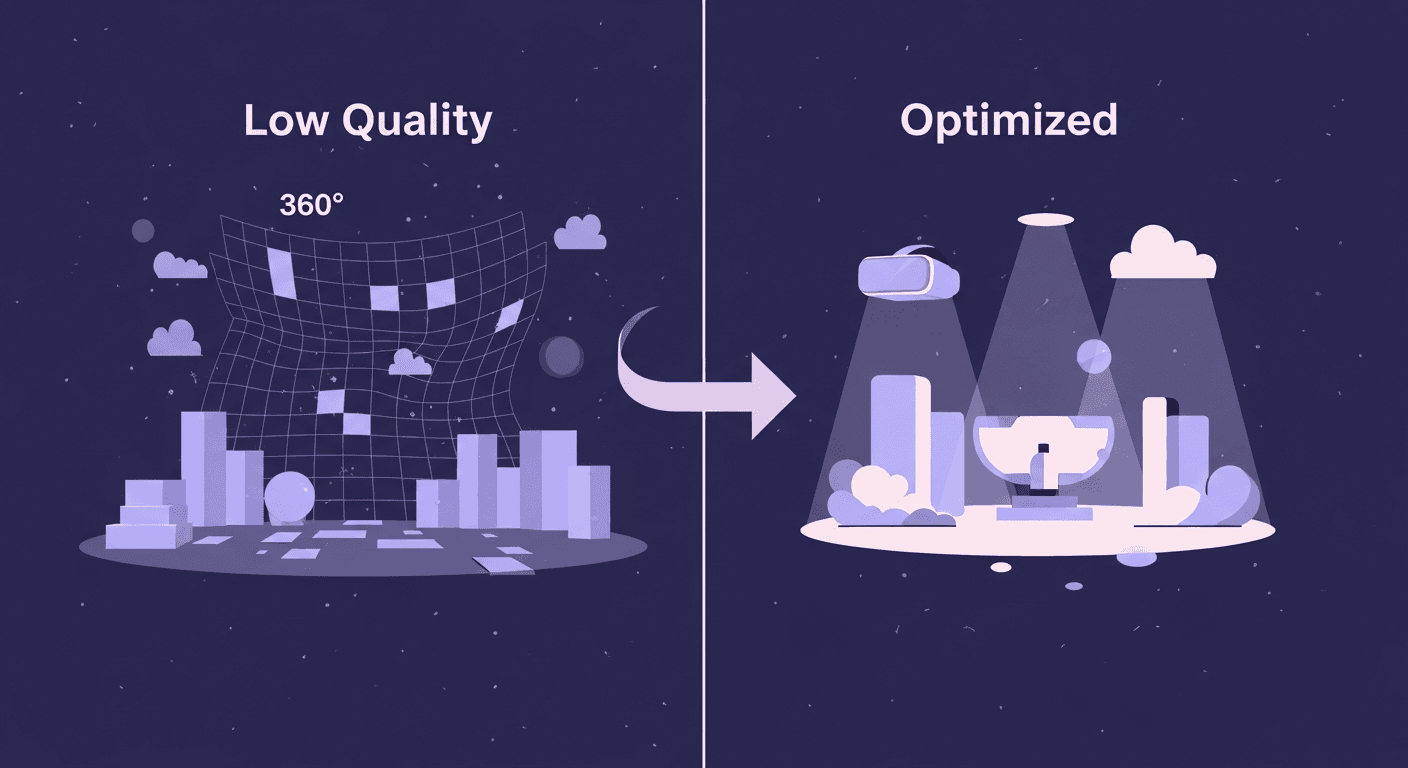
Lay the groundwork: 360 texture fundamentals
So you’ve got a scene that needs a convincing backdrop, but building out an entire world is overkill. Enter 360 environment textures. They’re the fastest way to establish a mood and a sense of place in VR. But before you drag-and-drop that first JPG you find, let’s unpack the two main ways engines handle these massive images. Getting this right from the start saves you headaches later.
Understand your options: Equirectangular vs. Cubemaps
Think of an equirectangular image like a world map. It’s a single rectangular texture that wraps the entire 360-degree view into one file. It's convenient, easy to find, and simple to work with. You’ve seen them everywhere.
Pros of equirectangular:
- Simple workflow: You only have to manage one texture file. This makes sourcing, editing, and swapping them out incredibly fast.
- Wide availability: Most 360 cameras and stock photo sites output in this format by default.
Cons of equirectangular:
- Distortion: Just like a world map horribly stretches Antarctica, equirectangular textures get pinched and distorted at the top (zenith) and bottom (nadir). This can look ugly and break immersion if the player looks straight up or down.
- Performance overhead: The GPU has to perform some complex math to project this flat image onto the inside of a sphere correctly. It's not a deal-breaker, but it’s not free.
Now, think of a cubemap as a cardboard box unfolded. It’s an image composed of six square faces that form a cube. The viewer is inside the cube, and each face is a perfect 90-degree view.
Pros of cubemaps:
- Higher fidelity: Because you’re projecting onto flat planes, you get zero distortion. The pixels are evenly distributed, resulting in a sharper, more stable image, especially at the poles.
- Performance: GPUs love sampling from cubemaps. The math is much simpler, making it faster to render. Most engines are highly optimized for them.
Cons of cubemaps:
- Complex workflow: You’re now managing six separate textures (or a single texture arranged in a cross or strip). Converting an equirectangular image to a cubemap requires an extra step using tools like NVIDIA’s Texture Tools, a Photoshop plugin, or engine-native features.
- Seams: If not generated perfectly, you can get visible seams where the edges of the cube faces meet.
The friendly mentor tip: Use equirectangular textures for quick prototypes, simple scenes, or when the player is unlikely to look straight up or down (like an outdoor sky). When you’re ready for production and need maximum quality and performance, take the extra step to convert your source image to a cubemap. Your frame rate will thank you.
Define your resolution needs
Let’s tackle a common question: How do texture resolutions impact VR game performance? It’s tempting to grab the highest resolution texture you can find, 16K! and call it a day. This is a mistake. In VR, every drop of VRAM is precious, and an unnecessarily large texture can single-handedly destroy your performance.
The goal isn't the highest resolution; it's the right resolution for your target headset. Resolution determines the pixel density on the virtual sphere around the player. Too low, and it’s a blurry mess. Too high, and you’re wasting memory on details the player will never see.
Here’s a practical guide:
- For mobile VR (Meta Quest 2/3): Start with a 4K equirectangular texture (4096x2048). This is often the sweet spot. For a cubemap, this translates to six 1024x1024 faces. You can sometimes push to 8K (six 2048x2048 faces), but you must profile your app to see if it can handle the memory hit.
- For PC VR (Rift S, Vive, Index): An 8K texture (8192x4096) is a great starting point for high-end systems. This gives you crisp visuals without going overboard. For a cubemap, that’s six 2048x2048 faces.
- For high-end cinematic VR: If you’re not bound by real-time frame rates, you can explore 12K or 16K, but for most games, it's massive overkill.
Remember, an 8K texture uses four times the memory of a 4K texture. Always start with a reasonable baseline and test directly on your target hardware. It’s better to have a smooth 4K experience than a stuttering 8K one.
Create and source your environment textures
Now that we’ve got the technical foundations down, where do you actually get these images? You have two paths: sourcing them from professionals or creating them yourself. Both are valid, depending on your budget and needs.
Technique 1: Sourcing high-quality 360 textures
For a freelance artist, time is money. Sourcing pre-made assets is often the most efficient route. But not all 360 images are created equal. Here’s what to look for and where to find it.
Recommended resources:
- Poly Haven: The absolute best place to start. They offer a huge library of high-quality, completely free (CC0) HDRIs. Perfect for any project, commercial or otherwise.
- Marketplaces (Unreal Engine Marketplace, Unity Asset Store): You can often find curated packs of HDRIs specifically designed for game development.
- Paid stock sites (Adobe Stock, Getty Images): These can be expensive, but sometimes have very specific locations you can’t find anywhere else.
What to look for:
1. High Dynamic Range (HDR): This is non-negotiable. An HDR image (usually in .hdr or .exr format) contains a massive range of lighting information, from the deepest shadows to the brightest highlights like the sun. Your game engine uses this data to light your scene realistically. A standard JPG or PNG is low dynamic range and will result in flat, boring lighting.
2. Seamlessness: The left and right edges of an equirectangular texture must wrap perfectly. Any good source will have already taken care of this, but always double-check. Nothing breaks immersion faster than a giant vertical seam in the sky.
3. Good lighting: Look for images with a clear primary light source (like the sun) and interesting ambient light. A flat, overcast day will produce flat, boring lighting in your game. A dramatic sunset, on the other hand, can do most of the artistic work for you.
Technique 2: Best practices for creating your own textures
Sometimes, you need a specific location that you just can’t find online. Creating your own 360 textures gives you complete creative control. It’s a skill that can set your work apart.
Capturing your 360 Photo:
- With a DSLR: This is the highest-quality method. You’ll need a DSLR, a tripod, and a panoramic head. You take multiple photos in a grid pattern, making sure to overlap each shot by about 30%. Crucially, you need to bracket your exposures for each shot (e.g., -2, 0, +2 EV) to capture the full dynamic range needed for an HDR file.
- With a 360 camera: Devices like the Ricoh Theta or Insta360 make this much easier. They capture the entire scene in one go. The quality won’t match a high-end DSLR, but for many applications, it’s more than good enough. Just make sure your camera can shoot in RAW format to retain the most data.
Essential post-processing steps:
1. Stitching: Use software like PTGui (the industry standard), Hugin (free), or your 360 camera’s native software to stitch the individual photos into a single equirectangular image. If you shot in bracketed exposures, the software will merge them into a single HDR file.
2. Removing the tripod: The bottom of your 360 image will inevitably show your tripod. Open the stitched HDR in Photoshop and use the Content-Aware Fill or Clone Stamp tool to paint it out. A common trick is to find a clean patch of ground texture from elsewhere in the image and use that to cover the tripod area.
3. Color correction and cleanup: Make your final color adjustments. You might want to boost saturation, adjust white balance, or remove unwanted elements like stray people or cars. Your goal is a clean, game-ready asset that looks good from every angle.
Optimize for performance: The VR developer’s checklist
Here’s where we separate the pros from the hobbyists. A beautiful 8K texture is useless if it runs at 10 frames per second. In VR, performance is everything. Let's get your textures lean and mean.
Master texture compression for VR
Why isn’t a high-quality JPG or PNG good enough? Because your GPU can’t use them directly. When you load a JPG into a game, the engine has to decompress it into a massive, raw bitmap in your graphics card’s memory (VRAM). A 4K texture can eat up 64MB of VRAM this way. A few of those, and your budget is gone.
This is where texture compression comes in. These are specialized, lossy formats that the GPU can read directly from VRAM, keeping the memory footprint tiny. For VR development, especially on mobile, you need to know about ASTC (Adaptive Scalable Texture Compression).
- What it is: ASTC is a modern compression format that offers a flexible trade-off between file size and quality. You can choose different block sizes to dial in the exact level of compression you need.
- Why it matters for VR: It provides significantly better quality than older formats (like DXT) at similar file sizes. For the Quest and other mobile VR devices, it is the de facto standard. Using ASTC can reduce a texture's memory usage by 6-8x with minimal visual degradation.
- How to use it: In Unity or Unreal Engine, this is a setting you choose in the texture import options. For Android/Quest builds, you’ll see an option to override the default format and select ASTC.
Implement mipmapping to avoid visual noise
Ever played a game where distant textures seem to sparkle, shimmer, or crawl as you move? That’s called aliasing, and it’s incredibly distracting in VR. The cause is the GPU trying to sample a high-resolution texture and display it in a very small space, leading to weird artifacts.
Mipmapping is the solution.
- What it is: When you enable mipmapping, the engine generates a pre-calculated sequence of downscaled versions of your texture. For a 1024x1024 texture, it will create a 512x512 version, a 256x256 version, and so on, all the way down to 1x1. This whole sequence is called a mip chain.
- Why it matters: When a surface is far away from the player, the GPU automatically samples from a smaller mip level. This eliminates shimmering, improves rendering performance (reading smaller textures is faster), and results in a much cleaner, more stable image. For 360 environment textures that stretch into the distance, this is absolutely critical.
Like compression, this is usually just a checkbox in your texture's import settings. Always enable mipmapping for your sky textures.
A practical optimization workflow
So, let's tie this all together into a practical workflow for balancing detail and performance.
- Start with the best source: Always begin with the highest quality source file you have (e.g., an 8K or 16K EXR file). You can always downscale, but you can’t add detail that isn’t there.
- Import and set max size: Bring the full-resolution texture into your engine. Instead of resizing the file itself in Photoshop, use the engine’s Max Texture Size setting. This is a non-destructive way to control the resolution used in-game. For a Quest build, you might set the max size to 4096. For a PC build, you could set it to 8192.
- Set compression and mips: In the import settings, select your target compression format (e.g., ASTC for mobile, BC7 for PC) and ensure Mipmaps are enabled.
- Profile, profile, profile: Test your scene on the target device. Check your VRAM usage and frame rate. Is it running smoothly? If not, the first thing to try is lowering the Max Texture Size. Drop it from 4096 to 2048 and see what impact it has. It’s a constant balancing act.
Implement your textures in-engine
With your texture prepped and optimized, it's time for the fun part: getting it into your scene. The basic idea is to create a giant shape around your world and project the texture onto its inner surface.
Set up a sky sphere or skybox
The container for your texture is typically either a huge sphere or a cube.
- Sky sphere: This is the most common method for equirectangular textures. You create a sphere in your 3D modeling software or directly in the engine, make it enormous, and then flip the normals. This is a key step; by default, the polygons face outward. You need them to face inward so you can see the texture from inside the sphere.
- Skybox: This is used for cubemaps. Most engines have a built-in skybox or skysphere system that is already set up to handle cubemap textures. You often just need to create a material and plug your cubemap into it.
The material setup
Whether it’s a sphere or a box, the material you apply needs two critical properties:
1. It must be Unlit: The sky should not be affected by any other lights in your scene. It is the source of light. In your material settings, change the shading model from Lit to Unlit.
2. It must be Two-Sided (or have flipped normals): You need to see the inside of the geometry. Flipping normals is the cleaner way, but making the material two-sided also works in a pinch.
Applying the texture
Once the geometry and material are ready, you just need to map your texture correctly. This is where virtual reality texture mapping comes in.
For an equirectangular texture on a sphere:
Your material graph will be simple. You’ll use the texture coordinates (UVs), run them through some math to correctly project the 2D texture onto the 3D sphere, and plug the result into the Emissive Color input of your unlit material. Many engines have built-in nodes or shaders that handle this projection math for you, often labeled HDRI or Panoramic shaders.
For a cubemap:
The process is even easier. You import your texture as a TextureCube asset. In your material, you create a TextureSampleParameterCube node (or equivalent) and plug it into the Emissive Color. The engine already knows how to sample from a cubemap based on the camera’s view direction.
Troubleshoot and refine your scene
Getting the texture in-engine is a huge step, but you might notice a few visual quirks. Let’s iron out the wrinkles and add a final layer of polish to sell the illusion.
Fix common seams and distortion issues
Even with the best source material, you can run into problems. The two most common are visible poles and edge seams.
Fixing pinched poles:
When using an equirectangular texture, the very top and bottom can look like a weird, pinched mess. The best fix is to edit the source texture.
1. Open your HDR in Photoshop.
2. Go to Filter > Distort > Polar Coordinates... and select Rectangular to Polar. This will turn the distorted top edge of your texture into a circular image that you can edit easily.
3. Use the Clone Stamp or Healing Brush to smooth out the pinched area, making it a clean, continuous surface (e.g., a clear patch of sky or a uniform patch of ground).
4. Once you’re done, reverse the process: Filter > Distort > Polar Coordinates... and select Polar to Rectangular.
Fixing seams:
If you see a vertical line where the left and right edges of your texture meet, it means it isn't truly seamless. Traditional methods involve using complex tools like Photoshop's Offset and Clone Stamp to manually create these from a photograph is time-consuming. Instead, feed your source photo into the AI tool Texturly. The tool doesn't just make it seamless; it will instantly generate a full suite of physically-based rendering maps from your single image, making it game-ready for advanced effects like Parallax Occlusion Mapping.
Add depth with parallax occlusion mapping (POM)
Ready for an advanced trick? A 360 texture is fundamentally a flat image projected onto a surface. Your brain knows this. But we can fool it by adding a sense of depth using a technique called Parallax Occlusion Mapping (POM).
- What it is: POM is a shader effect that uses a height map (a grayscale texture where white is high and black is low) to fake depth and dimension. The shader essentially ray-marches into the texture, shifting the visible pixels based on the height map and the player's viewing angle. This creates a powerful parallax effect.
- How it works: Imagine your 360 photo is of a cobblestone street. You would create a height map where the stones are light gray, and the cracks between them are black. When you apply the POM shader, the cracks will appear recessed, and the stones will feel like they have volume. As the player moves, the perspective on the stones shifts realistically.
This technique can transform a flat, lifeless background into a dynamic, quasi-3D environment. It’s perfect for adding perceived depth to things like forests, rocky canyons, or cityscapes. It is more performance-intensive, so use it as a powerful tool for key scenes rather than a default for every sky.
More than a backdrop, it’s your foundation
We’ve gone deep into the weeds, from cubemaps and compression to parallax mapping. It’s easy to see a 360 texture as just a background image, but now you know the truth: it’s the foundation of your entire VR experience. It sets the mood, sells the immersion, and dictates your performance budget. Getting it right isn’t just a technical checkbox; it’s what separates a slick, professional portfolio piece from a stuttering tech demo.
The skills you’ve just unpacked aren’t just about making pretty skies. They’re about working smarter. They’re about building expansive worlds on a freelance budget and delivering projects that run beautifully, making your clients happy and your workflow faster.
So the next time you start a new scene, don’t treat the environment texture as an afterthought. Build it with intention. Use these techniques to create a rock-solid, performant foundation that lets your real creative work shine. You’ve got the roadmap, now go build some worlds.

Max Calder
Max Calder is a creative technologist at Texturly. He specializes in material workflows, lighting, and rendering, but what drives him is enhancing creative workflows using technology. Whether he's writing about shader logic or exploring the art behind great textures, Max brings a thoughtful, hands-on perspective shaped by years in the industry. His favorite kind of learning? Collaborative, curious, and always rooted in real-world projects.
Latest Blogs
The Indie Dev Guide to CC0 PBR Textures: Stop Searching, Start Cr...
PBR textures
AI in 3D design

Mira Kapoor
Jul 10, 2026
Sourcing Free Game Textures: Navigating PBR Pipelines and Stylize...
PBR textures
Game textures
Mira Kapoor
Jul 6, 2026
Sculpting with Sunlight: The Architectural Physics of Facade Text...
Texture creation
AI in 3D design

Max Calder
Jul 1, 2026

Accelerate you workflow
with automated PBR texture generation
Enjoy creative freedom with AI powered texture creation
 Texturly
Copyright © 2026 Texturly, Asha Technology Labs Pvt. Ltd. All rights reserved