7 Steps to Enhancing 3D SketchUp Models with Seamless Fabric Textures
By Max Calder | 17 June 2026 | 8 mins read
Table of contents
Table of Contents
In the world of architectural visualization and interior design, a 3D model is only as convincing as the materials applied to it. While precise geometry forms the skeleton of your design, textures are the skin that breathes life into the space. Among the myriad of materials designers must master, fabric stands out as one of the most critical, and often the most challenging, to get right.
Whether you are rendering a plush velvet sofa, a set of translucent linen drapes, or a geometrically patterned rug, fabric introduces warmth, scale, and tactile reality to a room. Without high-quality fabric textures, soft furnishings can end up looking like rigid blocks of plastic, instantly breaking the illusion of realism.
The secret to mastering fabrics in SketchUp lies in the use of seamless textures. A seamless (or tileable) texture is an image manipulated so that its edges match up perfectly when placed side-by-side. This eliminates the distracting grid-like "seams" or repetitive tiling artifacts that immediately signal to a client that they are looking at a computer-generated image. By mastering seamless fabric textures, architects and designers can add immense depth to their designs, vastly improving the visual impact of client presentations.
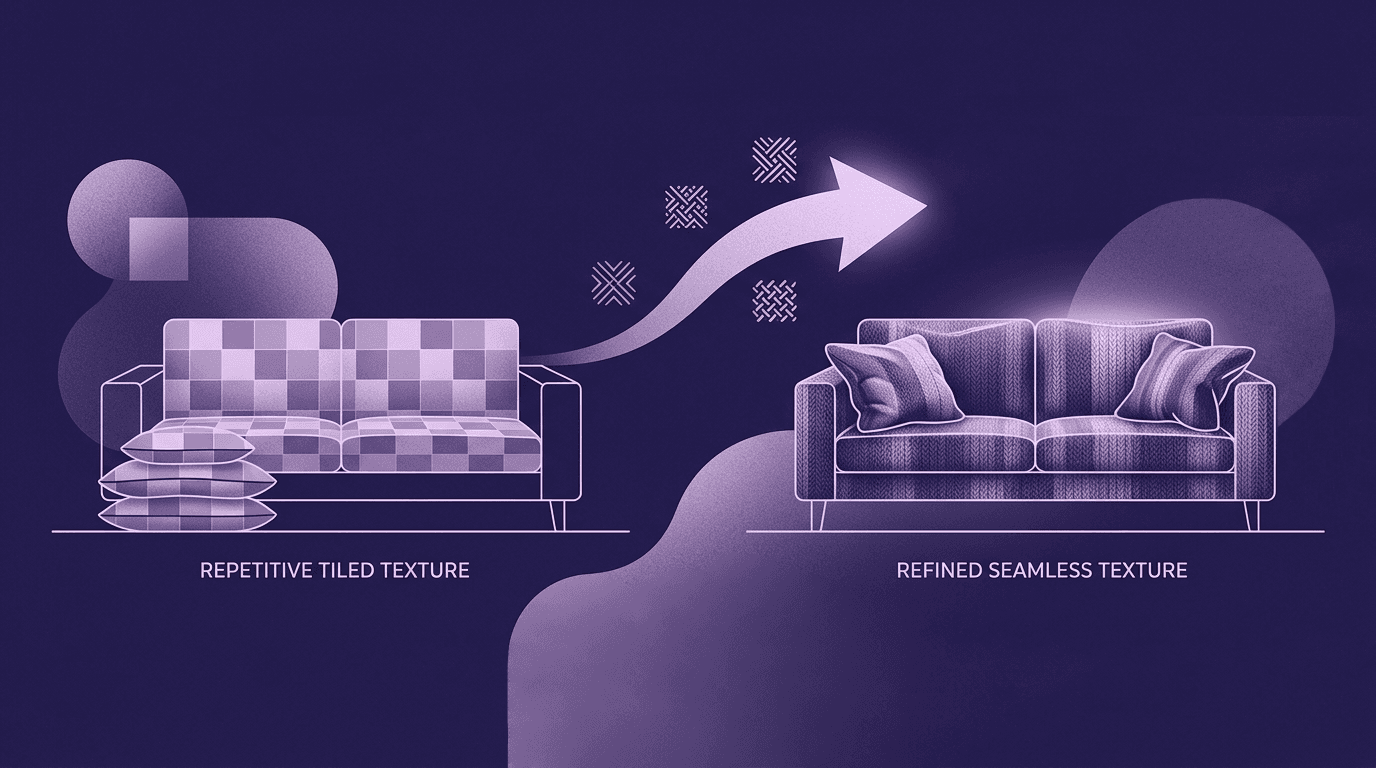
Sourcing high-quality seamless fabric textures
Before you can apply a beautiful fabric in SketchUp, you need to find it. Relying solely on SketchUp’s default material library will limit the realism of your renders. To achieve professional results, you need to source high-quality, seamless, physically accurate textures.
Top online libraries: There is a wealth of resources available for designers seeking high-end materials. Websites like SketchUpTextureClub, Poliigon, Poly Haven, and Textures.com offer vast libraries of seamless fabrics. Many of these sites offer free lower-resolution downloads alongside premium subscriptions for higher resolutions and complete PBR (Physically Based Rendering) texture maps. When browsing, look for categories separated by fabric type, such as cotton, leather, wool, and synthetics, to find the exact weave and finish your design calls for.
Understanding resolution: When downloading textures, you will frequently encounter terms like 1K, 2K, 4K, and 8K. These refer to the pixel dimensions of the square image (e.g., 2K is typically 2048x2048 pixels).
- 1K to 2K: Ideal for background objects or SketchUp models that won't be viewed up close. They keep your file size manageable.
- 4K: The sweet spot for high-quality architectural renders, perfect for hero objects like the main sofa or bed in a room.
- 8K: Extremely heavy. Use these sparingly, only for extreme macro close-up shots, as they will aggressively slow down your SketchUp viewport.
Creating your own: Sometimes, a client requests a highly specific, proprietary fabric. In these cases, you can create your own seamless textures. By taking a high-resolution, evenly lit photograph of the fabric swatch, you can use software like Adobe Photoshop (using the Offset filter and the Clone Stamp tool) or AI-powered texture generators to remove lighting gradients and make the edges tileable.
Preparing your SketchUp model for texturing
Applying a high-quality seamless texture to a poorly constructed SketchUp model is like painting over rust. Before the texturing process begins, proper model preparation is essential to ensure the fabric behaves predictably.
Organizing with groups and components: Never leave your SketchUp geometry "loose." Every piece of furniture, cushion, or curtain should be isolated as a Group or Component. Applying a material directly to a Group will paint all default faces within it, which is a fast way to work. However, for precise control over the texture's alignment (UV mapping), you must enter the Group and apply the material directly to the individual faces.
Checking face orientation: SketchUp faces have two sides: a front (default white) and a back (default blue/gray). Render engines and texture mapping tools strongly prefer textures to be applied to the front faces. To check this, switch your viewport style to "Monochrome." If you see blue faces on the exterior of your cushions or sofas, right-click them and select Reverse Faces. Applying materials to back faces can result in inverted bump maps or rendering errors later down the line.
Scaling the model: Texture scales are relative to the size of the geometry they are applied to. Before texturing, use the Tape Measure tool to verify that your furniture is scaled to real-world dimensions. A seamless cotton weave that looks perfect on a 2-meter sofa will look completely wrong if the sofa is accidentally scaled to 20 meters.
The basics: Applying fabric textures with SketchUp’s native tools
SketchUp’s native toolset is perfectly capable of handling standard texturing tasks, particularly on flat or simply curved surfaces.
Importing the texture: To bring your seamless fabric into SketchUp, go to File > Import. Select your image file, and crucially, check the radio button that says Use as Texture (not as Image). Click on the face you want to paint, drag your mouse to set an initial scale, and click again. The texture will now tile seamlessly across the surface.
Using the paint bucket and materials tray. Once imported, the fabric will appear in your Materials tray (or Material Browser on Mac). Using the Paint Bucket tool (B), you can quickly apply this material to other faces in your model.
Adjusting scale and proportion. By default, the scale you initially drew might not match the real-world weave of the fabric. In the Materials tray, under the "Edit" tab, you will find dimension boxes for the material. Because the texture is seamless, you can safely scale these numbers up or down. A common mistake in 3D modeling is leaving fabric weaves too large; a linen weave should be tiny, almost imperceptible from a distance, rather than looking like a heavy burlap sack.
Positioning the texture: If the grain of a velvet or the stripes of a patterned fabric are running the wrong way, you need to adjust its position. Right-click the textured face, navigate to Texture, and select Position. Four colored pins will appear. You can drag the texture around to align the pattern, or use the Green pin to rotate the fabric so the weave perfectly aligns with the seams of your furniture model.
Advanced texturing: Tackling curves and organic shapes
While SketchUp's native tools are great for flat walls and rectangular cushions, they struggle with organic, complex geometry. When you apply a 2D fabric texture to a deeply curved Chesterfield sofa or draped curtains, the texture often fractures, stretching unnaturally or breaking into chaotic shards across the polygons.
Projected textures: For simply curved objects, such as a cylindrical lampshade or a gently arched headboard, SketchUp’s "Projected" texture feature is a lifesaver. By painting a texture onto a flat dummy plane aligned with your object, right-clicking it, and selecting Texture > Projected, you can then sample that texture and paint it onto the curved surface. The fabric pattern will project straight through the object like a slide projector, ignoring the complex facets.
Plugins for complex UV mapping: To truly elevate your organic models, you must use extensions. SketchUp does not have native advanced UV mapping (the process of unwrapping a 3D model into 2D space to apply a texture).
Two indispensable plugins for this are ThruPaint (part of the Fredo6 toolset) and SketchUV. ThruPaint allows you to paint across complex, softened, and smoothed geometry seamlessly. It offers different mapping modes, like Natural, Cylindrical, and Spherical, allowing the fabric texture to wrap around a tufted cushion or a draped blanket as if real cloth were folded over it. This eliminates the fractured look and maintains the integrity of the seamless pattern across organic folds.
Elevating fabric realism through rendering engines
SketchUp's viewport only displays the "Albedo" or "Diffuse" color map of your fabric. To achieve photorealism, you need to bring your seamless textures into a rendering engine like V-Ray, Enscape, Lumion, or Corona. These engines utilize Physically Based Rendering (PBR) workflows to calculate how light interacts with the microscopic details of the fabric.
Adding depth with maps A seamless color image is just the first step. High-quality texture downloads usually come with additional grayscale or purple-tinted images known as Maps.
- Normal maps: These trick the rendering engine into seeing 3D depth on a flat surface. By plugging a seamless Normal map into your rendering material, the engine will create artificial shadows in the tiny crevices of a fabric weave, giving it a tangible, tactile feel without increasing the polygon count of your model.
- Displacement maps: Used for extremely heavy fabrics like thick rugs, shag carpets, or chunky knit blankets. Unlike Bump maps, Displacement actually pushes and pulls the rendering geometry, creating a true 3D silhouette.
Reflection and glossiness Not all fabrics are entirely matte. Leather has a distinct shine; silk catches the light sharply; and velvet possesses a unique "falloff" effect where the edges of the fabric appear lighter than the center due to the microscopic fibers standing up. In your render engine, adjusting the Roughness and Reflection values is critical. A leather sofa with too much gloss will look like plastic, while a silk sheet with no reflection will look like dull cotton.
The role of lighting Finally, seamless textures only look their best under good lighting. Utilize directional sunlight or strategically placed interior lights to graze the surface of your fabrics. Grazing light highlights the bump maps you’ve applied, emphasizing the texture’s weave and making the digital fabric feel real enough to touch.
Best practices for workflow and client presentations
As you master seamless fabrics, it is easy to get carried away, overloading your model with massive 4K textures and heavy displacement maps. Managing your workflow is vital to ensure your client presentations go smoothly.
Balancing file size and quality High-resolution textures bloat SketchUp file sizes rapidly. An excessively large file will cause autosave lags, choppy navigation, and potential software crashes during a live client walkthrough. Always use the lowest resolution texture that still looks good for the camera distance. A pillow in the background does not need a 4K texture map.
Purge unused materials Throughout the design process, you will likely test multiple fabrics. SketchUp holds onto these materials in the file even after you delete the geometry they were applied to. Before finishing a project, always go to Window > Model Info > Statistics and click Purge Unused. This will strip out any discarded fabric textures, dramatically reducing your file size.
Emotional buy-in for clients Never underestimate the psychological impact of a well-textured render. Clients often struggle to visualize spaces from 2D floor plans or untextured block models. When a client sees a rendering where the linen curtains gently filter the light and the leather lounge chair exhibits realistic, subtle wear, they move from analyzing the space to emotionally connecting with it. Realistic textures bridge the gap between abstract design and tangible reality, making it significantly easier to sell your vision.
Bringing your 3D models to life
Mastering the application of seamless fabric textures in SketchUp is a transformative skill for any architect or designer. By understanding how to source high-quality materials, properly prepare your geometry, utilize advanced plugins for organic shapes, and leverage render engines for depth and lighting, you can elevate your 3D models from amateur drafts to professional-grade visualizations.
While texturing complex fabrics requires patience and an eye for detail, the reward is well worth the effort. Seamless fabrics eliminate the jarring visual errors of digital modeling, bringing warmth, scale, and realism to your designs. Start experimenting with different weaves, mapping plugins, and render settings today, and watch as your client presentations become more engaging, immersive, and ultimately, more successful.

Max Calder
Max Calder is a creative technologist at Texturly. He specializes in material workflows, lighting, and rendering, but what drives him is enhancing creative workflows using technology. Whether he's writing about shader logic or exploring the art behind great textures, Max brings a thoughtful, hands-on perspective shaped by years in the industry. His favorite kind of learning? Collaborative, curious, and always rooted in real-world projects.
Latest Blogs
The Indie Dev Guide to CC0 PBR Textures: Stop Searching, Start Cr...
PBR textures
AI in 3D design

Mira Kapoor
Jul 10, 2026
Sourcing Free Game Textures: Navigating PBR Pipelines and Stylize...
PBR textures
Game textures
Mira Kapoor
Jul 6, 2026
Sculpting with Sunlight: The Architectural Physics of Facade Text...
Texture creation
AI in 3D design

Max Calder
Jul 1, 2026

Accelerate you workflow
with automated PBR texture generation
Enjoy creative freedom with AI powered texture creation
 Texturly
Copyright © 2026 Texturly, Asha Technology Labs Pvt. Ltd. All rights reserved