Fast-Track Your Worldbuilding: 3D Metaverse Texture Pipelines in Blender
By Max Calder | 22 June 2026 | 11 mins read
Table of contents
Table of Contents
Nothing stalls an ambitious virtual world build faster than an asset bottleneck you can’t seem to break. You’ve mapped out your digital real estate, your structural geometry in Blender is clean, and your world-building concepts are ready to deploy. But then you hit the wall: creating hundreds of seamless, high-fidelity textures that look breathtaking under dynamic lighting without melting your users' graphics cards.
This guide is here to change that. We’re going to break down a smart, no-nonsense texture creation strategy that turns the frustrating, manual search-and-tweak routine into a reliable asset pipeline. We'll show you how to blend the raw power of Blender with advanced PBR automation tools. Forget relying on endless manual cloning or low-res stock assets; think of this less as a tedious creative chore and more as your new automated pipeline for building some of the most immersive environments in the metaverse.
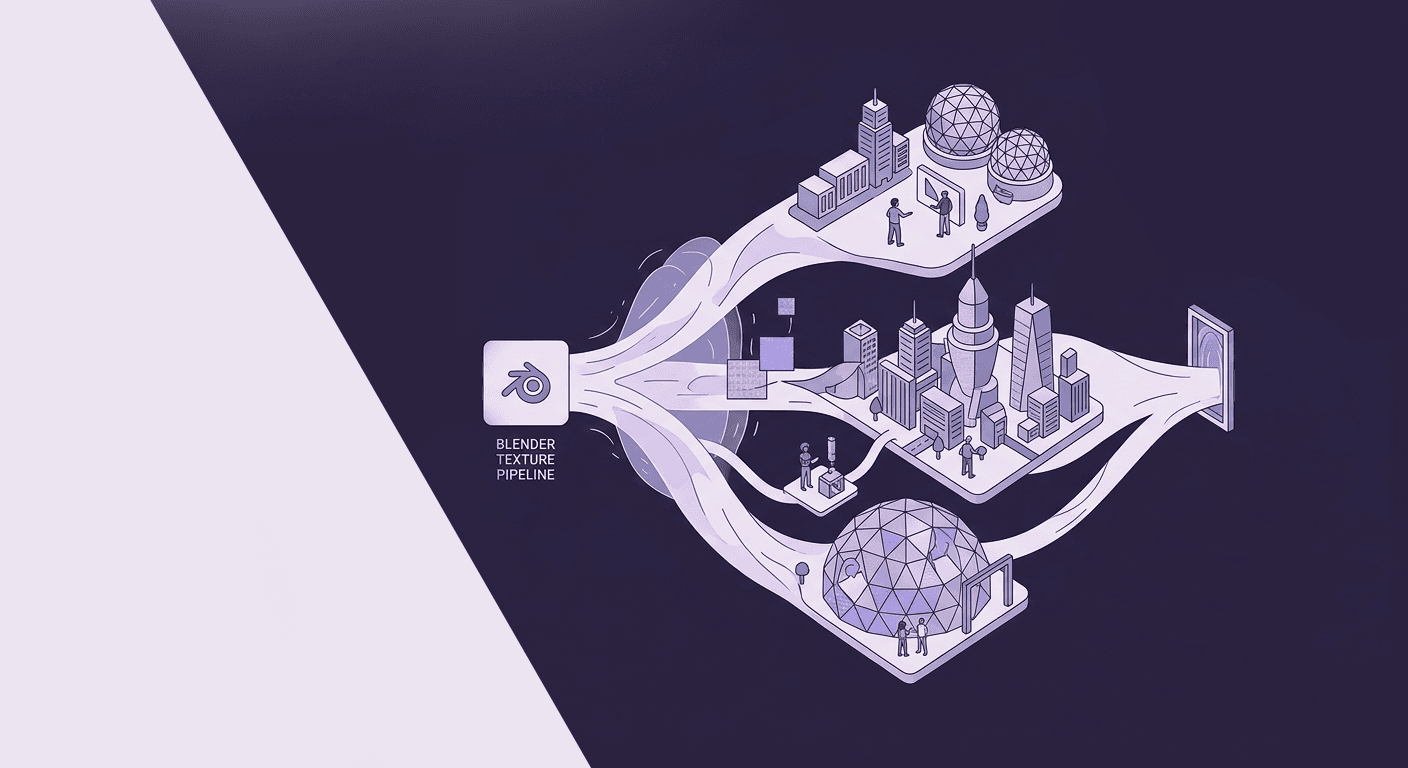
What is a metaverse environment texture, and why is it a big deal?
You're building out a virtual plaza, a sprawling cyberpunk cityscape, or a fantasy sandbox, and you keep noticing a massive visual disparity. Some environments feel tangible and alive, while others look flat, repetitive, and distinctly "fake." The difference maker? Your environment textures. Think of a metaverse texture less like a flat, static 2D wallpaper and more like an interactive, responsive skin; it needs to respond dynamically to changing digital sunlight, cast micro-shadows, and tile infinitely across massive horizons without showing obvious seams.
This isn’t your everyday digital painting. You can't just throw a JPEG onto a 3D wall and call it a day. In virtual spaces, where users can walk right up to a surface, inspect it via VR headsets, or view it from extreme angles, texture exclusivity and performance are everything. A proper metaverse texture requires a full suite of PBR (Physically Based Rendering) maps:
- Albedo (Base Color): The raw, unlit color of the surface.
- Roughness: Dictates how light scatters across the surface (e.g., wet mud vs. brushed steel).
- Normal: Bakes complex geometric micro-details into a flat plane without adding millions of lag-inducing polygons.
- Height/Displacement: Adds true physical depth for advanced engine rendering.
- Ambient Occlusion: Simulates soft, realistic shadows in cracks and crevices.
Without a steady, efficient workflow to generate these maps, your progression toward building large-scale, optimized virtual worlds will hit a dead end. The challenge isn't deciding if your world needs high-quality textures; it’s figuring out how to generate them at scale without burning out. That's exactly the workflow we're going to build.
The best methods to build a seamless PBR pipeline in Blender
Forget what you've heard about texture creation taking hours per material. Building a metaverse environment is a game of scale, probability, and strategic tool integration. Here is how you can tip the odds in your favor and turn a frustrating asset search into a reliable, automated pipeline.
Build a passive engine with automated texture generation
The primary and most consistent source of high-tier metaverse textures is automation. If you are still manually jumping between multiple image editing applications to clone out seams or generate clumsy grayscale maps from photos, you are missing out on the definition of working smarter.
To bridge this gap, modern workflows rely on Texturly, an AI-powered SaaS tool designed specifically to generate high-quality textures from scratch and instantly convert them into tileable, seamless surfaces with a single click. Instead of scavenging the internet for assets, you feed text prompts or base reference images directly into Texturly's engine. The platform handles the heavy lifting instantly: it uses advanced AI to generate ultra-realistic or stylized textures, automatically patches the edges to ensure they loop perfectly across massive geometry, and extracts a synchronized suite of PBR maps (Normal, Roughness, Ambient Occlusion, and Height).
Instead of spending an afternoon making one concrete wall look right, you generate a dozen distinct, engine-ready variations in minutes, completely prepped for a direct Blender import. It’s a low-effort, high-yield system that should always be running at the start of your asset creation phase.
Master node-based material setup in Blender's shader editor
Now, let's look at the implementation inside Blender, because throwing maps into random slots won't yield elite results. To maximize the impact of your automated PBR maps, you need to set up a clean, reusable shader master node.
Open Blender's Shader Editor and create a new material on your environment mesh. Bring in your Texturly-generated maps using Shift + A > Image Texture. To keep your pipeline clean and scalable, follow this rigid mapping architecture:
[Albedo Map (sRGB)] ----------> Base Color (Principled BSDF)
[Roughness Map (Non-Color)] --> Roughness (Principled BSDF)
[AO Map (Non-Color)] ---------> Mix (Multiply) with Albedo
[Normal Map (Non-Color)] -----> Normal Map Node ----> Normal (Principled BSDF)
Crucial Tip: For every map except your Albedo/Base Color, ensure the Color Space dropdown on the Image Texture node is set strictly to Non-Color. If you leave your Normal or Roughness maps set to sRGB, Blender will misinterpret the data, resulting in weirdly glossy or completely flat surfaces that break under virtual lighting environments.
Fine-tune map strengths for optimal engine performance (Web3/XR)
This is the step most designers skip, and it's where you gain a massive competitive edge. Metaverse worlds are rarely experienced solely inside Blender; they are exported to engines like Unreal Engine, Unity, or decentralized platforms like Decentraland and The Sandbox.
Before exporting, analyze how your textures behave under varied lighting conditions in Blender’s Cycles or Eevee Next engines. Use a ColorRamp node placed between your Roughness Map and the Principled BSDF node. This gives you absolute control over the contrast of your roughness, allowing you to quickly dial back blinding glares or heighten damp, metallic reflections.
Similarly, inject a Math node (set to Multiply) right before your Height input or tweak the strength slider on your Normal Map node. By keeping these adjustment parameters highly flexible inside Blender, you can optimize the materials for your destination platform’s specific render engine, guaranteeing your world looks stunning whether a user is viewing it on an ultra-powerful PC or a standalone VR headset.
What to build with your metaverse texture haul
Once your seamless PBR assets start rolling out of your automated system and into Blender, the exciting part begins. These automated materials aren't just for show; they unlock the ability to construct diverse, multi-biome digital universes that run beautifully.
Prioritize modular Sci-Fi and cyberpunk architecture
The highest immediate return on investment for environment design is modularity. Instead of texturing an entire building as one massive, unique asset, create a set of simple, interlocking architectural building blocks (walls, pillars, floors, doors) in Blender.
Apply high-density, seamless industrial PBR textures, such as diamond-plate steel, carbon fiber weaves, or modular paneling, across these assets. Because Texturly engineers the textures to be perfectly seamless, you can stretch, copy, and kitbash these modular pieces into a massive, cohesive cyberpunk cityscape. One set of five seamless textures can skin an entire virtual metropolis if your modular pipeline is planned out effectively.
Create dynamic, high-fidelity natural terrains
If your metaverse project involves open-world exploration, virtual concert grounds, or massive fantasy landscapes, your terrain needs to look organic. Standard landscape textures become a blurry, pixelated mess when stretched over thousands of meters.
To solve this inside Blender:
- Generate high-resolution organic textures (e.g., mossy rock, cracked desert earth, coarse sand) via the AI generator.
- In Blender's Shader Editor, use a Mapping Node connected to a Texture Coordinate (Generated or UV) input.
- Scale up the UV coordinates so the texture repeats naturally. Because the assets loop flawlessly, you can repeat the texture dozens of times over massive hillsides without creating an ugly, artificial "checkerboard" pattern across your beautiful horizons.
Construct stylized, low-poly environments for mobile metaverse nodes
Not every virtual world targets high-end PCs. Many of the most popular metaverse platforms are built for accessibility across mobile devices and browsers. For these instances, use your pipeline to generate stylized, vibrant textures rather than hyper-realistic ones.
You can spin up clean, hand-painted, or cell-shaded style textures just as easily as realistic ones. When you bring these into Blender, you can bypass complex displacement or heavy geometry altogether. Let your Normal and AO maps do all the heavy lifting of simulating 3D depth. This allows you to keep your object polygon counts incredibly low, ensuring ultra-fast load times for mobile metaverse users while retaining a polished, high-production aesthetic.
Pro-tips for optimizing metaverse textures and workflows
Efficiency is everything when dealing with real-time rendered environments. Here are two vital pro-tips to streamline your Blender workflow and keep your environment file sizes exceptionally light.
Implement the "texel density checklist" for consistent visual scale
This is a simple quality-of-life framework that prevents your virtual worlds from feeling disjointed. Have you ever entered a 3D space where a concrete wall looks razor-sharp, but the wooden door right next to it looks incredibly blurry? This is a breakdown in Texel Density.
Before finalizing your materials in Blender, establish a strict Texel Density standard for your project (for instance, 5.12 pixels per centimeter, which translates to a $2048 \times 2048$ texture mapped across a $4 \times 4$ meter plane). Use a free Blender add-on like Texel Density Checker to quickly normalize your meshes' UV maps. This ensures that every texture generated in your asset loop scales identically across your world, removing visual friction and keeping the user completely immersed.
Balance VRAM usage with smart channel packing
Finally, remember that loading four or five separate texture maps ($2K$ or $4K$ each) for every single material will rapidly drain user GPU memory (VRAM), causing severe frame drops. The most effective metaverse world builders use a technique called Channel Packing.
Because grayscale maps like Roughness, Ambient Occlusion, and Metallic only use black-and-white data, they only require a single color channel rather than a full RGB spectrum. In Blender (or via an automated export setup), you can combine three separate grayscale maps into the Red, Green, and Blue channels of a single image file:
Inside Blender's Shader Editor, you simply bring in this single packed texture, drop down a Separate Color node, and route the R, G, and B outputs into their respective Principled BSDF inputs. You’ve just reduced your texture fetch count by $66\%$, optimizing your world for a flawless real-time multiplayer experience.
Your new metaverse texture workflow
And just like that, the process of texturing a massive virtual world stops feeling like an endless, exhausting grind. It becomes a system. The real takeaway here isn’t just a folder full of pretty image files; it’s a completely reimagined way to approach real-time environmental asset generation.
You’ve stopped relying on tedious manual cloning or praying for the perfect stock asset online. By combining your Blender expertise with Texturly’s automated pipeline, which effortlessly handles the microscopic, tedious work of extracting PBR maps and fixing texture seams, you've built an automated digital supply chain. Your tools do the grunt work, freeing you up to focus on the bigger picture: master-level world layout, dynamic atmospheric lighting, and high-level level design.
Take this pipeline mindset with you into your next build. Apply it to every surface your users walk on, touch, or explore. Turn brute creative force into a smart, repeatable asset pipeline.
You've got the strategy. Now go build an incredible world.

Max Calder
Max Calder is a creative technologist at Texturly. He specializes in material workflows, lighting, and rendering, but what drives him is enhancing creative workflows using technology. Whether he's writing about shader logic or exploring the art behind great textures, Max brings a thoughtful, hands-on perspective shaped by years in the industry. His favorite kind of learning? Collaborative, curious, and always rooted in real-world projects.
Latest Blogs
The Indie Dev Guide to CC0 PBR Textures: Stop Searching, Start Cr...
PBR textures
AI in 3D design

Mira Kapoor
Jul 10, 2026
Sourcing Free Game Textures: Navigating PBR Pipelines and Stylize...
PBR textures
Game textures
Mira Kapoor
Jul 6, 2026
Sculpting with Sunlight: The Architectural Physics of Facade Text...
Texture creation
AI in 3D design

Max Calder
Jul 1, 2026

Accelerate you workflow
with automated PBR texture generation
Enjoy creative freedom with AI powered texture creation
 Texturly
Copyright © 2026 Texturly, Asha Technology Labs Pvt. Ltd. All rights reserved