Build Production-Ready Roblox Texturing Systems That Scale
By Max Calder | 13 February 2026 | 10 mins read
Table of contents
Table of Contents
In the world of Roblox development, the visual feel of your game is often the first thing a player notices. You can have the most complex scripting and the most innovative mechanics, but if your world is built entirely out of the default Plastic and Brick materials, it can feel unpolished or cookie-cutter. This is where texture editing comes into play.
Editing textures allows you to breathe life into 3D models. It’s the difference between a generic gray sword and a weathered, battle-scarred blade that tells a story. By mastering texture modification, you gain the ability to create unique branding for your game, improve player immersion, and optimize performance by using clever visual tricks instead of high-poly geometry. Whether you are looking to create a photorealistic horror environment or a vibrant, stylized simulator, understanding how to manipulate pixels is a core skill for any serious developer.
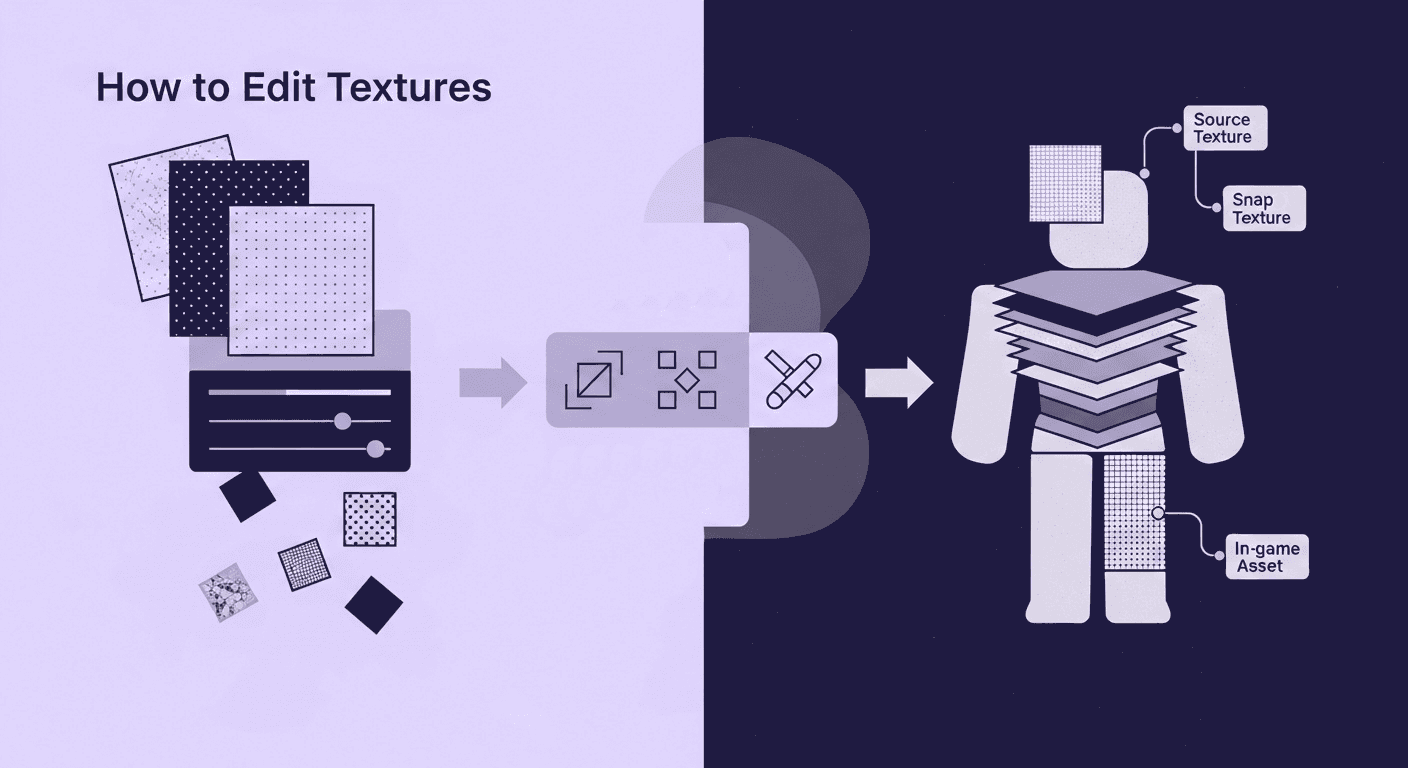
Understanding Roblox texture fundamentals
Before you open an image editor, you need to understand the technical constraints of the Roblox engine. Unlike a standard PC game that might use 4K textures, Roblox is designed to run on everything from high-end gaming rigs to five-year-old smartphones.
The three pillars: Decals, textures, and materials
It’s common for beginners to use these terms interchangeably, but they behave differently in-engine:
- Decals: These are stickers applied to one face of a part. They don't tile; they stretch to fit the surface.
- Textures: Similar to decals, but they have the StudsPerTile property, allowing them to repeat seamlessly across a surface.
- Materials: These are global presets (like Grass or Metal) that often include PBR data. With the introduction of Material Service, you can now replace these default materials with your own custom creations.
Choose your texturing software: Beyond the basics
So, what's the best software for Roblox texture editing? The honest answer is: it depends on the job. For a quick color swap or a simple logo placement, free tools like GIMP or Paint.NET work just fine. They’re fast, accessible, and get the job done for simple edits.
But for a professional studio pipeline, you need to think bigger. This is where tools like Adobe Photoshop, Substance Painter, and Texturly (AI-Automated) come in.
- Photoshop is the undisputed king of 2D image manipulation. For tasks that require precise control over layers, filters, and hand-painted details, it's essential. It's the scalpel in your toolkit.
- Substance Painter is the industry standard for 3D texturing. It allows you to paint directly onto your 3D meshes, creating multi-layered PBR materials. However, it requires a significant time investment and a high monthly subscription.
- Texturly (AI-automated) has emerged as a critical tool in the professional stack by automating the most tedious parts of the process. Whether it’s generating a base texture from a prompt or converting a flat photo into a seamless, PBR-ready material, it eliminates the grunt work associated with traditional 2D editors.
Prep your file formats and resolution
Before you even start texturing, setting up your files correctly will save you headaches down the line. It's all about balancing quality and performance.
- Image formats: What image formats work best? For most textures, PNG is the way to go. It’s lossless and supports transparency, which is crucial for things like decals or foliage. If you have a texture with no alpha channel and performance is a major concern, a high-quality JPG can work, but PNG is generally the safer, higher-quality bet.
- Texture dimensions: Stick to powers of two, 512x512, 1024x1024, 2048x2048. This is standard practice in game development for memory optimization reasons. For most assets in Roblox, 1024x1024 is the sweet spot. It provides enough detail without bloating your game's memory footprint.
- Texture atlases: When you have multiple objects that share similar materials, consider using a texture atlas. This is a single texture sheet that contains the textures for several different models. Think of it like packing all your clothes in one suitcase instead of ten separate bags; it’s far more efficient for the game engine to load one large texture than many small ones.
With our toolkit and standards defined, let's pull our assets out of Roblox and get them ready for their makeover.
Finding and extracting existing textures
Every great texture starts with a spark of inspiration. In Roblox, you don't always have to start with a blank white canvas. Often, the best way to learn is by deconstructing existing assets or using real-world references.
Using the Roblox toolbox as a mood board
The Roblox Toolbox is a goldmine of existing textures, but using them as-is often results in a game that looks generic. Instead, use the Toolbox to find a base texture, like a specific grain of wood or a type of stone, and then refine it.
- Search for Texture or Seamless in the Images tab.
- Once you find one you like, right-click it and select "Copy Asset ID."
- To download the actual image for editing, you can use external "Roblox ID to Image" tools or simply use the Creator Dashboard to view and save your own uploaded assets.
The problem with real-world photos
Many developers take photos of real brick walls or grass to use as textures. While this adds realism, these photos are rarely game-ready. They often have uneven lighting (shadows baked into the image) and, most importantly, they don't tile. If you place a standard photo on a large wall, you’ll see ugly lines where the edges of the photo meet.
The modern shortcut: This is where Texturly becomes a game-changer. Instead of spending hours in Photoshop manually "cloning" edges to make a photo seamless, you can upload a rough real-world photo into Texturly. Its AI-powered Image-to-Seamless engine automatically realigns the patterns and balances the lighting, giving you a perfectly tileable texture in seconds.
Step-by-step: Editing your first texture
Now that you have your base image, it’s time to edit. Whether you are using a professional suite or a specialized tool like Texturly, the workflow follows a logical progression.
Setting up the canvas
Always start with a square canvas (1024x1024). Even if your final object is a long rectangle, Roblox handles square textures best. If you are creating a "trim sheet" (multiple textures on one sheet), use a grid to keep your elements organized.
Refining with filters
Before adding complex details, adjust the bones of the image.
- Brightness & contrast: Essential for ensuring your texture isn't too dark when Roblox's Future lighting system hits it.
- Saturation: Lowering saturation can make a texture feel more gritty and realistic, while higher saturation fits Simulator-style games.
- Sharpness: High-resolution textures can sometimes look soft in-game. A slight Unsharp Mask or Sharpness filter helps details like wood grain or stone cracks pop.
Creating the loop (seamlessness)
If you aren't using an AI generator, you must do this manually:
- Offset: Move the image by 50% horizontally and vertically so the edges are in the middle.
- Clone stamp: Use a brush to paint over the visible "seams" in the center.
- Offset back: Return the image to its original position.
If you're using Texturly, you skip these steps entirely. You simply toggle the "Make Texture Tileable" feature, and the AI handles the pixel-blending for you, ensuring that no matter how many times the texture repeats, the player never sees a seam.
Advanced techniques: Physically based rendering
The standard flat textures are no longer enough for high-end Roblox experiences. To compete with top-tier games, you need to use SurfaceAppearance, which utilizes PBR maps to tell the Roblox engine how light should bounce off different parts of your texture.
The four essential maps
When you edit a texture for a SurfaceAppearance object, you aren't just making one image; you are creating a set.
- Albedo (Colormap)
- What it controls: The base color and pattern of the object, free from lighting or shadows.
- How to edit: Use Texturly or standard editors to adjust Contrast, Saturation, and Brightness.
- NormalMap
- What it controls: Simulates visual depth, surface bumps, and intricate details without adding actual polygons (geometry).
- How to edit: This map uses purple and blue tones to tell the engine how to bounce light; it is best generated automatically from a base image using Texturly to ensure accuracy.
- RoughnessMap
- What it Controls: Determines how light scatters across the surface, defining if it looks shiny or matte.
- How to Edit: Use a grayscale scale where White is matte (rough), and Black is shiny (smooth/reflective).
- MetalnessMap
- What it controls: Identifies which specific parts of the texture behave like metal.
- How to edit: Typically uses high contrast; White represents metallic surfaces, while Black represents non-metallic materials like plastic, wood, or dirt.
Generating PBR maps
Creating a Normal Map or Roughness Map manually is incredibly difficult; it requires understanding how light vectors work.
With Texturly, you can upload your base Albedo image, and the tool will automatically generate the corresponding PBR maps. It sees the cracks in your stone and creates a Normal map to give them depth, and identifies the reflective surfaces to create a Roughness map. This allows you to go from a flat image to a high-fidelity, 3D-feeling material that reacts dynamically to the sun and light sources in your game.
The new frontier: Emissive masks
As of the latest Roblox updates, Emissive Masks are now fully supported in SurfaceAppearance. This allows you to make specific parts of your texture glow (like neon lights on a cyberpunk building) without making the entire object a LightSource. When editing in Texturly or Photoshop, you can designate these glowing areas by creating a grayscale mask where white represents the glow.
Uploading and implementing in Roblox Studio
Once your textures are exported and ready, the next step is getting them into the Roblox cloud. The latest workflow has been streamlined to favor bulk management and higher fidelity.
The bulk upload workflow
Don't upload textures one by one. Use the Asset Manager (View > Asset Manager) in Roblox Studio.
- Click the Bulk Import button (the up arrow icon).
- Select all your texture maps (Albedo, Normal, Roughness, etc.) at once.
- Roblox will process them in a queue. Once approved, they appear in your "Images" folder within the manager.
Applying to parts vs. meshparts
- For standard parts: Use a Texture or Decal object. For custom materials that need to tile across large walls, always choose the Texture object so you can adjust the StudsPerTileU and StudsPerTileV properties to avoid stretching.
- For meshparts: This is where you use SurfaceAppearance. Insert a SurfaceAppearance object inside your MeshPart. Paste your Map IDs into the corresponding slots (ColorMap, NormalMap, etc.). Note: Ensure your AlphaMode is set correctly, use "Overlay" if you want your texture to have transparent areas.
Global material overrides
If you want every "Brick" part in your game to use your new custom texture, use MaterialService.
- Create a MaterialVariant in MaterialService.
- Upload your textures to the variant.
- Set the BaseMaterial to "Brick."
- In the MaterialService settings, set the "Brick Override" to your new MaterialVariant.
Troubleshooting and optimization
Even the best textures can look off if they aren't optimized. Here is how to fix the most common issues developers face.
1. Why is my texture blurry?
If your 1024x1024 texture looks like a smudge, it’s likely due to Downsampling. Roblox scales textures based on player hardware.
- The fix: Check your "Graphics Quality" in Studio settings. Also, ensure you aren't using a 4K image; while Roblox allows larger uploads now, the engine often compresses them more aggressively than if you had just uploaded a clean 1024x1024 or 2048x2048 file.
2. Texture memory (The performance killer)
High-resolution textures eat up "Texture Memory" (VRAM). If your game crashes on mobile, your textures are likely too large.
- The rule of thumb:
- Small objects (tools, pebbles): 256x256
- Medium objects (furniture, crates): 512x512
- Large objects (buildings, terrain): 1024x1024
3. Moderation Issues
Roblox’s AI moderation can be strict. If your texture is "Pending" for a long time or gets rejected, ensure there is no hidden text, QR codes, or copyrighted logos. If you are using a photo of a real-world building, make sure no faces or license plates are visible.
Promoting your workflow with Texturly
In the past, creating professional-grade textures required hours of manual labor in Photoshop. Texturly has completely disrupted this workflow, making it the essential companion for modern Roblox developers.
Instead of hunting for the perfect base image, you can use Texturly’s Prompt-to-Texture feature to generate unique assets from scratch. If you already have a photo or a drawing, its Image-to-Seamless engine removes the headache of manual tiling, ensuring your walls and floors look perfect without visible seams.
The real power for Roblox developers, however, lies in the PBR Map Generation. Uploading a single base image to Texturly allows you to instantly download a complete set of Normal, Roughness, and Metalness maps. Before you even download, you can use the built-in Filters to tweak brightness, contrast, and sharpness, ensuring your asset is "Studio-ready" the moment it hits your hard drive. This turns a 2-hour texturing job into a 2-minute process.
Leveling up your development journey
We’ve covered a lot of ground, from selecting the right professional toolkit to mastering a full PBR workflow that scales. But the real takeaway is this: great texture editing isn't just about making a single image look pretty; it’s about building a scalable, professional system for asset creation.
A great texture makes one model look good, but a great pipeline makes your entire game world feel cohesive, immersive, and alive. By moving away from "stock" looks and mastering the technical limits of the Roblox engine, like 1024x1024 resolution and SurfaceAppearance, you bridge the gap between hobbyist builds and studio-grade experiences.
By integrating AI-powered tools like Texturly to handle the heavy lifting of seamless tiling and PBR map generation, you stop fighting with the tools and start focusing on the creative work. You're no longer just editing a crate; you're building a smarter, faster process that frees you up to do your best work.
You’ve got the technical blueprint and the modern tools to execute it. Now, go build something amazing.

Max Calder
Max Calder is a creative technologist at Texturly. He specializes in material workflows, lighting, and rendering, but what drives him is enhancing creative workflows using technology. Whether he's writing about shader logic or exploring the art behind great textures, Max brings a thoughtful, hands-on perspective shaped by years in the industry. His favorite kind of learning? Collaborative, curious, and always rooted in real-world projects.
Latest Blogs
The Indie Dev Guide to CC0 PBR Textures: Stop Searching, Start Cr...
PBR textures
AI in 3D design

Mira Kapoor
Jul 10, 2026
Sourcing Free Game Textures: Navigating PBR Pipelines and Stylize...
PBR textures
Game textures
Mira Kapoor
Jul 6, 2026
Sculpting with Sunlight: The Architectural Physics of Facade Text...
Texture creation
AI in 3D design

Max Calder
Jul 1, 2026

Accelerate you workflow
with automated PBR texture generation
Enjoy creative freedom with AI powered texture creation
 Texturly
Copyright © 2026 Texturly, Asha Technology Labs Pvt. Ltd. All rights reserved