The Complete Guide to Adding Textures in Roblox Studio
By Max Calder | 4 February 2026 | 12 mins read
Table of contents
Table of Contents
You’ve modeled the perfect asset. The geometry is clean, the silhouette is strong, but when you pull it into Roblox Studio and apply a texture, it just looks… flat. That frustrating gap between the asset you imagined and the one on your screen is where great game art often gets stuck. This guide is your complete roadmap to closing that gap. We’ll unpack the entire workflow, from making the foundational choice between a Texture and a Decal to the step-by-step process for importing and mapping your images so they look just right. Getting this right isn't just about polish; it's about building a smarter, faster pipeline for all your future projects.
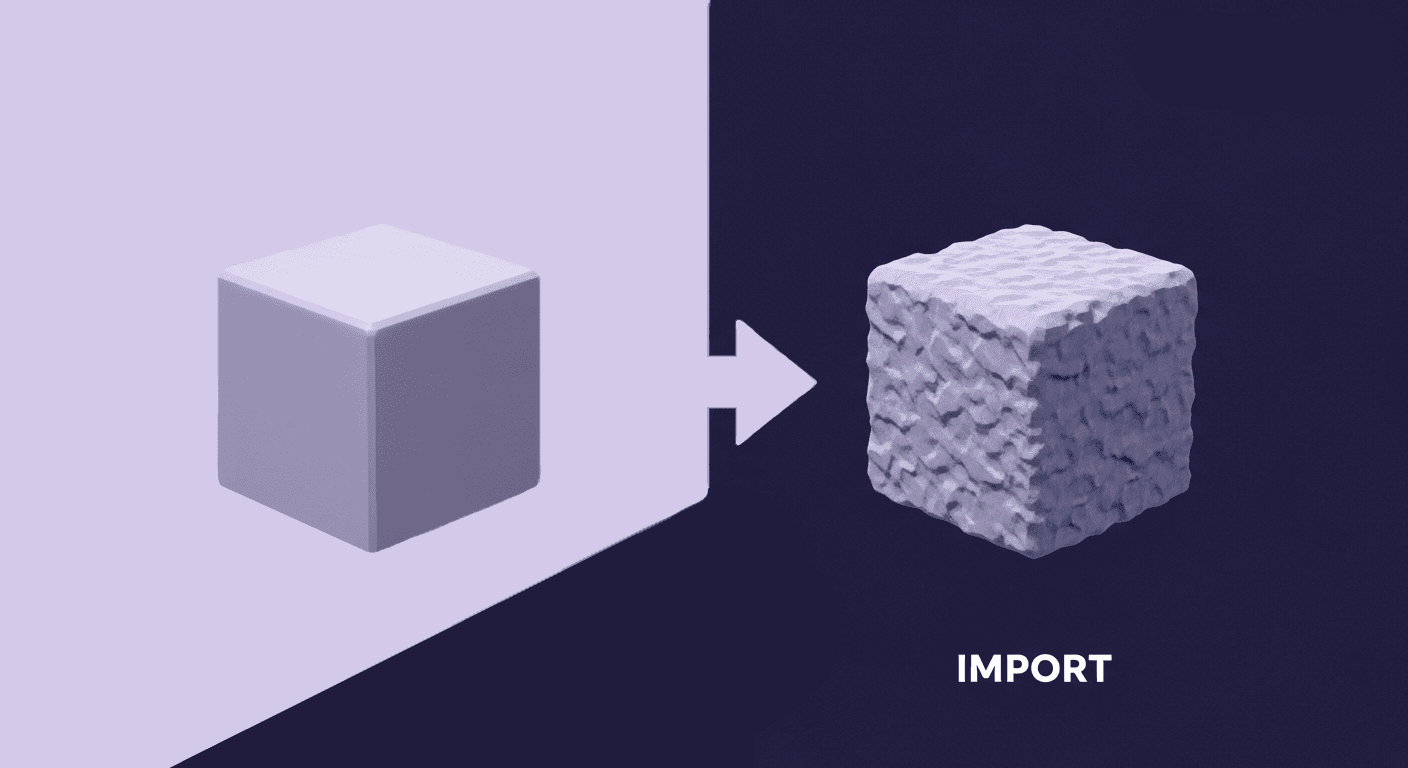
Understand your building blocks: Texture vs. Decal
Let’s start with a foundational choice that trips up a lot of teams new to Roblox: Decal or Texture? Getting this right from the start cleans up your pipeline and saves you from frustrating rework down the line. Most artists think they’re interchangeable. They’re not, and the difference is key to an efficient workflow.
What's the difference between a Decal and a Texture?
Think of it this way: Decals are stickers, and Textures are wallpaper.
A Decal is an image projected onto a single surface of a part. It sits on top, like a logo on a t-shirt or a poster on a wall. It has a specific location and doesn’t repeat. If you move the part, the decal moves with it, but it will only ever stick to the face you originally placed it on.
A Texture, on the other hand, is an image that tiles across all surfaces of a part. It’s designed to repeat seamlessly, like brickwork on a building, the grain on a wooden plank, or the pattern on a fabric. You don't place it on one face; you apply it to the whole object, and it wraps around automatically.
This distinction is critical. Using a Texture where a Decal is needed results in your logo repeating endlessly over an object. Using a Decal for a brick wall means you’d have to manually place hundreds of them, which is a nightmare for performance and alignment.
Choose the right tool for the job
Here’s a simple rule of thumb for your team: if the detail is unique and self-contained, use a Decal. If it's a repeating surface pattern, use a Texture.
- Use a decal for:
- Logos and emblems: Placing a faction symbol on a piece of armor.
- UI elements in 3D space: A button on a control panel or a sign on a door.
- Unique details: A character’s face, a painting on a wall, or a specific crack in the pavement.
- Use a texture for:
- Architectural surfaces: Brick walls, concrete floors, roof shingles, or wooden planks.
- Natural patterns: Grass, sand, rock faces, or water surfaces.
- Fabric and materials: Metal plating, carbon fiber, or patterned cloth.
Making the right choice upfront is the first step to a cleaner, more optimized game. Now that we've sorted the what, let's get into the how by prepping your assets for import.
Prepare your image assets for Roblox Studio
A solid art pipeline is built on good preparation. Getting your image assets right before they enter Roblox Studio saves countless hours of re-exporting and re-uploading. Think of this as your pre-flight checklist to ensure every asset is clean, optimized, and ready for use.
Get your image specs right
Roblox is flexible, but it has its preferences. Sticking to them ensures better performance and visual consistency.
- Supported file types: Roblox accepts JPG, PNG, TGA, and BMP. For most cases, you’ll be using JPGs for opaque textures (like wood or metal) and PNGs when you need transparency (like for a logo decal with no background).
- Optimal resolution: While Roblox supports images up to 1024x1024 pixels, this should be your maximum, not your default. Using smaller textures (like 512x512 or 256x256) for smaller objects or less important details is crucial for memory optimization. The key here is to use a power-of-two resolution (e.g., 128, 256, 512, 1024). This helps with texture memory management and avoids rendering artifacts.
- Aspect ratio: For tileable textures, always use a square aspect ratio (1:1). A 1024x1024 or 512x512 image will tile predictably. Non-square textures can still work, but they often require more tweaking to look right.
- A note on transparency: When you need transparency, use a PNG with an alpha channel. This is perfect for decals like logos, bullet holes, or foliage cards where you need parts of the image to be invisible. Just be mindful, transparent textures can be more performance-intensive, so use them where they have the most impact.
Design with moderation in mind
This is a quick but critical checkpoint. Every image you upload to Roblox is reviewed by an automated moderation system. To avoid having your assets rejected and holding up your pipeline, follow a simple checklist:
- No copyrighted material: Don't upload logos, characters, or artwork you don't own the rights to.
- Keep it appropriate: Avoid any imagery that is violent, hateful, or explicit. Refer to Roblox's Community Standards for the full breakdown.
- No personal information: Don't include any real-world names, photos of people, or other identifying information in your textures.
A quick sanity check here saves you a headache later. With your assets properly formatted and vetted, you’re ready to bring them into the engine.
Add and apply assets: Your step-by-step workflow
Alright, your images are prepped and ready to go. Now let's get them into Studio and onto your objects. We’ll break down the two distinct workflows for Decals and Textures. They’re both straightforward, but knowing the exact steps for each is essential for moving quickly.
How to add decals in Roblox
This is a fast, drag-and-drop process perfect for placing unique details.
- Open the asset manager: Go to the View tab and open the Asset Manager. This is your hub for all game assets.
- Upload your image: Click the Import button and select the decal image from your computer. Once uploaded, it will appear in the asset list.
- Drag and drop: Simply drag the image from the Asset Manager directly onto the desired face of a part in your 3D view. You'll see an outline indicating which face it will apply to.
Result: That's it. A Decal object is automatically created and parented to the part, with its Face property set to the surface you dropped it on. It’s a quick, intuitive way to add stickers, logos, and other one-off graphics to your models.
How to add textures in Roblox Studio
This workflow involves a few more clicks in the Explorer window but gives you control over repeating patterns.
- Upload the image first: Just like with decals, start by importing your texture image using the Asset Manager.
- Copy the asset ID: Right-click the newly uploaded image in the Asset Manager and select Copy ID to Clipboard. This gives you the unique identifier for your texture.
- Insert a texture object: In the Explorer window, find the part you want to texture. Click the + icon next to it and search for Texture. Add it to the part.
- Paste the ID: Select the new Texture object. In the Properties window, find the Texture property and paste the Image ID you copied earlier.
Result: Your image is now applied to the part, tiling across all six faces by default. You’ve successfully learned how to add textures in Roblox Studio. But getting the texture on the object is just the first step. The real art is in making it look right.
Master your visuals: Roblox texture mapping
Applying a texture is easy. Making it look good is what separates amateur work from a professional-looking game. Default settings rarely give you the scale or alignment you need. This is where you, as an Art lead, can guide your team to dial in the details and elevate the visual quality of your assets through smart Roblox texture mapping.
Tweak texture properties for a perfect fit
Once a Texture object is added to a part, you have a few key properties to control its appearance. These are your primary tools for 3D object texturing in the basic workflow.
- StudsPerTileU and StudsPerTileV: These two properties control the scale of your texture. They define how many studs the texture covers before it repeats, on the horizontal (U) and vertical (V) axes. A smaller number makes the texture appear larger (less repetition), while a larger number makes it smaller and more repetitive. For a brick wall, you might set both to 5, meaning the texture repeats every 5 studs.
- OffsetStudsU and OffsetStudsV: Use these to shift the texture's starting position along the U and V axes. This is incredibly useful for aligning textures across multiple parts. For example, if the mortar line of a brick texture doesn't line up between two adjacent walls, a small adjustment to the offset can fix it, creating a seamless look.
Mastering these four properties is fundamental for achieving clean, believable surfaces with repeating patterns.
A quick primer on SurfaceAppearance for PBR
For an experienced Art lead, this is where Roblox starts to feel like a modern, professional engine. If you're coming from Unreal or Maya, you're already familiar with Physically Based Rendering (PBR) workflows. The SurfaceAppearance object is Roblox's method for implementing them.
Forget the basic Texture object for your hero assets. SurfaceAppearance allows you to use a full set of PBR maps for realistic material definition. This is how you achieve next-gen Roblox Studio graphics.
Here's how it works:
- Add a SurfaceAppearance object: Instead of a Texture, add a SurfaceAppearance object to your MeshPart.
- Assign your maps: The object has slots for the standard PBR texture maps:
- ColorMap: Your base color (Albedo).
- MetalnessMap: A grayscale map defining which parts are metallic.
- RoughnessMap: A grayscale map controlling surface smoothness.
- NormalMap: To add fine surface detail and depth.
This workflow is the standard for creating high-fidelity assets that react realistically to light. It's the key to moving beyond flat, simple visuals and into a world with rich, dynamic materials. For any serious project, establishing a PBR pipeline using SurfaceAppearance is non-negotiable.
Optimize your production pipeline
A tool is only as good as the workflow you build around it. For an Art lead, the real goal isn't just creating beautiful assets, it's creating them efficiently, consistently, and at scale. A sloppy asset pipeline leads to wasted time, bloated file sizes, and inconsistent visuals. Let's establish some ground rules to keep your production clean.
Organize your assets for team efficiency
As your project grows, so will your collection of textures and decals. Without a system, your Asset Manager becomes a junk drawer. Chaos kills productivity.
- Centralize with the asset manager: Make the Asset Manager the single source of truth for all textures. Don't let artists upload assets ad hoc. Have a structured process for importing, vetting, and naming files.
- Establish naming conventions: This is the most important habit you can instill in your team. A consistent naming convention makes assets searchable and understandable. A good starting point is:
TextureType_MaterialName_Variant_MapType
Example: T_Brick_ModernA_Color.png or T_Metal_Scratched_Normal.png
This system tells you at a glance that it's a Texture (T_), what it's made of (Brick), its style (ModernA), and which PBR map it is (Color). No more guessing what image_final_v2.png is for.
Reuse textures to boost game performance
Great artists know that constraints breed creativity. In game development, performance is the ultimate constraint. Reusing textures is one of the most effective ways to optimize your game.
- Create a versatile library: Instead of creating a unique texture for every single object, build a library of high-quality, tileable materials. A good wood, concrete, and metal texture can be used across hundreds of assets. This approach, known as texture atlasing, drastically reduces the number of unique textures the game has to load.
- The performance payoff: Every unique texture in your game requires a separate draw call and takes up VRAM. When you reuse a texture, the engine only has to load it once. This leads to significant memory savings and faster load times, especially on lower-end devices. Encourage your team to think modularly: "Can I use an existing material here?" The result is a game that not only looks more cohesive but also runs better. That’s a win-win.
Making it all stick: From texture to pipeline
So, there you have it. We've walked through the entire workflow, from making that first foundational choice, Decal or Texture? to establish a production-ready pipeline. And that’s the real point here. Learning how to upload an image is the easy part. The game-changer is building a repeatable, efficient system that your whole team can rely on.
This isn't just about making individual assets look good. It's about making your team work better. When you have a solid process for naming conventions, texture reuse, and PBR mapping, you stop fighting with the engine and start building a powerful, optimized asset library. You cut down on guesswork and wasted hours, freeing up your artists to focus on what they do best: creating amazing art.
Think of this guide as your new foundation. A smarter workflow gives you more than just pretty textures; it gives you consistency, better performance, and the ability to scale your vision without the usual headaches. You’ve got the roadmap. Now go build something incredible.

Max Calder
Max Calder is a creative technologist at Texturly. He specializes in material workflows, lighting, and rendering, but what drives him is enhancing creative workflows using technology. Whether he's writing about shader logic or exploring the art behind great textures, Max brings a thoughtful, hands-on perspective shaped by years in the industry. His favorite kind of learning? Collaborative, curious, and always rooted in real-world projects.
Latest Blogs
The Indie Dev Guide to CC0 PBR Textures: Stop Searching, Start Cr...
PBR textures
AI in 3D design

Mira Kapoor
Jul 10, 2026
Sourcing Free Game Textures: Navigating PBR Pipelines and Stylize...
PBR textures
Game textures
Mira Kapoor
Jul 6, 2026
Sculpting with Sunlight: The Architectural Physics of Facade Text...
Texture creation
AI in 3D design

Max Calder
Jul 1, 2026

Accelerate you workflow
with automated PBR texture generation
Enjoy creative freedom with AI powered texture creation
 Texturly
Copyright © 2026 Texturly, Asha Technology Labs Pvt. Ltd. All rights reserved