Lessons From 500+ Environment Shoots: Building Cinema-Quality 360° Textures
By Max Calder | 27 February 2026 | 17 mins read
Table of contents
Table of Contents
You can spend months perfecting character models and physics, but if the world they live in feels like a flat, lifeless backdrop, the magic is gone. That nagging feeling that something is off often comes down to one thing: a blurry, low-quality environment texture that shatters the immersion you worked so hard to build. This guide breaks down the professional photography workflow for capturing the kind of rich, dynamic 360 environment textures that serve as the very foundation of a believable world. We’re not just taking pretty pictures; we're capturing lighting data. Think of it less as a photoshoot and more as a technical scan of a real-world location. By mastering the nuts and bolts of capturing clean, data-rich spherical images, you give your team the raw materials they need to build truly immersive experiences, bridging that tricky gap between a real place and a virtual space.
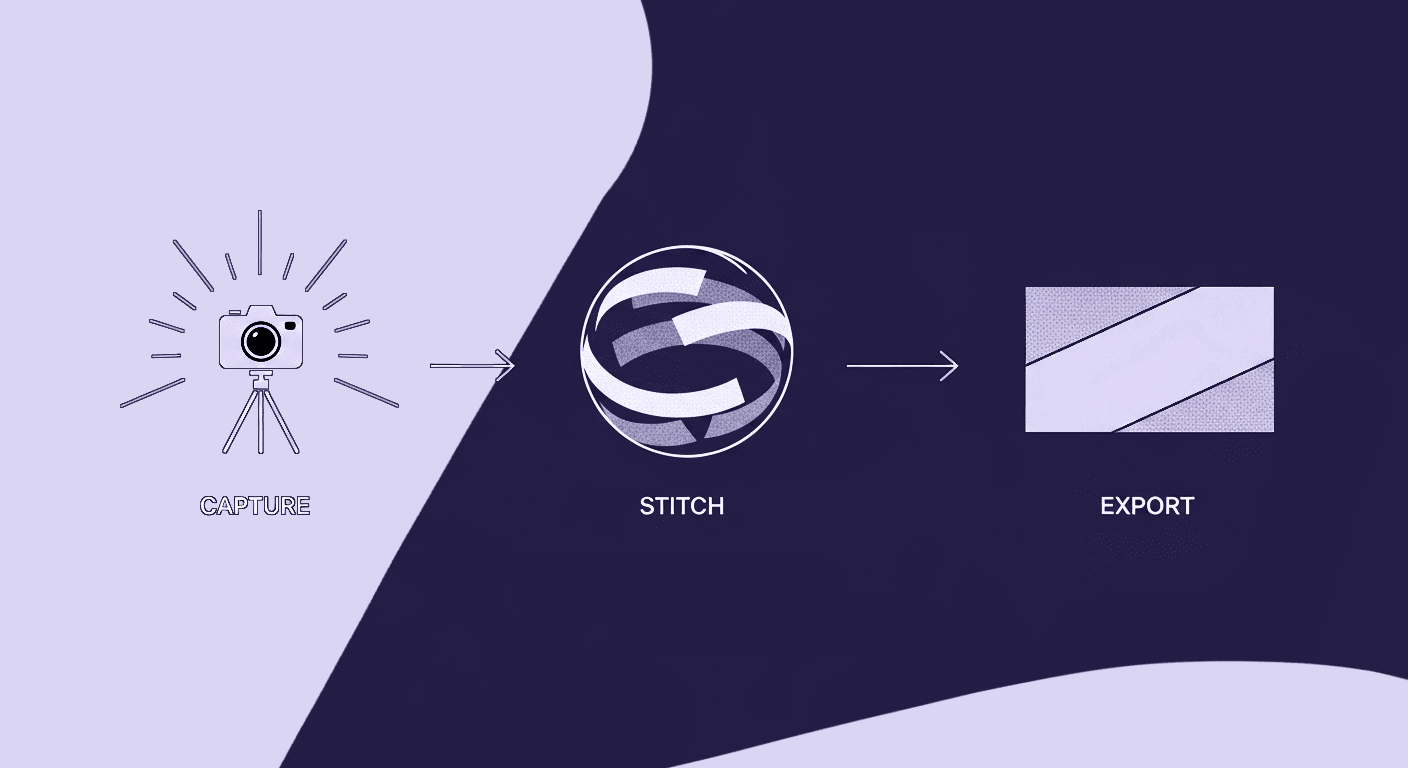
Gearing up for high-fidelity texture capture
A stunning VR experience can fall flat because of a blurry, poorly lit environment texture. You’ve spent weeks modeling and optimizing, but the world just feels… off. Often, the culprit is the foundation: the gear and setup you used to capture your 360-degree source images. Getting this right isn’t about buying the most expensive camera; it’s about understanding what pieces of kit actually matter for creating clean, high-fidelity textures.
What equipment is essential for creating high-quality 360 environment textures?
Most guides start and end with the camera body, but for this kind of work, the camera is just one piece of the puzzle. The support system around it is what separates an amateur stitch from a professional, seamless texture map.
Beyond the camera: Why tripods, panoramic heads, and remote triggers matter
- The tripod: This is non-negotiable. We're shooting multiple, precisely aligned photos, often with slower shutter speeds. Any camera shake will ruin your sharpness and create a blurry mess. You need something sturdy, not a flimsy travel tripod, that can hold your camera perfectly still, even in a light breeze. Think of it as the anchor for your entire operation.
- The panoramic head: Here’s the secret weapon for perfect stitches. A panoramic head, often called a nodal head, lets you rotate the camera around its nodal point. This is the optical point inside your lens where light converges. Why does this matter? Rotating around this point eliminates parallax error, that is, the apparent shift of foreground objects against the background as you move. Without it, your stitching software will struggle to align nearby objects like tree branches, furniture, or pillars, resulting in ghosting and broken lines. It’s the single biggest technical factor in getting a clean stitch.
- Remote triggers: Pressing the shutter button, even gently, can introduce a tiny vibration that softens the image. A simple remote trigger, wired or wireless, eliminates this entirely. If you don't have one, setting a 2-second timer on your camera is a solid backup plan. It gives the camera a moment to settle after you touch it.
Lens selection: Balancing the field of view with image sharpness for digital texture photography
The lens you choose is a game of trade-offs. A super-wide or fisheye lens lets you capture the entire scene in fewer shots, which is great for dynamic scenes with moving clouds. However, they often introduce significant distortion and can be softer at the edges. A longer lens, like a 24mm or 35mm, will be sharper corner-to-corner but requires far more photos to cover the full 360-degree view, increasing the chance of errors or changing light.
So what’s the sweet spot? For most high-resolution work on a full-frame camera, a prime lens between 15mm and 24mm is a fantastic choice. It offers a great balance of sharpness, manageable distortion (which software can correct), and a reasonable number of shots per panorama. A high-quality 8mm fisheye is another pro choice, especially for capturing full HDRIs quickly, as you can often cover the entire sphere in just 3-4 shots.
Differentiating gear for static environments vs. dynamic scenes
Your gear strategy should adapt to the environment. Are you shooting a quiet architectural interior or a windy coastal scene?
- For static scenes (interiors, calm days): You can prioritize quality over speed. Use a longer lens (like a 24mm), take more shots, and spend time ensuring every detail is perfect. This is where you can build incredibly high-resolution textures.
- For dynamic scenes (moving clouds, people, foliage): Speed is everything. The light and scenery are changing second by second. Here, a wider lens (like a 15mm or a fisheye) is your friend because it reduces the number of shots you need to take. For extremely dynamic scenes, a one-shot 360 camera like an Insta360 or Ricoh Theta can be a valid option. You'll trade away resolution and RAW capture capabilities, but you get an instantaneous capture of the entire environment, a perfect snapshot of a single moment in time.
Getting your gear right isn't about spending a fortune. It's about building a stable, precise system that lets you execute the core workflow flawlessly. And that's exactly where we're heading next.
Immersive photography techniques in action
With your gear sorted, it's time to get into the weeds of the capture process. This is where technique and precision turn a collection of photos into a single, cohesive world. Think of this as the recipe, follow the steps, and you’ll end up with the right ingredients for a stunning final texture.
How to create professional 360-degree environment textures from start to finish
This workflow is methodical, but it’s designed to eliminate variables and ensure you leave a shoot with everything you need. There’s nothing worse than getting back to the studio and realizing a shot is missing or misaligned.
Establishing the nodal point: The secret to parallax-free stitches
We talked about why the nodal point matters, but how do you find it? It’s a one-time setup for each camera and lens combination.
- Set up two vertical objects: Place a nearby object (like a light stand) a few feet in front of your camera, and a distant object (like a tree or building) far behind it.
- Align them in your viewfinder: Position your camera so the near object perfectly lines up with and occludes the distant object.
- Pan the camera left and right: If the foreground object appears to move and reveal the background object, you have parallax error. Your job is to adjust the camera's position forward or backward on the panoramic head until you can pan left and right, and the two objects remain perfectly aligned. That’s your nodal point. Mark it on your gear, and you're set.
Overlapping your shots: Best practices for coverage and consistency
Stitching software needs common data between photos to figure out how they connect. The rule of thumb is to aim for 30-50% overlap between each shot. More overlap is better than less. It gives the software more anchor points to work with, making for a more accurate and seamless stitch.
For a typical multi-row panorama, your process will look something like this:
- Row 1 (Level): Shoot a full 360-degree circle with your camera perfectly level.
- Row 2 (Tilted up): Tilt the camera up by about 30-45 degrees and shoot another full circle.
- Row 3 (Tilted down): Tilt the camera down and shoot a final circle.
- Zenith (up) & Nadir (down): Capture a shot pointing straight up and one pointing straight down (we'll deal with the tripod in post-production).
Bracketing for success: Capturing high dynamic range (HDR) for realistic lighting
Your eye can see detail in bright skies and dark shadows at the same time. Your camera can't. This is where Auto Exposure Bracketing (AEB) comes in. For each position in your panoramic sequence, you’ll take multiple photos at different exposures, typically an underexposed, a normal, and an overexposed shot (e.g., -2, 0, +2 EV).
When you merge these back together, you create a High Dynamic Range Image (HDRI) that contains the full range of light from the scene. This isn't just for looks; for game engines and 3D renderers, this HDR data is used for Image-Based Lighting (IBL), allowing your 3D assets to be lit realistically by the captured environment. It's the key to making your models feel like they truly belong in the scene.
What camera settings are best for creating detailed texture maps?
Consistency is king. Any auto setting is a liability because it can change from one shot to the next, creating ugly seams in your final panorama. You need to lock everything down.
Aperture, ISO, and shutter speed: The trifecta for crisp textures
- Aperture: Set it and forget it. You want a deep depth of field so everything from the foreground to the background is sharp. An aperture of f/8 to f/11 is the sweet spot for most lenses, delivering maximum sharpness across the frame.
- ISO: Lock this at your camera's base ISO, usually 100 or 200. This minimizes digital noise and ensures your textures are clean, especially in the shadows.
- Shutter speed: This becomes your only variable for controlling exposure. When bracketing, the camera will automatically adjust the shutter speed for each shot in the sequence.
Manual focus and white balance for complete control
- Focus: Don't trust autofocus. It might decide to refocus between shots. The best way is to use your camera’s live view, zoom in on a distant object, and manually focus until it’s perfectly sharp. Then, switch your lens to manual focus mode to lock it in.
- White balance: Auto white balance can shift the color temperature between shots, especially if clouds are moving. Set a manual white balance preset that matches the lighting conditions (like Daylight or Cloudy) or dial in a specific Kelvin temperature for ultimate consistency.
Shooting in RAW vs. JPEG for maximum post-processing flexibility
There's no debate here: shoot in RAW. A JPEG is a compressed image where the camera has already made decisions about color, sharpening, and contrast. A RAW file is the raw, unprocessed data from the camera's sensor. It's like a digital negative.
Shooting in RAW gives you enormous latitude in post-processing to recover blown-out highlights, lift shadows without introducing noise, correct color casts, and sharpen the final image non-destructively. For professional texture work, it's the only way to go.
Now that you've captured all the raw data correctly, you're ready to tackle the common problems that can pop up during a shoot.
Solving common issues in 360-degree texture capture
Even with a perfect workflow, the real world is messy. The sun glares, people walk through your shot, and the wind won't stop blowing. This is where a little bit of creative problem-solving comes in. Anticipating these issues is what elevates your work and saves you hours of frustrating cleanup in post.
How do professionals capture seamless 360-degree environment images?
Pros know that seamlessness isn't just a result of good stitching software; it's the result of a clean capture. Here's how to handle the most common curveballs.
Techniques for shooting seamless 360-degree environment photos in challenging light
Shooting during sunrise or sunset, the golden hour gives you beautiful, dramatic light. But that light is also changing fast. You don't have time for a slow, methodical 50-shot panorama. Here's how to adapt:
- Work faster: Use a wider lens to reduce your shot count. Have your entire sequence planned before the light gets good. You need to be efficient.
- The sun problem: Having the bright sun in your shot can cause two issues: massive lens flare and an exposure that's impossible to bracket correctly. One pro-level trick is the finger trick. For the bracketed set that includes the sun, take one extra shot where you block the sun with your finger just outside the lens's view. This gives you a flare-free version of the scene that you can blend with the flared version in post, keeping the sun's position but removing the distracting glare across the landscape.
- High contrast interiors: When shooting an interior with bright windows, your camera's bracketing might not be enough to capture the full range. You may need to do a 5 or 7-shot bracket (-4, -2, 0, +2, +4) to get all the data from the deep shadows inside to the bright daylight outside.
Managing moving objects (people, clouds, foliage)
Moving elements are the bane of panoramic photography. A person walking through your sequence will appear as a stitched-together ghost. Here are a few ways to deal with it:
- Patience is key: If it's just a few people, the easiest solution is often to wait for them to move out of the frame before you take that shot.
- Masking in post: If you can't wait, take multiple photos of the same angle. For example, if a car drives through the shot, take the photo, wait for it to pass, and take another one from the exact same position. Later, in Photoshop, you can layer these images and use a simple mask to paint out the car, revealing the clean plate underneath.
- For clouds and water: If clouds are moving quickly, they will create ugly stitching errors. The solution is to capture your sequence as fast as humanly possible. This is where a fisheye lens really shines. For things like ocean waves or rustling leaves, sometimes the best you can do is accept a bit of motion blur, which can look natural, or use longer exposure techniques to smooth them out if the rest of the scene is static.
Techniques for minimizing lens flare, glare, and distortion
Artifacts like these can cheapen the look of your final texture. Prevention is the best cure.
- Lens flare and glare: Always use a lens hood. It's designed specifically to block stray light from hitting the front element of your lens. Be mindful of where the sun is, and try to position your body or a piece of card to cast a shadow on the lens without it being in the shot.
- Distortion: High-quality prime lenses generally have less distortion than zooms. However, all wide-angle lenses have some. The good news is that stitching software like PTGui and editing software like Adobe Lightroom have lens profiles that can automatically correct for barrel and pincushion distortion. Just make sure you apply the same correction profile to all images in your sequence before stitching.
With these challenges managed, you've got a clean set of source images. Now it's time to bring them into the digital darkroom and turn them into a finished, usable asset.
From camera to canvas: Post-processing and integration
You've done the hard work in the field, and now it’s time to assemble the pieces. This final stage is where your collection of RAW files becomes a single, unified panoramic image, ready to be plugged into your production pipeline. Good post-processing is as critical as good photography; it ensures the final asset is clean, performant, and looks incredible from every angle.
Stitching and refining your panoramic images
This is the magical step where individual photos merge into a single, spherical view of the world. The right software and techniques make all the difference.
Choosing the right software (PTGui, Hugin, etc.)
- PTGui Pro: This is the undisputed industry standard for a reason. It's incredibly powerful, offers deep control over every aspect of the stitching process, and has excellent tools for masking, viewpoint correction, and HDR blending. It's a commercial tool, but its reliability and feature set make it a worthwhile investment for any serious professional.
- Hugin: This is the open-source and free alternative. It’s quite capable and can produce excellent results, but it has a much steeper learning curve and a less intuitive user interface. It’s a great place to start if you're on a budget, but you'll likely find yourself wanting the streamlined workflow of PTGui down the line.
Most workflows involve loading your bracketed RAW files, letting the software automatically find control points to align them, and then fine-tuning the results. You'll generate a single, massive HDR file in an equirectangular layout.
Cleaning up nadir and zenith points (the top and bottom of your sphere)
After stitching, you'll inevitably have a hole at the bottom (the nadir) where your tripod was. You might also have stitching artifacts at the very top (the zenith), especially if you weren't perfectly level.
- Patching the nadir: The most robust method is to patch it. After you shoot your main panorama, pick up your tripod, move a step to the side, and take a handheld photo of the ground where the tripod stood. In Photoshop, you can use this patch to cover the hole, using perspective and transform tools to make it fit seamlessly.
- Content-aware fill: For simple, repeating surfaces like grass, asphalt, or a uniform ceiling, Photoshop’s Content-Aware Fill can work wonders. Simply select the messy area at the nadir or zenith and let the AI figure out how to fill it in. It's surprisingly effective, but for complex patterns, a manual patch is better.
Color correction and grading for a consistent look
Your final stitched image should be treated like any other master shot. Open the high-resolution file in your editor of choice and perform your final color grade. Adjust contrast, saturation, and color balance to achieve the desired mood. The key is to apply these changes globally to the entire equirectangular image. This ensures that when a user looks around in the virtual environment, the color and tone are perfectly consistent from one side of the world to the other.
Prepping your texture for a virtual environment imaging pipeline
An equirectangular image isn't quite ready for a game engine. It needs to be exported in the right format and resolution to be useful.
Export settings for game engines and 3D software
This is where you'll create the final deliverables. You typically need two versions of your environment:
- For lighting (IBL): Export your full HDR image as a .hdr or .exr file. This format retains all the high dynamic range lighting information. It might be down-sampled to a lower resolution (like 1024x512) because it’s only being used for lighting calculations, not for visual detail.
- For visuals (Skybox/Background): Export a tonemapped, Low Dynamic Range (LDR) version of your image. This is what the player will actually see. Use a lossless format like .png or .tga. The resolution should be a power of two (e.g., 4096x2048, 8192x4096, or even higher) for optimal performance in most game engines.
Understanding equirectangular projections
It’s helpful to understand why the image looks so distorted when viewed flat. An equirectangular projection is simply one way of mapping a sphere onto a 2D rectangle, like a world map. The top and bottom edges represent the north and south poles, which is why they appear stretched and smeared. Don't worry about this distortion! When 3D software wraps this texture back onto an internal sphere, everything will look correct and proportional.
Final checks for seams, artifacts, and resolution quality
Before you hand off the asset, you must preview it in a 360 viewer or, even better, in your target engine. A flat image can hide subtle seams, color banding in the sky, or areas where the resolution is too soft. Panning around the image in a spherical viewer is the only way to be 100% sure that the experience is seamless and that your hard work has paid off. Check the horizon line to ensure it's perfectly straight, and look for any warping or stitching errors that weren't obvious in the 2D view.
From capture to craft: Bottling reality
So, let's zoom out. We've gone deep into nodal points, bracketing, and the art of patching out your own tripod. It’s a lot of technical ground, but it’s important to remember what this process is really about.
This isn't just a workflow for creating a background image. It’s the craft of capturing the soul of a place, its light, its space, its mood, and translating it into a digital foundation. Every precise step you take in the field is about removing the tiny seams and imperfections that subconsciously tell a player, “This isn't real.”
Now, you have the complete playbook to go beyond generic skyboxes. You can build worlds that don't just look right, but feel right. Where the light wraps around your models realistically because it’s real light. Where the environment feels less like a digital asset and more like a captured memory.
Go capture something amazing.

Max Calder
Max Calder is a creative technologist at Texturly. He specializes in material workflows, lighting, and rendering, but what drives him is enhancing creative workflows using technology. Whether he's writing about shader logic or exploring the art behind great textures, Max brings a thoughtful, hands-on perspective shaped by years in the industry. His favorite kind of learning? Collaborative, curious, and always rooted in real-world projects.
Latest Blogs
The Indie Dev Guide to CC0 PBR Textures: Stop Searching, Start Cr...
PBR textures
AI in 3D design

Mira Kapoor
Jul 10, 2026
Sourcing Free Game Textures: Navigating PBR Pipelines and Stylize...
PBR textures
Game textures
Mira Kapoor
Jul 6, 2026
Sculpting with Sunlight: The Architectural Physics of Facade Text...
Texture creation
AI in 3D design

Max Calder
Jul 1, 2026

Accelerate you workflow
with automated PBR texture generation
Enjoy creative freedom with AI powered texture creation
 Texturly
Copyright © 2026 Texturly, Asha Technology Labs Pvt. Ltd. All rights reserved