We Tested 47 Free Texture Sites to Build This Game-Ready Library
By Mira Kapoor | 1 May 2026 | 18 mins read
Table of contents
Table of Contents
Searching for "free game textures" can feel like a trap. You spend hours digging through low-quality assets with baked-in lighting, unclear licenses, and PBR maps that just don't add up, time you and your team simply don't have. This guide is different. We’ve cut through the noise to bring you a curated list of truly free, production-ready texture libraries built for modern PBR workflows. But we’re not stopping at a list of links. We’ll show you how to quickly vet any asset for quality, decode its license for commercial use, and plug it directly into your Unity and Unreal Engine pipelines. It’s all about building a smarter, faster asset foundation you can trust, because a great texture isn't just a file; it's the foundation of a predictable, high-quality material that makes your game look its best, every time.
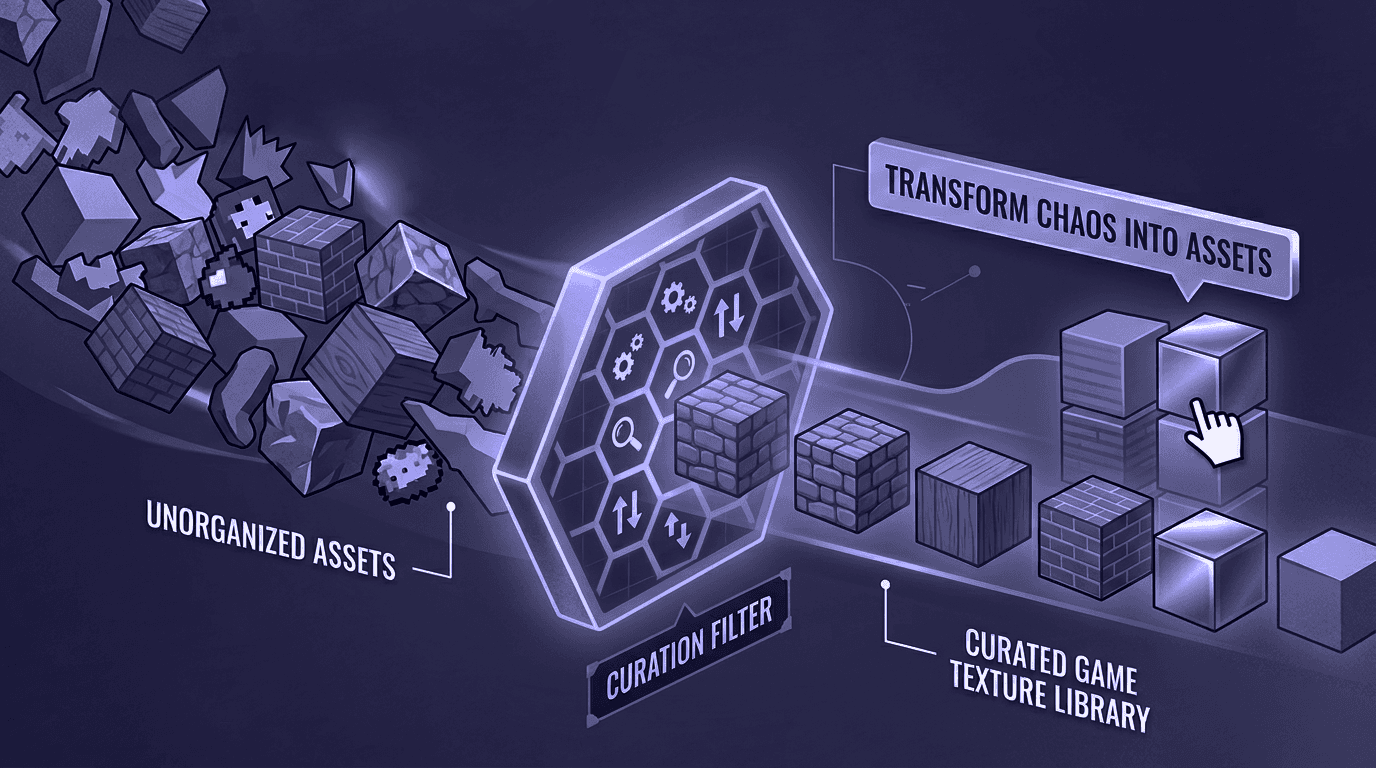
Understanding the anatomy of production-ready game textures
Most teams think their textures are slowing them down. They’re right, just not always in the way they think. It’s not just about resolution or finding the right look; it’s about understanding the DNA of a modern, production-ready asset. The foundation for nearly every real-time 3D pipeline today is Physically-Based Rendering, or PBR. Getting this right isn’t just an art-level decision; it’s a core technical principle that ensures your assets look predictable and correct in any lighting scenario you throw at them.
What PBR texturing is and why it's the standard for games
PBR isn’t a style; it’s a philosophy. The goal is to create materials that obey the laws of physics, which means they react to light in a consistent, predictable way. You don’t have to fake reflections or manually tweak how a material looks under a spotlight versus in daylight. The engine’s lighting and the material’s properties do the heavy lifting for you. This consistency is why PBR is the undisputed standard for modern game development.
At its core, PBR operates on a few principles:
- Energy conservation: A surface cannot reflect more light than it receives. This simple rule prevents artists from creating impossibly bright materials and keeps the scene grounded in reality.
- Metallic workflow: Most modern engines (like Unreal and Unity) use the Metallic/Roughness workflow. It’s intuitive and efficient. Materials are broadly defined as either metallic or non-metallic (dielectric). There's rarely an in-between state.
- Micro-surface detail: Surfaces are never perfectly smooth. The Roughness map defines how scattered or concentrated light reflections are, simulating everything from polished chrome to rough concrete.
This system largely replaced the older Specular/Glossiness workflow, which gave artists more direct control but was less intuitive and often led to physically inaccurate results. With Metallic/Roughness, you’re describing the nature of the surface, not just faking its appearance.
To make this work, you need a set of specific texture maps. Think of them like ingredients in a recipe; each one provides a crucial piece of information for the game engine’s shader.
- Albedo (or base color): This is the pure color of the surface, completely stripped of any lighting or ambient shadowing. It’s what the object would look like in a perfectly white, evenly lit room. A common mistake is leaving subtle lighting details in the albedo map, which breaks the PBR model.
- Normal: This map creates the illusion of fine surface detail, like bumps, pores, or scratches, without adding any extra polygons. It tells the engine how light should bounce off the micro-surface, simulating depth on a flat plane. It’s one of the most powerful tools for adding fidelity without killing performance.
- Ambient Occlusion (AO): The AO map defines which areas of a model receive less ambient light due to self-shadowing in crevices or corners. It adds soft, subtle contact shadows that ground objects in the scene. While real-time screen-space ambient occlusion (SSAO) can generate this on the fly, a baked AO map provides more control and higher-quality results.
- Roughness: This is a grayscale map that dictates how rough or smooth a surface is. A black value (0) creates a perfectly smooth, mirror-like surface, while a white value (1) creates a completely matte, diffuse surface. This map is critical for defining the character of a material, think of the difference between polished marble and a dusty brick.
- Metallic: Another grayscale map, but this one is usually treated as binary. Black (0) means the material is non-metallic (like plastic, wood, or rock), and white (1) means it’s fully metallic (like gold, iron, or copper). You should avoid gray values unless you’re texturing something with a thin layer of dust or grime over a metal surface.
Understanding what each map does is the first step. Next, you have to learn how to spot a good one.
How to assess texture quality and resolution for game projects
Downloading a free texture is easy. Knowing if it’s actually usable in production is another story. Before a texture ever makes it into your engine, it needs to pass a quality check. Here’s what to look for.
Choosing the right resolution for your target platform
The most common resolutions are 1024x1024 (1K), 2048x2048 (2K), and 4096x4096 (4K). The right choice depends entirely on your target platform and the asset's importance.
- Mobile: Stick to 512x512 or 1K textures for most assets. Memory and performance are extremely limited, and smaller screen sizes mean you get diminishing returns from higher resolutions.
- Console & mid-range PC: 2K is the workhorse resolution here. It offers a great balance of detail and performance for props, environments, and characters.
- High-end PC & cinematics: 4K is best reserved for hero assets, main characters, key props, or large surfaces seen up close. Using 4K everywhere is the fastest way to bloat your build size and tank your frame rate.
The rule of thumb: Consider the texel density. A small object like a bolt doesn’t need a 4K texture, while a large wall that the player can walk right up to probably does. Your goal is a consistent level of detail across the scene.
Why seamless textures are critical for 3D game modeling
For any texture that needs to be repeated (tiled) across a surface, like floors, walls, or terrain, it must be seamless. This means the image can be tiled side-by-side without any visible seams or jarring edges. A non-seamless texture will immediately create an ugly, grid-like pattern that shatters immersion. Most reputable texture websites will clearly label their assets as seamless or tileable. If they don’t, test it yourself in Photoshop using the "Offset" filter before you commit to using it.
Identifying common quality issues before you download
Not all textures are created equal. Train your eye to spot these red flags:
- Baked-in lighting: The Albedo map should be flat and shadow-free. If you see highlights or shadows in the color map, the texture was poorly captured and will conflict with your game engine’s lighting.
- Compression artifacts: Look for blocky or blurry patches, especially in JPEGs. High-quality sources will offer textures in lossless formats like PNG or TGA.
- Obvious tiling: A texture can be technically seamless but still have repeating patterns that are easy to spot. Look for distinctive features, like a large crack or a unique stain, that will become obvious when tiled multiple times.
- Inconsistent PBR maps: Do the Roughness and Metallic maps make sense for the material? Does a rusty metal patch have a higher roughness value? A quick check can save you a lot of time trying to fix a fundamentally flawed material later.
With a clear understanding of what makes a texture production-ready, you can start building your library from the best sources.
Curated list: The best free texture resources for games
Now for the fun part: finding high-quality assets without blowing your budget. The internet is flooded with free texture websites, but many are filled with low-quality, outdated, or legally ambiguous content. The resources below have been vetted for quality, PBR consistency, and game developer-friendly licensing.
Top free texture websites for game development
These sites are the gold standard for free, PBR-ready game textures.
All-purpose libraries with a strong PBR focus:
- Poly Haven: Formerly known as Texture Haven, this is a top-tier resource run by the community and funded through Patreon. Every single asset is CC0 (public domain), meaning you can use it for anything, no attribution required. They offer textures up to 8K in multiple formats, including pre-packaged zips for Blender, and also provide free models and HDRIs. The quality is consistently professional.
- AmbientCG: Another fantastic CC0 resource with a massive library of PBR materials. The site is fast, well-organized, and allows you to download individual maps or a complete set. Creator Lennart Demes is committed to keeping everything free and in the public domain. It's an essential bookmark for any game developer.
- CGBookcase: Run by a single artist, this site offers a great collection of high-quality PBR textures, all under the CC0 license. The quality is excellent, and the library covers a wide range of common materials like wood, metal, and plaster.
Niche resources for specific styles:
- ShareTextures.com: This site also operates on a CC0 model and has a good variety of textures, including some more unique categories like sci-fi panels and stylized surfaces. The library is smaller but growing, and it's a great place to find something a little different.
- PublicDomainTextures.com: As the name implies, everything here is CC0. The site features a mix of textures, from photographic surfaces to more abstract and grungy materials, perfect for horror or post-apocalyptic settings.
Are free textures suitable for commercial games? Decoding the licenses
This is the question that keeps indie developers up at night. The answer is yes, absolutely, as long as you pay close attention to the license.
Using a texture with the wrong license can put your entire project at legal risk. Here’s a simple breakdown of the most common licenses you’ll encounter:
- Creative Commons Zero (CC0): This is the holy grail. It means the creator has waived all their rights to the work. You can copy, modify, distribute, and use the texture for any purpose, including commercial projects, without asking for permission or giving credit. The sites listed above (Poly Haven, AmbientCG) are prime examples.
- Creative Commons with Attribution (CC-BY): This license lets you use the texture for free, even commercially, but you must give credit to the original creator. For a game, this usually means adding a line in the credits screen or including a text file with your game's distribution files. It's manageable, but it adds an extra layer of bookkeeping.
Best practices for attribution and documentation in a team environment:
Don’t rely on memory. The moment you download an asset that isn’t CC0, document it. A simple shared spreadsheet is all you need. Create columns for:
- Asset Name
- Source (URL)
- License Type (e.g., CC-BY 4.0)
- Creator Name (for attribution)
- Notes (e.g., "Must credit 'John Doe' in game credits")
This simple process creates a single source of truth for your team and will save you from a legal scramble right before launch. A well-organized library is the first step toward a smooth production pipeline.
The Pipeline: How to integrate free textures into Unity & Unreal Engine
A folder full of downloaded textures is useless until it’s integrated into your engine. A clean, organized pipeline for importing and setting up materials is not just a nice-to-have; it’s essential for team collaboration and long-term project sanity.
Pre-production: Setting up your texture library
Before you import a single PNG, establish your structure. A little planning here prevents chaos later.
A simple system for organizing and managing texture assets:
Create a clear folder hierarchy in your project. A good starting point is:
/Assets
/Textures
/Environment
/Brick
/Wood
/Characters
/Hero
/Props
/Weapons
This makes assets easy to find and prevents naming conflicts. For shared textures used across multiple models, you can create a /_Shared/ or /_Common/ folder.
Naming conventions that will save your team headaches:
Adopt a consistent naming convention and stick to it. A robust, common format includes the material type, a descriptive name, and the map type suffix.
Example: T_Brick_Cobblestone_A_D.png
- T_: Prefix for Texture
- Brick_Cobblestone_A: Material name (Base Material_Variant_Descriptor)
- _D: Suffix for the map type (D for Diffuse/Albedo, N for Normal, R for Roughness, M for Metallic, AO for Ambient Occlusion)
This system makes it immediately clear what each file is and which material it belongs to, both in the file browser and in the engine.
How to integrate free textures into Unity
Unity's material workflow is straightforward. Here’s how to set up a new PBR material using the Universal Render Pipeline (URP).
- Import textures: Drag your downloaded texture maps directly into your Unity project's Textures folder.
- Flag the normal map: Select your Normal map. In the Inspector, change the Texture Type from Default to Normal Map. Click Apply. This is a critical step; otherwise, the lighting will look incorrect.
- Create a material: Right-click in your Materials folder and go to Create > Material. Name it appropriately (e.g., M_Brick_Cobblestone_A).
- Assign the shader: With the new material selected, ensure the Shader at the top of the Inspector is set to Universal Render Pipeline/Lit.
- Plug in your maps: You’ll now see slots for each texture map. Drag your textures from the Project window into the corresponding slots.
- Tweak and apply: You can now adjust sliders for Metallic and Smoothness (the inverse of Roughness) if you don't have maps for them. Once you’re happy, drag the material onto your 3D model in the scene.
A practical guide for using downloaded textures in Unreal Engine
Unreal Engine uses a powerful node-based material editor. The process is slightly different but just as logical.
1. Import textures: Drag your textures into the Content Browser. Unreal automatically detects Normal maps, but it’s good practice to double-check.
2. Channel packing (optional but recommended): For efficiency, many artists pack the grayscale Metallic, Roughness, and AO maps into the R, G, and B channels of a single texture file (often called an "ORM" map). This saves a significant amount of memory. If your downloaded textures aren't packed, you can do this yourself in a tool like Photoshop. When importing this packed texture, make sure to uncheck sRGB in the texture's details panel, as these are linear data maps.
3. Create a material: Right-click in the Content Browser and select Material. Name it M_Brick_Cobblestone_A.
4. Open the material editor: Double-click the new material to open it.
5. Drag in textures: Drag your Albedo, Normal, and packed ORM textures from the Content Browser into the material graph.
6. Connect the nodes: Click and drag from the output pins of the texture samplers to the input pins on the main material node:
- Connect the RGB output of your Albedo texture to the Base Color input.
- Connect the RGB output of your Normal texture to the Normal input.
- Connect the individual channels of your packed texture:
- R (AO) to Ambient Occlusion.
- G (Roughness) to Roughness.
- B (Metallic) to Metallic.
7. Save and apply: Click Save in the Material Editor. You can now drag the material directly onto a model in your scene or create a Material Instance to tweak parameters without recompiling the base material.
With a solid import process, you're ready to think about the bigger picture: performance.
Advanced strategy: Optimizing your texture workflow
Having a library of high-quality textures is one thing. Ensuring they don't cripple your game's performance is another. Texture optimization is a constant balancing act between visual fidelity and frame rate, especially when targeting multiple platforms.
Texture optimization for performance across platforms
Your goal is to use the least amount of texture memory (VRAM) possible without the player noticing a drop in quality. Here are the key techniques.
- Compression: Use the engine's built-in texture compression. Formats like DXT (for PC) or ASTC (for mobile) dramatically reduce the VRAM footprint of your textures. This is a non-negotiable step. In Unreal and Unity, compression is applied automatically on import based on platform settings, but you can override it for specific textures that need higher fidelity.
- Mipmapping: This technique generates smaller versions of your texture that are used when the object is farther away from the camera. It prevents aliasing (shimmering) on distant surfaces and improves rendering performance by using a smaller, more cache-friendly texture. Mipmapping should be enabled for almost all textures in a 3D scene.
- Texture atlasing: Instead of using many small textures for different parts of a model or a collection of props, you can combine them into a single, larger texture sheet called an atlas. This is a huge performance win because it reduces the number of draw calls the GPU has to make. An environment with 100 objects using 100 different materials is far slower than 100 objects sharing one material that uses a texture atlas.
- Resolution scaling: Don’t be afraid to down-res textures that aren't critical. A background prop doesn't need the same 2K texture as the player's weapon. Use your engine's texture quality settings to allow players to scale textures down on lower-end hardware.
Free vs. Paid Texture Resources: When to Upgrade Your Library
Relying on free game assets is a fantastic way to get a project off the ground, but it’s important to recognize the ceiling. Knowing when to invest in a paid texture library is a strategic decision.
Pros of relying on free assets:
- No cost: The most obvious benefit. Perfect for prototyping, game jams, and indie projects with tight budgets.
- Flexibility: You can pull from dozens of different sources to find the exact asset you need.
Cons to be aware of:
- Inconsistent quality: Quality, resolution, and style can vary wildly between different creators and websites.
- Missing assets: You might find the perfect brick wall texture on one site, but be unable to find a matching roof tile or wooden plank.
- Time sink: Hunting across multiple sites and vetting each asset for quality and licensing takes time away from development.
When does it make sense to upgrade to a paid library like Quixel Megascans, Poliigon, or Game Textures?
- When you need consistency at scale, paid libraries offer a vast, cohesive collection of assets built to the same high standard. If you’re texturing a large, open-world environment, a single, consistent source is invaluable for maintaining a unified art direction.
- When your time is more valuable than your money, the time spent searching for, downloading, and vetting free assets can quickly add up. A subscription provides immediate access to a searchable, professionally curated library, accelerating your workflow dramatically.
- When you need guaranteed quality and support, Paid services offer a level of reliability and support that free resources can't match. The assets are guaranteed to be PBR-correct, perfectly seamless, and production-ready right out of the box.
The best approach is often a hybrid one. Use free resources for prototyping and one-off props, but consider a paid subscription when you need to scale up production and guarantee a consistent, high-quality look for your game.
From asset folder to strategic advantage
It's easy to look at a folder of free textures and see the money you've saved. But the real value isn't in the cost, it's in the control you gain.
A curated, well-documented texture library isn't just a resource. It's a piece of your team's production infrastructure, as critical as your version control or your lighting rig. It’s the foundation that makes predictable rendering, consistent art direction, and rapid prototyping possible.
When your pipeline is solid, you’re no longer just finding assets; you’re building a more efficient team. You free up your artists to focus on creativity, not on troubleshooting a poorly captured albedo map or chasing down an ambiguous license.
Ultimately, the best texture isn't just the one that looks good. It's the one that gets out of the way, letting your team build the worlds you imagined, without friction. You have the map, now go build the pipeline that makes it all work.

Mira Kapoor
Mira leads marketing at Texturly, combining creative intuition with data-savvy strategy. With a background in design and a decade of experience shaping stories for creative tech brands, Mira brings the perfect blend of strategy and soul to every campaign. She believes great marketing isn’t about selling—it’s about sparking curiosity and building community.
Latest Blogs
The Indie Dev Guide to CC0 PBR Textures: Stop Searching, Start Cr...
PBR textures
AI in 3D design

Mira Kapoor
Jul 10, 2026
Sourcing Free Game Textures: Navigating PBR Pipelines and Stylize...
PBR textures
Game textures
Mira Kapoor
Jul 6, 2026
Sculpting with Sunlight: The Architectural Physics of Facade Text...
Texture creation
AI in 3D design

Max Calder
Jul 1, 2026

Accelerate you workflow
with automated PBR texture generation
Enjoy creative freedom with AI powered texture creation
 Texturly
Copyright © 2026 Texturly, Asha Technology Labs Pvt. Ltd. All rights reserved