Build a Complete VR Texture Pipeline for Procedural Worlds
By Max Calder | 27 March 2026 | 17 mins read
Table of contents
Table of Contents
Building a massive, detailed world for VR is one thing. Making it look good and run smoothly is a whole different challenge, especially when you're trying to compete with studios that have entire teams dedicated to this stuff. You've got the procedural generator working, but now you're facing a sea of gray boxes, and the thought of texturing it all by hand just isn’t scalable. This guide breaks down a professional workflow for exactly that. We're going to build a smart, flexible system that connects your procedural logic directly to your library of VR-ready textures in Unreal Engine, letting you create vast, detailed environments that come to life automatically. This isn't just about abstract theory; we'll unpack the practical techniques, from creating a powerful Master Material to driving texture selection with data, that bridge the gap between a simple generator and a believable world. It’s the kind of pipeline that lets you punch above your weight, creating massive scale without sacrificing performance or artistic detail.
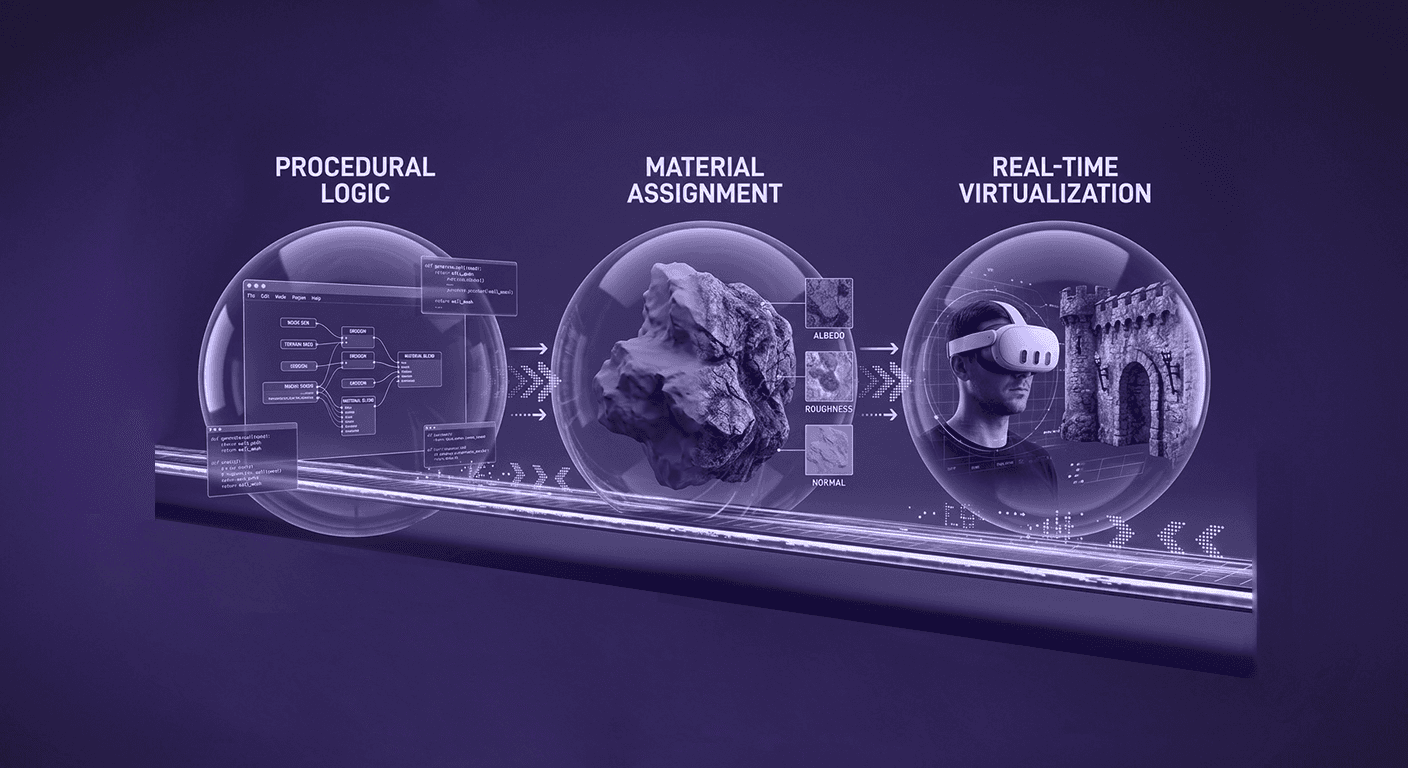
Prepping for procedural texturing
Before you can stitch together a sprawling virtual city, you need to lay the right foundation. It’s tempting to jump straight into generating meshes, but a little prep work here saves you from massive headaches later. Think of it like organizing your workshop before starting a big project, you need the right tools and materials laid out first.
Choose your procedural generation approach in Unreal
In Unreal, you’ve got two main paths for generating buildings: the classic Blueprint system and the newer, more powerful Procedural Content Generation (PCG) Framework. Neither is “better”, they’re just different tools for different jobs.
When to use Blueprints: Think of Blueprints as your custom-built jig. It’s perfect when you need fine-grained, stateful control over a single, complex asset. If you’re building a “hero” building with specific rules, like a skyscraper that adds certain features every 10 floors, a Blueprint Actor is your best bet. You have total control over every variable and can run complex logic in the Construction Script.
When to use the PCG Framework: PCG is your automated assembly line. It’s designed for scattering and populating huge worlds based on rules and data. If you need to generate a hundred city blocks, not just one building, PCG is the way to go. Its node-based graph is non-destructive, meaning you can tweak rules and see your entire city update in real-time without recompiling a single Blueprint. It’s a game-changer for rapid iteration.
The key takeaway for texturing? Your generator’s job isn’t just to spit out meshes; it’s to spit out data. A Blueprint can tag a mesh component with Roof or Window Frame. A PCG graph can stamp each point with an attribute like FacadeStyle = Brick or BuildingAge = 0.8. This data is the hook your texturing system will grab onto later. So, as you build, always ask: “What information will my materials need to make this look right?”
Prepare your library of VR-ready textures
VR is demanding. You don’t have the performance budget of a traditional PC or console game. Every texture you use needs to earn its place in your VRAM. This is where a performance-first mindset is non-negotiable.
- Embrace texture atlases and trim sheets: These are your secret weapons for minimizing draw calls, one of the biggest performance killers in any real-time application. Instead of using dozens of small, individual textures for things like vents, panels, and window frames, you bake them all into a single, larger texture map (an atlas) or a repeatable strip (a trim sheet). Your GPU only has to load one material and one set of textures to render many different surfaces. It’s like packing for a trip by putting all your clothes in one suitcase instead of ten separate bags. It’s just more efficient.
- Master the nuances of immersive VR texturing: What looks good on a flat screen can feel completely wrong when it’s an inch from your face in a headset. Here’s what to focus on:
- Normal map intensity: Overly aggressive normal maps are a common mistake. On a monitor, they might add some nice visual pop. In VR, they often look like noisy, sculpted plastic, completely breaking the illusion. Aim for subtlety. Your normal maps should suggest surface detail, not shout it. Detail mapping, a secondary, tiling normal map for micro-details, is a great way to add high-frequency texture without faking depth too much.
- Resolution and texel density: In VR, players can get really close to surfaces. Your goal should be a consistent texel density across the entire scene. This means a brick wall next to you should have roughly the same texture detail as a concrete curb. It keeps the world feeling cohesive. You don’t need 4K textures for everything. A library of well-made 1K and 2K textures, used intelligently with atlases and world-aligned mapping, will get you 90% of the way there with a fraction of the performance cost.
With your generation logic planned and your texture library optimized, you're ready to bridge the gap and tell your procedural buildings how to dress themselves.
Build the integration: Connecting textures to your generator
This is where the magic happens. You’ve got your procedural logic and your VR-ready textures. Now, it's time to build the system that connects them, allowing your generated buildings to come to life with variation and detail automatically.
Create a flexible master material
Stop making dozens of unique materials. Seriously. The professional workflow is to build one super-flexible Master Material and then create lightweight Material Instances from it. Think of the Master Material as a template or a Swiss Army knife for your surfaces. It contains all the possible features you might need, and each instance just turns those features on or off and plugs in different textures.
Here’s what you should build into your Master Material:
- Texture parameters: Expose inputs for your Base Color, Normal, and a packed ORM (Occlusion, Roughness, Metallic) texture. This lets you swap the entire surface type with a single instance.
- Color tints: Add a Vector parameter to tint your Base Color. Now you can have red bricks, brown bricks, and grey bricks all from the same texture.
- Scalar parameters: Expose scalar (single number) controls for things like Roughness intensity, Metallic value, and Normal map strength. This allows you to fine-tune the surface properties without ever opening a texture file.
The entire goal is to empower yourself to create massive visual variation cheaply. One complex shader, hundreds of cheap, easy-to-manage instances. This is fundamental to any scalable Unreal Engine texture mapping pipeline.
How to integrate VR textures with procedural generators using Blueprints
If you're using Blueprints for your generator, the Construction Script is your best friend. It runs every time you move or modify the actor in the editor, giving you instant feedback. The key is to use Dynamic Material Instances (DMIs).
Here’s a practical workflow:
1. Create the DMI: In your Construction Script, drag off a reference to a mesh component (like a wall mesh). Use the Create Dynamic Material Instance node. This creates a clone of your material that you can change at will.
2. Store the reference: Promote the Return Value of that node to a variable (e.g., Wall_DMI). This makes it easy to access later.
3. Drive the logic: Now, you can use simple logic to control the material. For example, you can use a Set Texture Parameter Value node on your Wall_DMI variable. The parameter name must match the one you created in your Master Material exactly.
Let’s make it concrete. You could set up logic that says:
- Based on height: Get the world position of the mesh. If the Z-value is above a certain threshold, swap in a cleaner UpperFloor_Brick texture.
- Based on tags: Use a For Each loop to iterate through all components. If a component has the tag Roof, apply your roofing DMI. If it has the tag Facade, apply the wall DMI.
- Based on randomness: Use a Random Bool or Random Integer in Range node to pick from an array of pre-set texture variations. This is a dead-simple way to break up repetition across multiple buildings.
Drive texture selection with the PCG Framework
The PCG Framework offers a more data-driven and non-destructive way to handle this. Instead of writing logic inside an actor, you define the logic in the PCG graph itself by stamping data onto the points before a mesh is ever spawned.
The modern workflow for this involves reading that data inside your Master Material.
1. Stamp the data in PCG: In your PCG graph, add an attribute to your points. For instance, use a Math Op or Attribute VOPs node to create a new attribute called FacadeColor. You could set this to a random linear color.
2. Read the data in the material: Inside your Master Material, you need to read the data associated with the object. The Get Actor Custom Data node can read primitive data from the instance. You can feed an index into this node to read a specific float value from the custom data array.
3. Connect it: Connect the output of this node to a parameter in your material, like the Base Color input of a Lerp node or a Vector parameter that controls a color tint. You'll need to set this data on the spawned instances within the PCG graph, often using a custom Blueprint node.
The result is breathtakingly powerful. You can now go back to your PCG graph, change the rule for how FacadeColor is generated, and watch every building in your city update its material properties instantly. This is the heart of a truly procedural generation in VR workflow, fast, iterative, and incredibly scalable.
Optimize for performance: Making it run smoothly in VR
Creating a beautiful, procedurally generated world is one thing. Making it run at a rock-solid 90 frames per second in a VR headset is another challenge entirely. VR environment optimization isn't an afterthought; it's a core part of the development process, and textures are often the first place you'll find performance bottlenecks.
Master texture streaming and mipmapping
VRAM is your most precious resource on a VR headset. Every texture you load eats into this limited budget. Unreal’s texture streaming system is your primary defense.
- Texture streaming: This system intelligently loads only the texture mip levels that are actually needed based on the object's distance and screen size. This means that a 4K texture on a distant building won't occupy 80MB of VRAM; instead, its smaller 256x256 mip level might be used, taking up less than a megabyte. Ensure texture streaming is enabled in your project settings and configure texture groups (e.g., World, Characters, Effects) to give the engine hints about how to prioritize assets.
- Mipmapping: Mips aren't just for memory savings; they are critical for visual quality in VR. Mipmaps are pre-calculated, lower-resolution versions of your texture. Without them, textures on distant or sharply angled surfaces will shimmer and flicker horribly, a phenomenon called aliasing. This is a huge immersion-breaker. When you import a texture, Unreal generates these for you. Double-click any texture asset to inspect its settings. Under the Level of Detail section, you can see the generated mips and adjust Mip Gen Settings. For most world textures, a default setting is fine, but for textures with fine details, you might experiment with different sharpening filters to maintain clarity at a distance.
Use advanced texture mapping to avoid ugly seams
Procedurally generated meshes rarely come with perfect, hand-laid UVs. More often, they are simple geometric shapes that have been stretched, scaled, and sliced. When you apply a standard tiling texture to them, you get ugly, stretched seams. This is where you need a more advanced technique.
World-Aligned Texturing, also known as Triplanar Mapping, is the solution. Instead of relying on the mesh's UV coordinates, this technique projects the texture onto the model from three different axes (X, Y, and Z) and blends them together based on the surface normal. Think of it like three projectors painting the texture onto the object from the top, front, and side.
Implementing this is surprisingly easy in Unreal. Inside your Master Material, you can use the built-in WorldAlignedTexture material function. You plug in your texture and a scalar parameter to control the texture's size, and it handles the rest. The result is a seamless texture application that ignores bad UVs, keeping your procedural walls, floors, and roofs looking crisp and believable regardless of their shape or scale. The trade-off? It's more computationally expensive because it samples the texture at least three times. Use it for large architectural elements, but stick to standard UV mapping for smaller, detailed props.
Find and fix performance bottlenecks
You can’t fix what you can’t measure. Unreal gives you powerful built-in tools to diagnose what’s slowing down your frames. You don’t need to guess.
- Shader complexity view (Alt + 8): This view mode colors your world based on how many instructions your materials are running per pixel. The scale is simple: green is cheap, red is expensive, and bright white is a disaster. If your procedural buildings are glowing red, your Master Material is doing too much work. You can use this to identify which features (like world-aligned mapping, parallax occlusion, or complex blending) are costing you the most.
- GPU visualizer (Ctrl + Shift +,): This is the ultimate tool for a deep dive. It gives you a detailed breakdown of your entire frame, showing exactly how many milliseconds the GPU spent on each task (Base Pass, Shadows, Post-Processing, etc.). If your Base Pass time is high, it's a strong indicator that your materials or mesh complexity are the problem.
Here's a simple checklist for debugging texture-related issues:
1. Check shader complexity: Are your primary surfaces red or white? Try disabling features in a Material Instance to see what brings the cost down.
2. Audit texture memory: Use the command stat streaming to see how your texture streaming pool is doing. Are you constantly over budget? Time to reduce texture resolutions.
3. Look for overdraw: Translucent materials are incredibly expensive in VR. Are you using them where a cheaper masked material would do?
4. Count material instructions: Open your Master Material and check the instruction count in the Stats panel. For VR, keeping your base materials under 200 instructions is a good target.
With these optimization strategies, you can ensure your procedurally generated world isn't just vast and detailed, but also a smooth and comfortable experience for the user.
Add the final polish: Techniques for believability
At this point, you have a system that can generate and texture entire cityscapes that run smoothly in VR. But there’s a risk: it can all look a bit too perfect, too clean, too… procedural. The final 10% of the work is about breaking that uniformity and adding the grime, wear, and tear that make a world feel lived-in and believable.
Break up repetition with decals and vertex painting
Your Master Material and texture library create the base layer, but the real artistry comes from layering in imperfections. This is how you tell a story with the environment.
- Use projected decals: Think of decals as digital stickers you can slap onto any surface. They are perfect for adding details that break up tiling textures without requiring you to create a whole new material. Things like graffiti tags on a brick wall, oil stains on a concrete floor, or faded posters peeling off a building are all prime candidates for decals. Unreal’s Deferred Decal actor is incredibly efficient. You can scatter them procedurally with your PCG graph or place them by hand to add that crucial, art-directed touch of personality.
- Blend with vertex painting: This technique allows you to paint directly onto a mesh's vertices to blend between different textures or effects. Inside your Master Material, you can use a VertexColor node to control the alpha of a LinearInterpolate (Lerp) node. For example, you could Lerp between a clean brick texture and a mossy, dirty brick texture. By painting with the red, green, or blue vertex channels in the editor, you can add moss in the crevices near the ground or paint water damage beneath a window sill. It's a highly performant way to create unique variations and hide repetition across instances of the same mesh.
Set up lighting that enhances your textures
Lighting and materials are two sides of the same coin. The most beautiful PBR texture in the world will look flat and unconvincing under poor lighting. In VR, where realism is paramount, this relationship is even more critical.
- Baked vs. Dynamic lighting: For most VR projects, especially architectural ones, baked lighting is the way to go. Static lighting provides the highest quality global illumination, soft shadows, and ambient occlusion at almost zero runtime performance cost. It makes your PBR materials look their absolute best, allowing light to bounce realistically and bring out all the subtle details in your normal and roughness maps. The downside is that you can’t move the lights, and light baking takes time. A hybrid approach is often best: use a Static or Stationary sun and skylight for your main world lighting, and then add smaller, dynamic lights for interactive elements like lamps or flashlights. Fully dynamic lighting is often too expensive for a complex VR scene.
- Use reflection captures effectively: If you have any reflective surfaces, like glass, puddles, or polished metal, you absolutely need Reflection Captures. These actors capture a 360-degree image of their surroundings and feed it to nearby materials, allowing them to reflect the world accurately. Without them, your reflective surfaces will just reflect a black or generic sky. Place Box Reflection Captures to fit the bounds of each room and Sphere Reflection Captures in more open areas. Good reflections are a key component in making your textured surfaces feel grounded and integrated into the immersive game environment design.
So, where do you go from here?
We’ve covered a lot of ground, moving from a landscape of simple gray boxes to a fully-realized procedural system. It’s easy to get lost in the nodes and settings, but the real takeaway here isn’t a single trick, it’s the shift in mindset. You haven’t just learned how to connect textures to a mesh; you’ve built a pipeline.
This is the kind of automated, data-driven workflow that lets you punch way above your weight class. It’s a system that does the heavy lifting, freeing you from the tedious work of manually texturing every wall and roof.
And that’s the entire point. This pipeline isn’t meant to replace your artistry, it’s meant to unleash it. When the generator is handling the large-scale logic, you get to focus on what really brings a world to life: the storytelling. The graffiti that hints at a neighborhood’s history, the exact pattern of grime beneath a window, the lighting that makes a scene feel lonely or hopeful. You get to be the artist, not just the technician.
It’s a lot to take in, but you’ve got the complete workflow now. The tools are on the table. Go build something incredible.

Max Calder
Max Calder is a creative technologist at Texturly. He specializes in material workflows, lighting, and rendering, but what drives him is enhancing creative workflows using technology. Whether he's writing about shader logic or exploring the art behind great textures, Max brings a thoughtful, hands-on perspective shaped by years in the industry. His favorite kind of learning? Collaborative, curious, and always rooted in real-world projects.
Latest Blogs

The Indie Dev Guide to CC0 PBR Textures: Stop Searching, Start Cr...
PBR textures
AI in 3D design

Mira Kapoor
Jul 10, 2026
Sourcing Free Game Textures: Navigating PBR Pipelines and Stylize...
PBR textures
Game textures
Mira Kapoor
Jul 6, 2026
Sculpting with Sunlight: The Architectural Physics of Facade Text...
Texture creation
AI in 3D design

Max Calder
Jul 1, 2026

Accelerate you workflow
with automated PBR texture generation
Enjoy creative freedom with AI powered texture creation
 Texturly
Copyright © 2026 Texturly, Asha Technology Labs Pvt. Ltd. All rights reserved