A Complete Guide to Mastering Cloth Materials in Blender
By Max Calder | 13 March 2026 | 14 mins read
Table of contents
Table of Contents
You’ve spent hours getting the cloth simulation just right. The drape is perfect, the folds are natural, but the final render still feels flat, more like plastic than Prada. It’s a common frustration, and here’s the secret: the answer isn’t in the physics settings. This guide focuses on the other half of the equation, the material itself. We're going to walk through the practical, step-by-step process of building a photorealistic cloth texture in Blender, covering everything from PBR maps to the final node setup. Forget the simulation theory; this is all about turning that perfectly draped model into a believable digital garment.
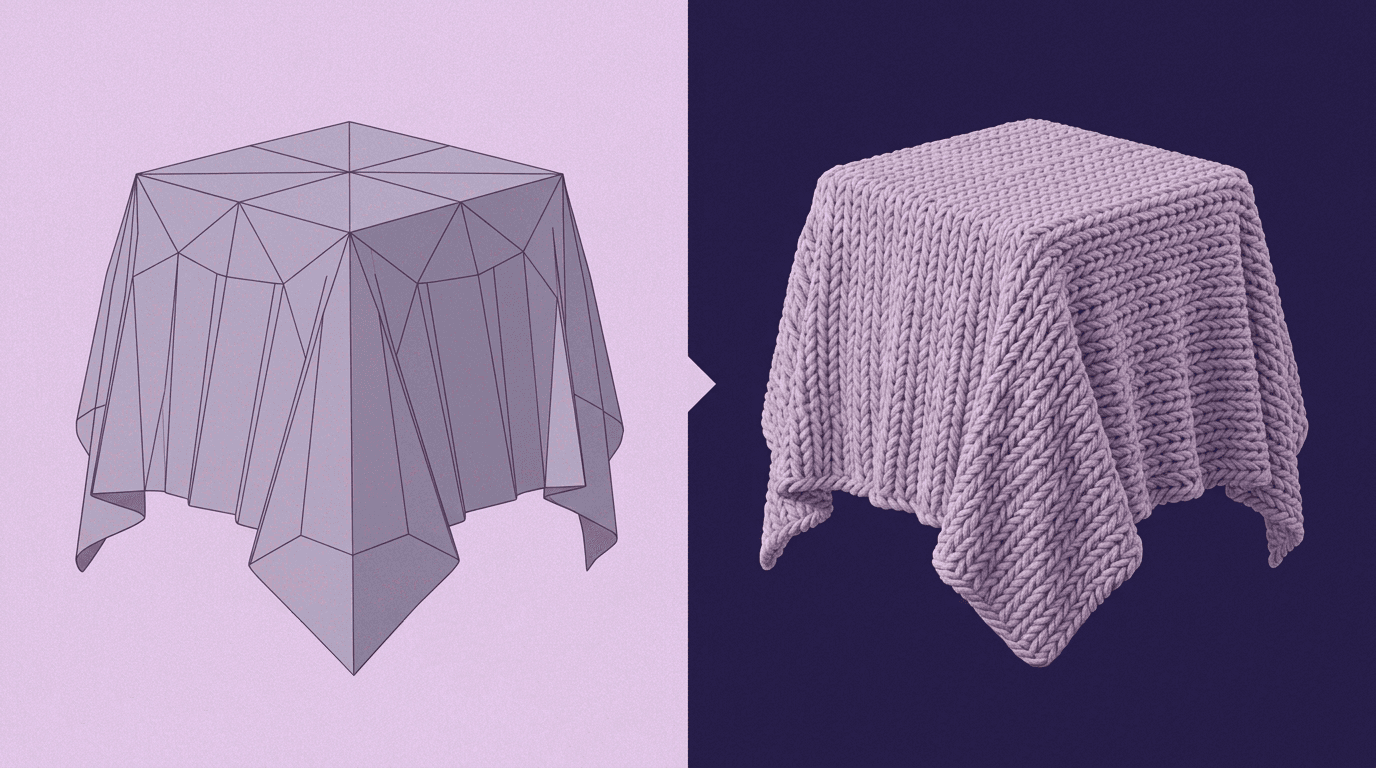
Prepare your workspace and model
Before we even touch a single shader node, a little prep work saves a world of headaches later. Getting your assets in order and ensuring your model is ready for texturing is the difference between a smooth workflow and a late-night troubleshooting session. Think of it as setting up your workshop before starting a project; you wouldn't start cutting fabric without measuring first.
Find and organize your PBR texture maps
A realistic material is built from a set of specialized images called texture maps. For cloth, you’re looking for a core set of four that work together to describe how the fabric should look and react to light. This is the foundation of a solid PBR cloth material.
Here’s what you need:
- Albedo (or Base Color): This is the flat color and pattern of the fabric, the plaid, the floral print, or the solid denim blue. It contains no lighting or shadow information.
- Roughness: This map is critical for realism. It’s a grayscale image that tells Blender which parts of the surface are matte (white) and which are shiny (black). For fabric, most of this map will be light gray, but subtle variations define the texture of the weave and how it catches the light.
- Normal: This is where the magic happens. A normal map is a special RGB image that fakes the high-resolution detail of the fabric's weave, threads, and stitches without adding any actual geometry to your model. It’s what gives the surface its tactile, physical quality.
- Displacement (or Height): While optional for some fabrics, a displacement map adds true physical depth. It pushes and pulls the surface of the model to create larger-scale details like thick cable-knit patterns or pronounced seams. It adds that final touch of realism.
Pro tip: Keep your files sane. Create a dedicated folder for each material and use a consistent naming convention like Denim_Albedo.png, Denim_Normal.png, and so on. When you’re staring at a complex node setup, clear names are a lifesaver. You’ll thank yourself later.
Check your model’s UVs before you start
UV mapping is the process of unwrapping your 3D model into a 2D plane so you can apply textures to it. If the UVs are bad, your textures will look stretched, warped, or misaligned.
Here’s what to look for:
- Minimal stretching: In the UV Editing tab, you can enable display stretching. Ideally, your entire map should be a solid blue. Patches of green or red indicate the texture will be distorted in those areas.
- Consistent scale: Make sure the different UV islands (the separate parts of your unwrapped model) are scaled relative to each other. A pocket shouldn't have a weave that’s ten times larger than the rest of the shirt.
- Smart seam placement: Just like in real garment construction, place your UV seams where they would naturally occur, along the sides of a shirt, the inseam of pants, or the edges of a collar. This hides the inevitable texture transition.
Action: Before you do anything else, open your model in Blender and switch to the UV Editing workspace. Select your model in Edit Mode to see its UV layout. A quick five-minute check now can save you hours of frustration.
Build your core fabric material
With our assets prepped and our model verified, it’s time to start building the fabric material Blender artists rely on. We'll start with the heart of Blender's material system, the Principled BSDF shader, and get our base color in place.
Set up the main cloth shader using Principled BSDF
The Principled BSDF node is your universal tool for creating physically-based materials. It consolidates dozens of complex shading properties into a single, easy-to-use interface. For 99% of materials, including every fabric you can imagine, this is your starting point and your control panel.
Action: Select your garment model. In the Material Properties tab, click New to create a new material. Give it a descriptive name like Denim Material. Then, switch to the Shader Editor workspace. You should see two nodes by default: a Principled BSDF node connected to a Material Output node. This is our canvas.
Plug in the base color (Albedo) map
The Albedo map, or Base Color, is the visual identity of your fabric. It defines the core pattern, color, and any printed designs. Plugging this in is the first step to bringing your material to life.
Here’s how to do it:
- In the Shader Editor, press Shift + A to open the Add menu.
- Go to Texture > Image Texture and place the new node to the left of your Principled BSDF.
- Click the Open button on the Image Texture node and navigate to your Albedo map (e.g., Denim_Albedo.png).
- Click and drag the yellow Color dot from the Image Texture node to the Base Color input on the Principled BSDF node.
Result: You'll immediately see the pattern appear on your model in the 3D Viewport (make sure you're in Material Preview mode). It’s a great start, but it will look flat, lifeless, and plasticky. It lacks surface detail and proper light interaction. That’s what we’ll fix next.
Add realistic surface detail
A fabric's character comes from its texture, the tiny threads, the subtle imperfections, and the way it reflects light. Right now, our material is just a colored surface. In this section, we’ll use our other texture maps to add the physical details that sell the illusion of real cloth.
Create fabric texture with a Normal Map
This is the single most important step for making your fabric feel real. Normal maps are a performance-friendly way to simulate fine geometric detail, like the intricate weave of a piece of linen or the diagonal twill of denim. They tell Blender how light should bounce off the surface as if those details were really there, creating shadows and highlights that trick the eye.
Here’s the correct node setup for cloth normal maps:
- Add another Image Texture node (Shift + A > Texture > Image Texture) and open your Normal map file.
- Crucially, on this Image Texture node, change the Color Space from sRGB to Non-Color. Normal maps contain data, not color, and this setting ensures Blender interprets that data correctly.
- Add a Normal Map node (Shift + A > Vector > Normal Map).
- Connect the Color output of your Normal map texture to the Color input of the Normal Map node.
- Finally, connect the Normal output of the Normal Map node to the Normal input of the Principled BSDF shader.
You should see an immediate, dramatic change. Your flat surface now has a tangible texture. You can adjust the Strength value on the Normal Map node to dial the effect up or down, but it’s best to start with the default value of 1.0.
Control the shine with a Roughness Map
Why does cotton look soft and matte while silk has a gentle sheen? The answer is roughness. The Roughness map tells Blender how scattered or concentrated the light reflections should be. Pure white values create a perfectly diffuse, matte surface, while pure black creates a mirror-like reflection. For fabrics, the map will mostly be shades of gray.
Why it matters: This map prevents your fabric from looking like plastic. A uniform roughness value makes a material look fake. A detailed map, where the threads might be slightly shinier than the gaps between them, adds a layer of subtle realism.
Action:
- Add a new Image Texture node and open your Roughness map.
- Just like the Normal map, set its Color Space to Non-Color, as it also contains data.
- Connect the Color output of the Roughness map texture directly to the Roughness input on the Principled BSDF node.
Now, the light interacting with your material will look far more natural. You've defined its microsurface properties, taking your Blender cloth texturing to the next level.
Add depth with a Displacement Map
While Normal maps are great for faking fine details, Displacement maps create actual changes in the model's geometry at render time. This is perfect for fabrics with larger, more pronounced textures, like a thick wool sweater, a quilted jacket, or chunky corduroy. It adds a sense of weight and thickness.
Action: The setup for displacement is a bit different, as it connects to the final Material Output node, not the Principled BSDF.
- Add a new Image Texture node, open your Displacement map, and set its Color Space to Non-Color.
- Add a Displacement node (Shift + A > Vector > Displacement).
- Connect the Color output of the displacement texture to the Height input of the Displacement node.
- Connect the Displacement output of the Displacement node to the Displacement input of the Material Output node.
Important Note: By default, this effect will be very subtle or non-existent. To make it work in Cycles, you need to go to the Material Properties tab, scroll down to the Settings panel, and under Surface, change the Displacement method to Displacement and Bump. You can then control the intensity with the Scale value on the Displacement node. A little goes a long way; start with a tiny value like 0.01.
Refine your cloth texture for a pro finish
With the core material built, it’s time for the artistic touches that elevate a good render to a great one. This involves advanced techniques like layering materials and fine-tuning shader settings to perfectly match the properties of specific fabrics.
How to blend multiple textures on cloth in Blender
Garments are rarely made of a single, pristine material. They get worn, stained, or have printed graphics on them. To achieve this, you need to blend multiple textures or even completely different materials together. The key is using a black-and-white image, known as a mask, to control the blend.
Let’s say you want to add a screen-printed logo to a t-shirt. Your base material is the cotton fabric we've been building. You'll need a second material for the logo's ink.
Tools & Workflow:
- Create your second material. This could be another Principled BSDF with a slightly lower roughness and a different color to simulate the plastisol ink of a logo.
- Add a Mix Shader node (Shift + A > Shader > Mix Shader). Place it between your main Principled BSDF and the Material Output node.
- Plug your primary fabric material into the top Shader socket of the Mix Shader.
- Plug your second (logo) material into the bottom Shader socket.
- Now, for the mask. Add an Image Texture node and load a black-and-white image of your logo. The logo itself should be white, and the background black.
- Connect the Color output of this mask texture to the Fac (Factor) input of the Mix Shader.
Where the mask is white (the logo), Blender will use the second shader input. Where it's black (everything else), it will use the first. This powerful technique is the answer to how to blend multiple textures on cloth in Blender. Users need to add complexity and storytelling to their materials.
Fine-tune settings for specific fabrics
Not all fabrics are created equal. The Principled BSDF node has several other parameters that are perfect for dialing in the unique look of different textiles. Here are a few common examples:
- Silk: Silk has a unique soft sheen caused by light scattering across its smooth fibers. To replicate this, use a low Roughness value (around 0.1-0.3). More importantly, increase the Sheen parameter. This adds a soft, velvety highlight at grazing angles, which is characteristic of materials like silk and velvet.
- Cotton: Cotton is the opposite. It's highly diffuse and non-reflective. For cotton, you’ll want a high Roughness value (0.8 or higher), and you should ensure the Metallic value is always set to 0. The Normal map does all the heavy lifting for cotton's texture.
- Translucent fabric (e.g., Chiffon or Sheer Curtains): For thin fabrics that let some light pass through them, you need Subsurface Scattering (SSS). This simulates light penetrating the surface, bouncing around inside, and exiting at a different point. How do I achieve realistic subsurface scattering for thin fabrics? Increase the Subsurface value on the Principled BSDF (start with something like 0.1). Choose a Subsurface Color that matches your Albedo. This will give the fabric a delicate, luminous quality, especially when lit from behind.
Finalize and render your scene
Your material is built, but the job isn't quite done. The final steps involve ensuring the texture is scaled and positioned correctly on your specific model, and that your render settings are optimized to capture all the beautiful detail you've just created.
Adjust texture mapping to fit your model
A seamless tiling cloth texture Blender file is designed to repeat perfectly, but you still need to control its scale. A denim weave might look great on a pair of jeans, but ridiculously large on a small pocket. This is where the Mapping node comes in.
Action:
- In your Shader Editor, select all of your Image Texture nodes that make up the fabric (Albedo, Normal, Roughness, etc.).
- Press Ctrl + T (assuming you have the Node Wrangler addon enabled, which you should). This will automatically add a Texture Coordinate node and a Mapping node, connecting them to all selected textures.
- By default, it will use the UV output from the Texture Coordinate node, which is what we want.
- Now, use the Scale values in the Mapping node. Increasing the X, Y, and Z values will make the texture appear smaller and more repetitive on your model. Decreasing them will make it larger. Adjust these values until the scale of the fabric's weave looks correct for the size and type of garment.
This is the most common adjustment you'll make when applying a material to a new object. It's the final step in the texture mapping cloth process.
Tweak render settings for crisp fabric details
Your render engine and its settings play a huge role in the final quality. A beautifully crafted material can look muddy if the render settings aren't right.
- For cycles: Cycles is a path-tracing engine, meaning it delivers superior realism, especially for complex light interactions like Subsurface Scattering. The key here is samples. Fine details from your Normal map and the subtle glow from SSS can appear noisy at low sample counts. For a final render, you’ll want at least 1024 samples, and you should enable a denoiser (like OptiX or OpenImageDenoise) to clean up any remaining noise without smudging the details.
- For eevee: Eevee is Blender’s real-time render engine, and it’s fantastic for quick previews and stylized looks. To get the most out of your fabric materials in Eevee, you need to enable a few key settings in the Render Properties tab. Make sure Ambient Occlusion is turned on to create soft contact shadows in the crevices of your fabric. More importantly, enable Screen Space Reflections and turn on Refraction within its dropdown. This will help Eevee better represent the sheen and surface properties of your materials, preventing them from looking flat.
It's all in the details
You’ve built the shader, plugged in the maps, and tweaked the nodes. You now have a complete, professional workflow for creating photorealistic cloth materials from scratch. But what you’ve really learned goes beyond a node setup.
A perfect cloth simulation gives a garment its shape, but the texture, the material, gives it its soul. It's the subtle weave of cotton that makes it feel casual, the soft sheen on silk that reads as luxurious, or the rugged fade on denim that tells a story. This is the part of the process that turns a technically correct model into a believable digital product.
The techniques you’ve mastered here are your new foundation. Use them to build your own library of fabrics. Experiment by blending unexpected materials, painting custom wear-and-tear masks, and pushing the render settings to see what you can create. After all, the best designers know the rules perfectly, so they know exactly how to break them.
You’ve got the toolkit. Now go make something incredible.

Max Calder
Max Calder is a creative technologist at Texturly. He specializes in material workflows, lighting, and rendering, but what drives him is enhancing creative workflows using technology. Whether he's writing about shader logic or exploring the art behind great textures, Max brings a thoughtful, hands-on perspective shaped by years in the industry. His favorite kind of learning? Collaborative, curious, and always rooted in real-world projects.
Latest Blogs
The Indie Dev Guide to CC0 PBR Textures: Stop Searching, Start Cr...
PBR textures
AI in 3D design

Mira Kapoor
Jul 10, 2026
Sourcing Free Game Textures: Navigating PBR Pipelines and Stylize...
PBR textures
Game textures
Mira Kapoor
Jul 6, 2026
Sculpting with Sunlight: The Architectural Physics of Facade Text...
Texture creation
AI in 3D design

Max Calder
Jul 1, 2026

Accelerate you workflow
with automated PBR texture generation
Enjoy creative freedom with AI powered texture creation
 Texturly
Copyright © 2026 Texturly, Asha Technology Labs Pvt. Ltd. All rights reserved